%20500x1200.png?width=200&height=83&name=ALK%20Tech%20Logo%20(TransparentTextured)%20500x1200.png "ALK Tech Logo (TransparentTextured) 500x1200")
XASTRA is a relatively new brand in the PC hardware space, and its ASTRA LZ360 ARGB 360mm AIO CPU cooler is yet another feather in the brand's cap, where it performs pretty well thermals-wise, and features eye-catching matrix LED displays on the pump cover and on the sides of the triple 120mm cooling fans that it comes with.
Review Video Timestamps
0:00 Introduction
0:55 Packaging & Accessories
3:00 Exterior Walkthrough
4:23 Connectivity & Specs Continued
4:41 Installation Experience
5:45 Test Setup, Thermal & Acoustic Performance
8:25 XASTRA Matrix App Walkthrough
10:34 Conclusion & Pricing
Introduction

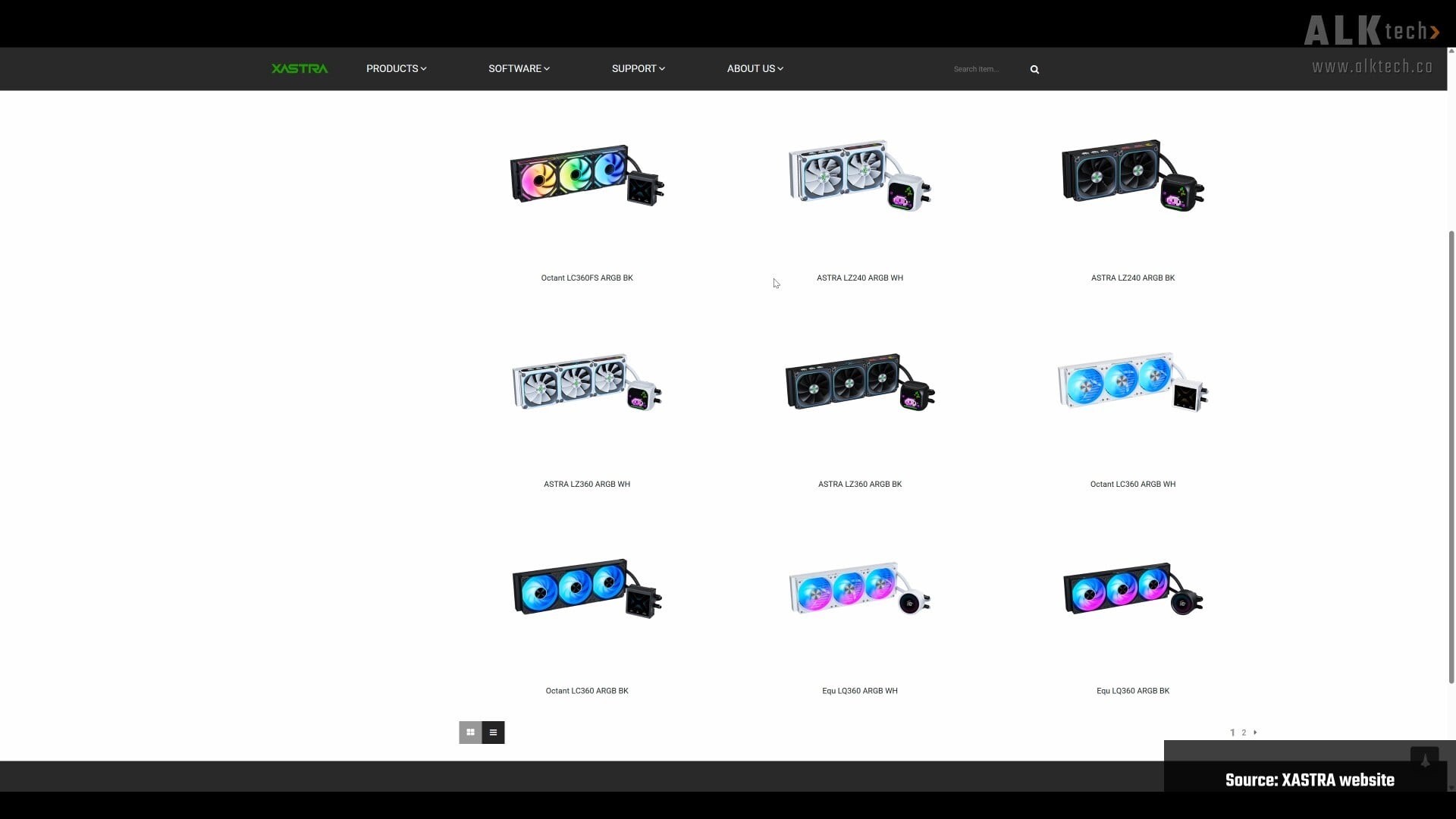
XASTRA is a relatively new Chinese PC hardware brand that was founded in 2024, where their products are predominantly focused on the realms of CPU air cooling, CPU liquid cooling, case fans as well as PC cases. The brand's been making its presence felt in recent months, with appearances at major tech shows such as Computex 2026 that took place a few months ago.
For this review, we'll be taking a look at an AIO liquid CPU cooler that sports a unique aesthetic all thanks to its liberal use of matrix LED displays - the XASTRA ASTRA LZ360 ARGB. Available in black or white colourways, this 360mm AIO CPU cooler packs a 16x16 matrix LED display on its pump block, as well as 28x8 matrix LED displays on the sides of its triple preinstalled 120mm radiator fans. Read on to learn more about this AIO CPU cooler, and to see it in action as part of a demo build powered by AMD's Ryzen 9 9900X processor.
Summary of Specifications
- Colours: Black or white
- Socket Compatibility: AMD AM5/AM4, Intel LGA1851/1700/1200/115X
- Radiator Dimensions: 394mm x 120mm x 27mm (LxWxH)
- Radiator Material: Aluminium
- Tube Material: Rubber
- Tube Length: 400mm
- Cold Plate Material: Oxygen-free copper
- Pump Speed: 600~3000±10% RPM
- Pump Bearing Type: Ceramic
- Fans: 3x 120mm ARGB with 28x8 matrix LED side accents
- Fan Speed: 800-2200±10% RPM
- Fan Airflow: 74.76 CFM
- Fan Air Pressure: 3.72mmH2O
- Screen: Yes, 16x16 matrix LED
- Official Product Page (Black): https://www.xastrapc.com/shop/liquid-coolers/astra-lz360-argb-bk/
Packaging & Accessories
.jpg)
.jpg)
Packaging wise, the cooler ships in a cardboard box with a white and green colourway, nothing out of the ordinary here. The AIO is available in black or white, and for this review, I’ve got the black variant on hand.
.jpg)
.jpg)
.jpg)
Opening up the box, we see that the AIO’s nestled in moulded pulp packaging. We’ve also got two white boxes, with one box containing the accessories that the AIO ships with, and the other box, the proprietary ARGB and fan hub that the AIO cooler ships with, along with its accompanying cables.
.jpg)
.jpg)
Taking a closer look at the included ARGB and fan hub, it utilises proprietary nine-pin connectors for XASTRA’s matrix LED fans (and potentially other XASTRA matrix LED devices in the future) that can be purchased separately too, where we’ve got 14 channels in total. It’s powered by two SATA power connectors, and we’ve got a USB port (as shown above) that you’ll have to use to hook the hub up to your motherboard’s onboard USB 2.0 header. The other port’s for the included ARGB and PWM combo cable, which should also be hooked up to your motherboard.
Aesthetics & Physical Features
.jpg)
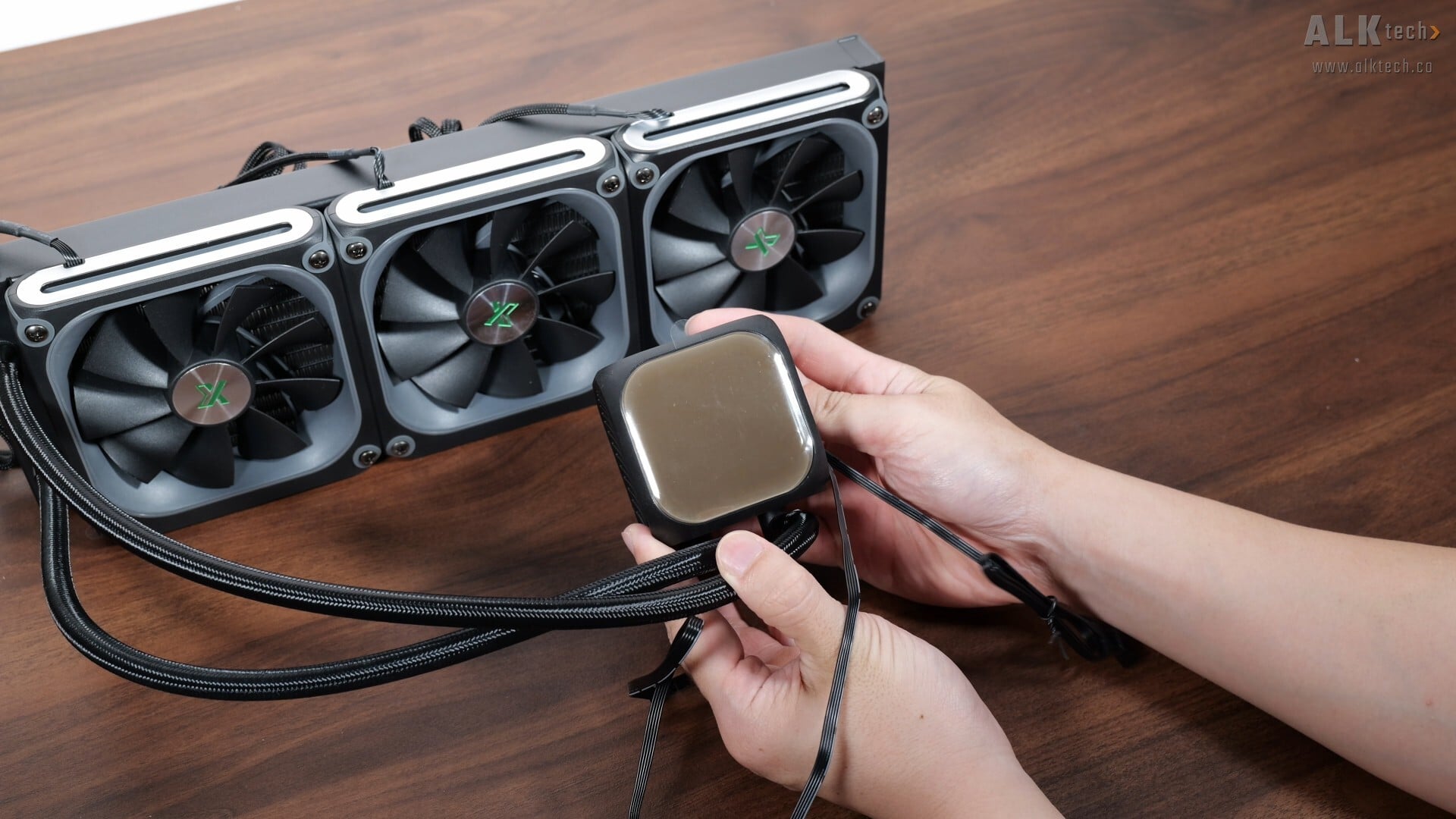
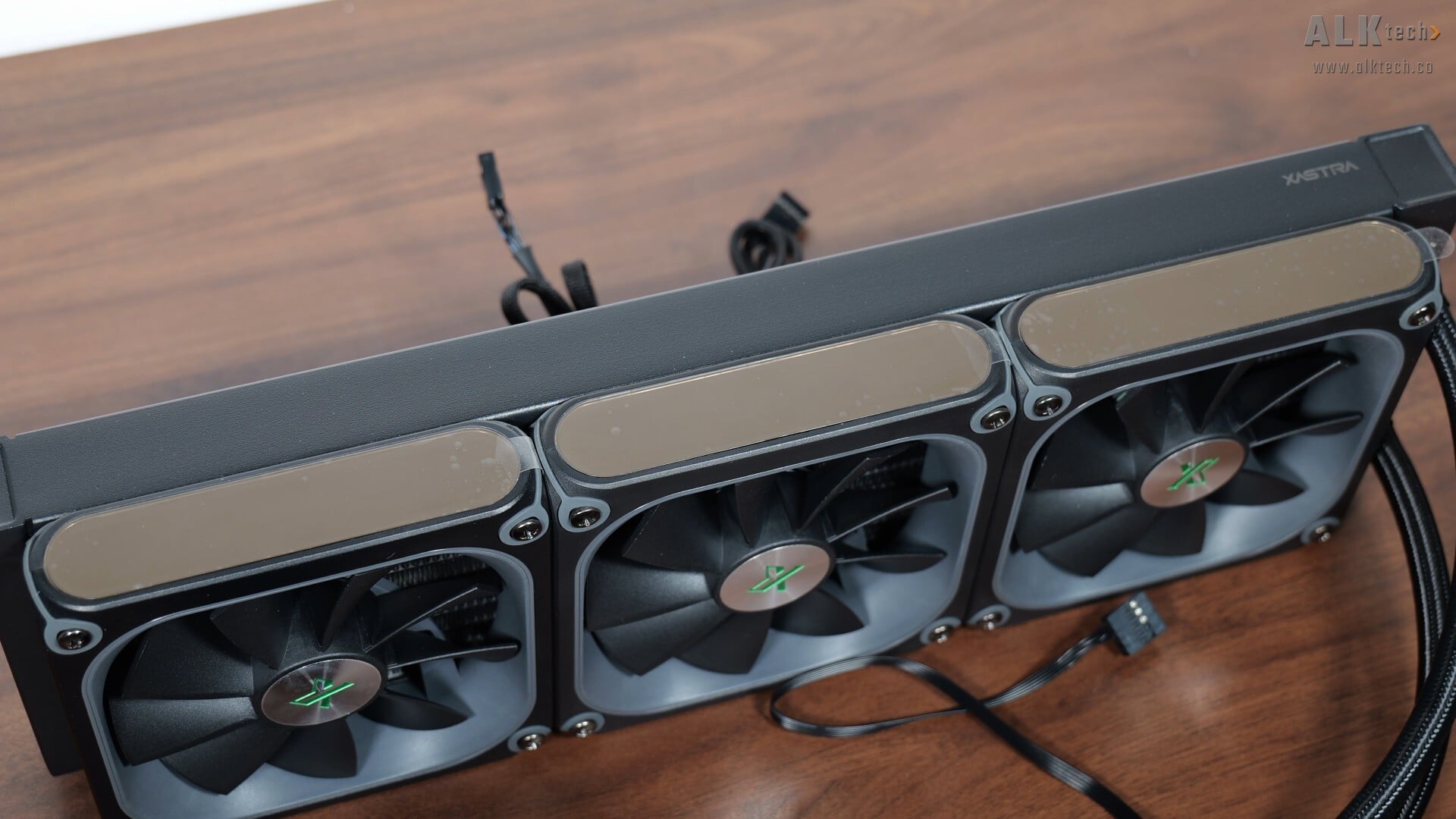
Aesthetics wise, the ASTRA LZ360 ARGB is targeted at folks who’d like an eye-catching PC build all thanks to the matrix LED display on the pump cover and sides of the triple fans that come preinstalled on the AIO.
.jpg)
.jpg)
For its fans, we do only get the matrix display on one side, the other sides have what XASTRA calls a “precision aluminium alloy cutout side frame”. The fans themselves look pretty sleek, with a nine-blade configuration and a brushed-aluminium effect for the fan hubs.
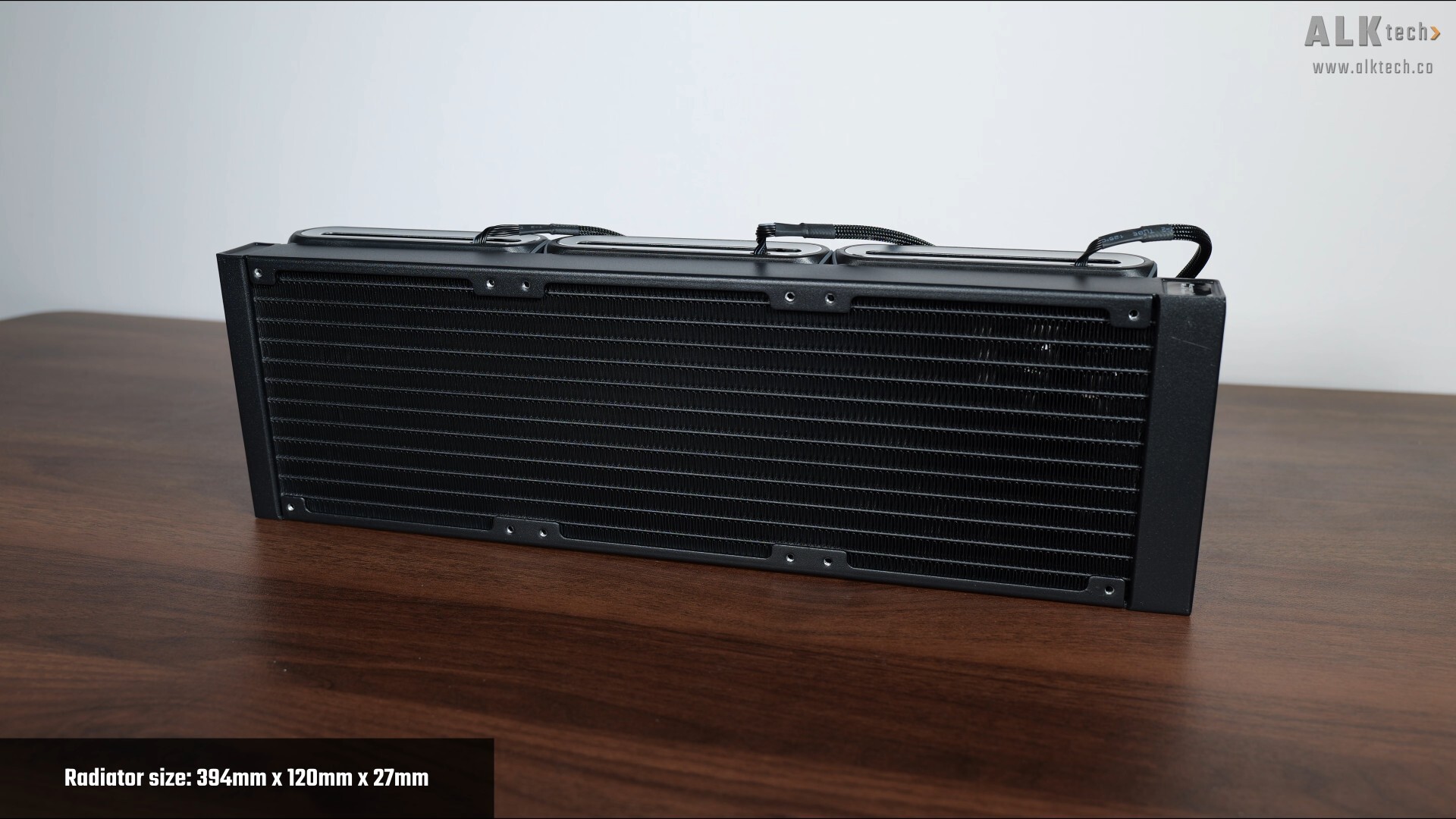
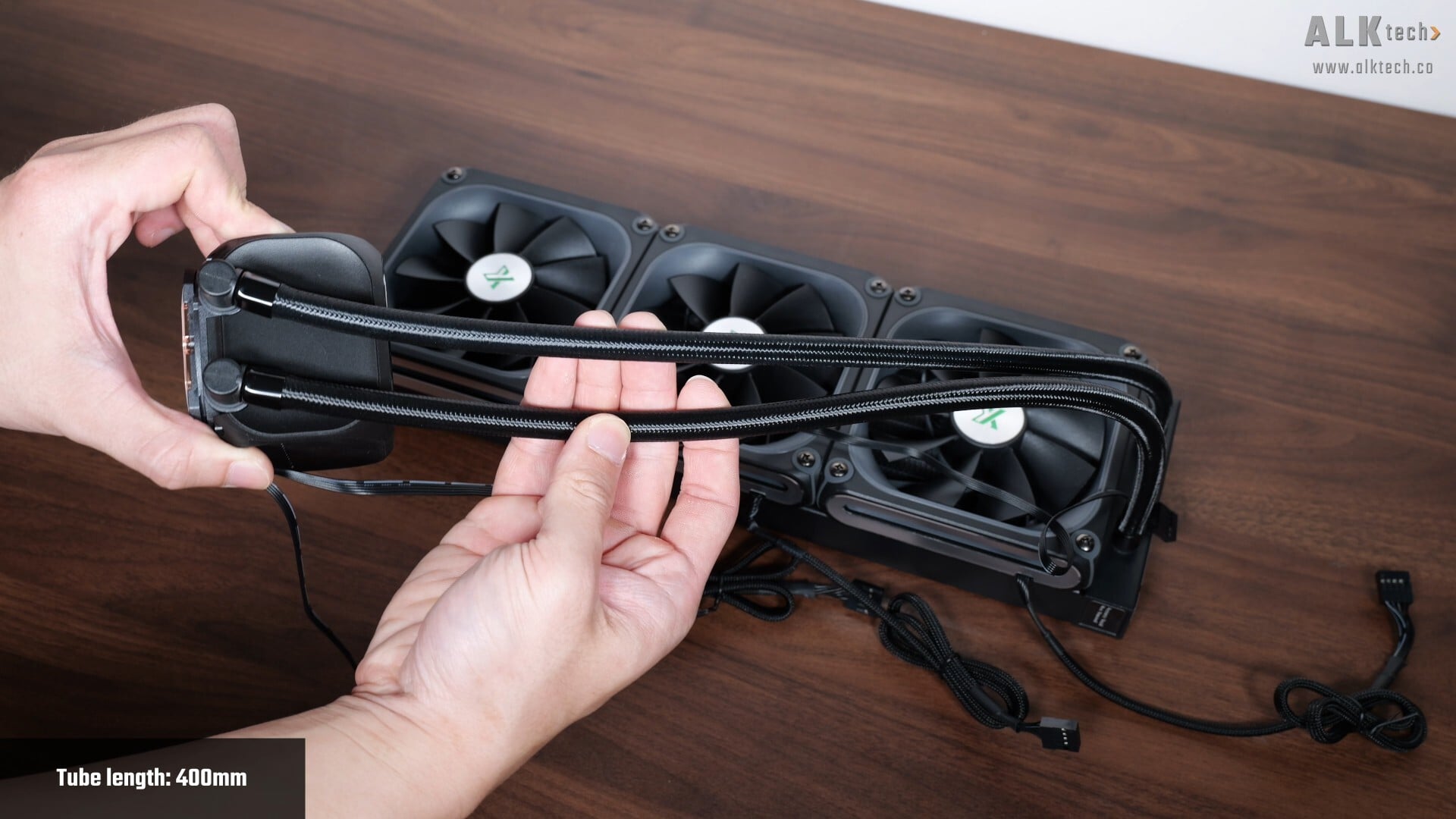
Moving on to the radiator, it measures in at 394mm x 120mm x 27mm and is made of aluminium. The tubes that run from the radiator to the pump assembly have a braided finish, where they measure in at approximately 400mm in length.
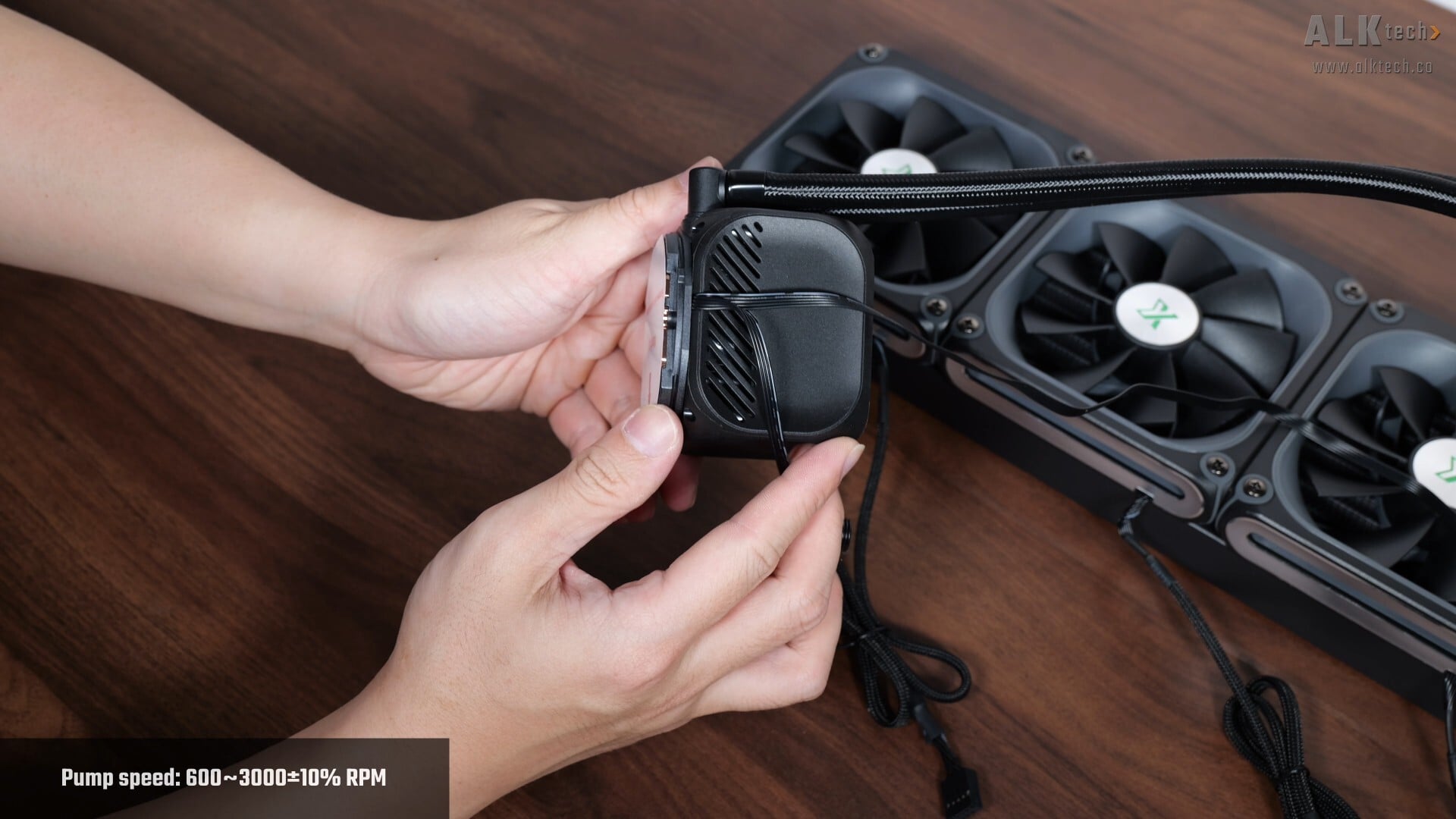
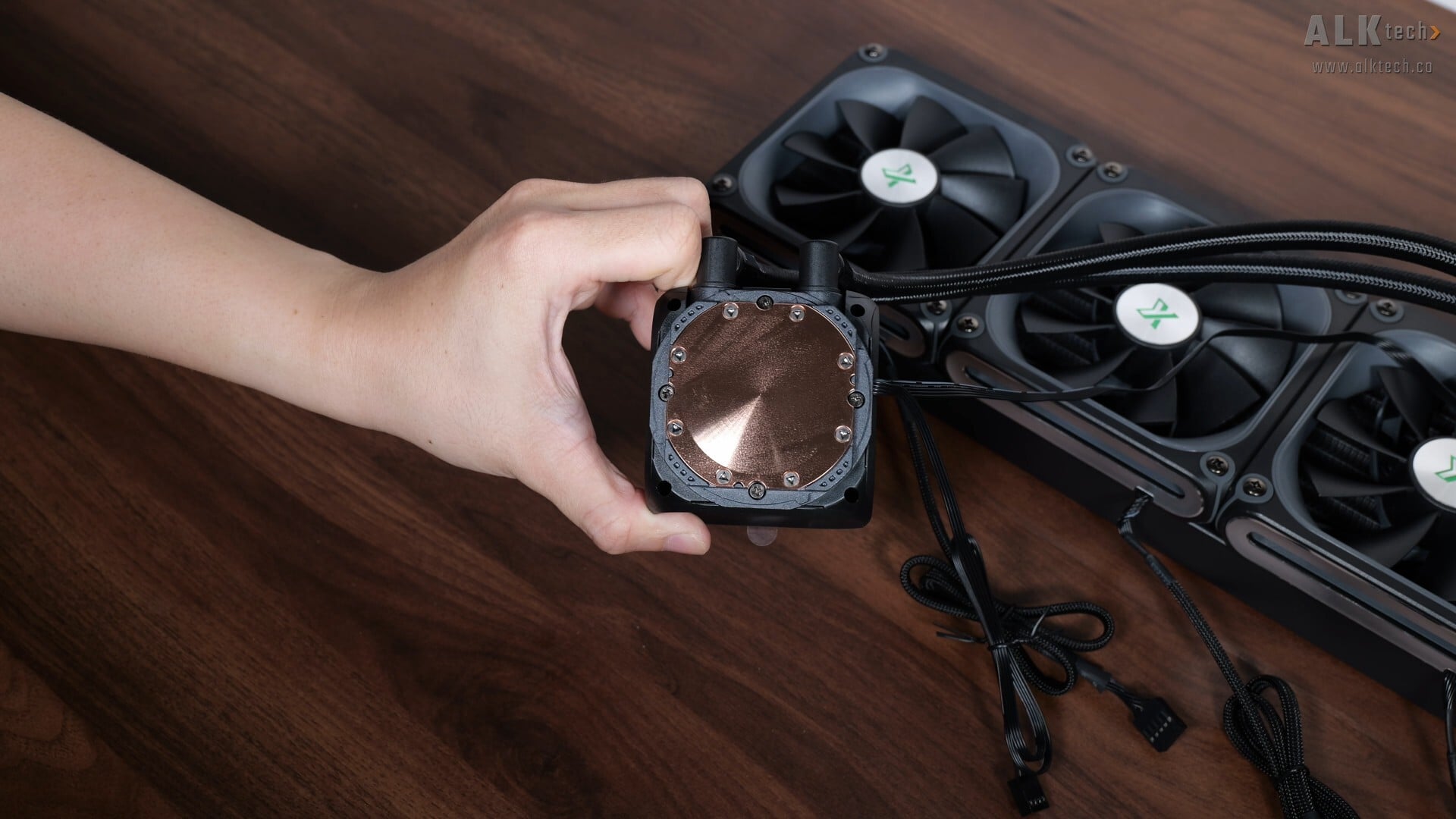
Taking a closer look at the pump block, we’ve got the matrix LED display integrated into the pump assembly. According to XASTRA, the pump uses a ceramic bearing, and over on the other side, we get an oxygen-free copper cold plate with a brushed finish.
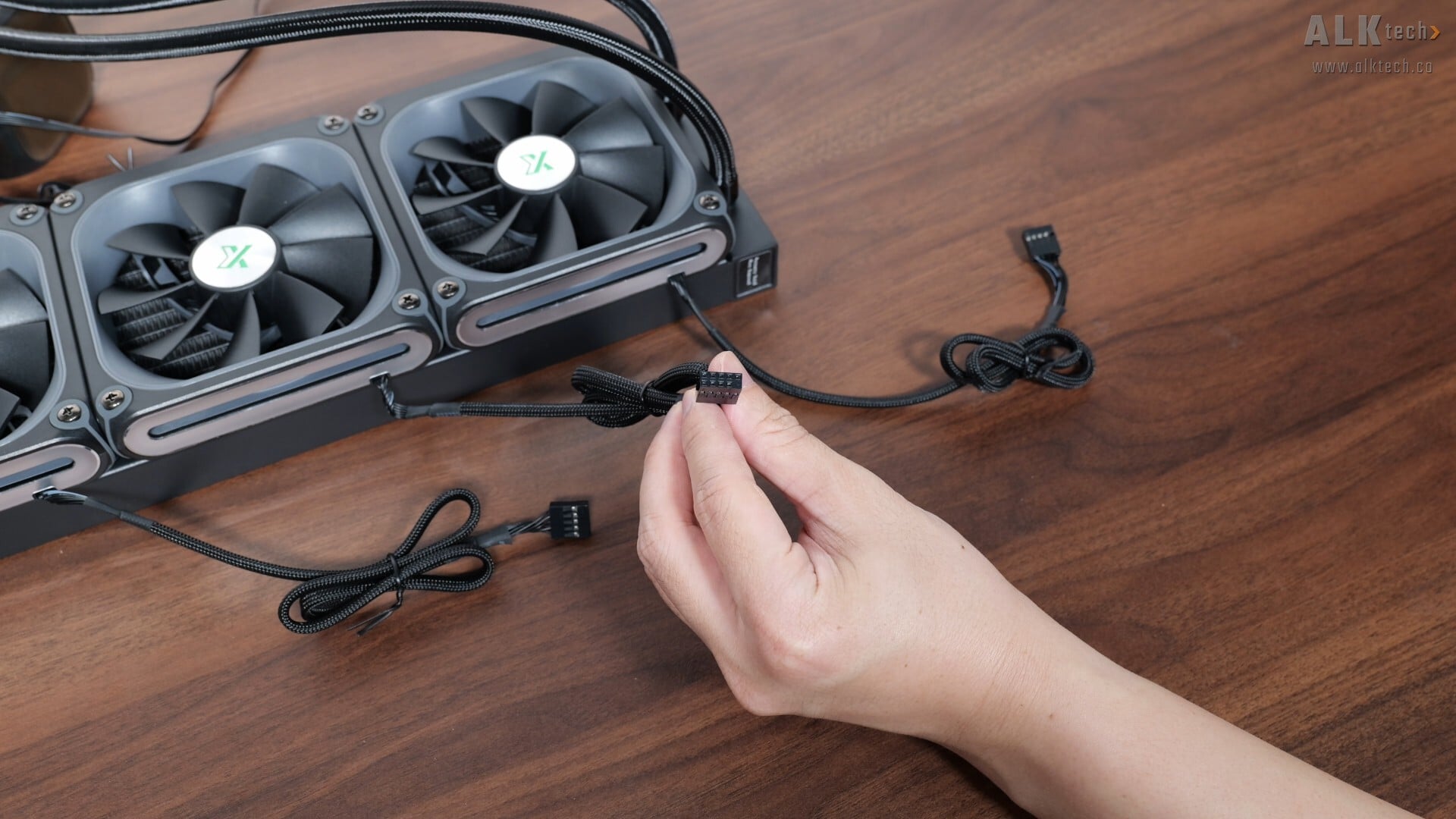
Connectivity wise, the AIO fans each have a proprietary nine-pin connector that you’ll have to hook up to the included ARGB and fan hub - this said connector's for power, speed control and RGB lighting control purposes
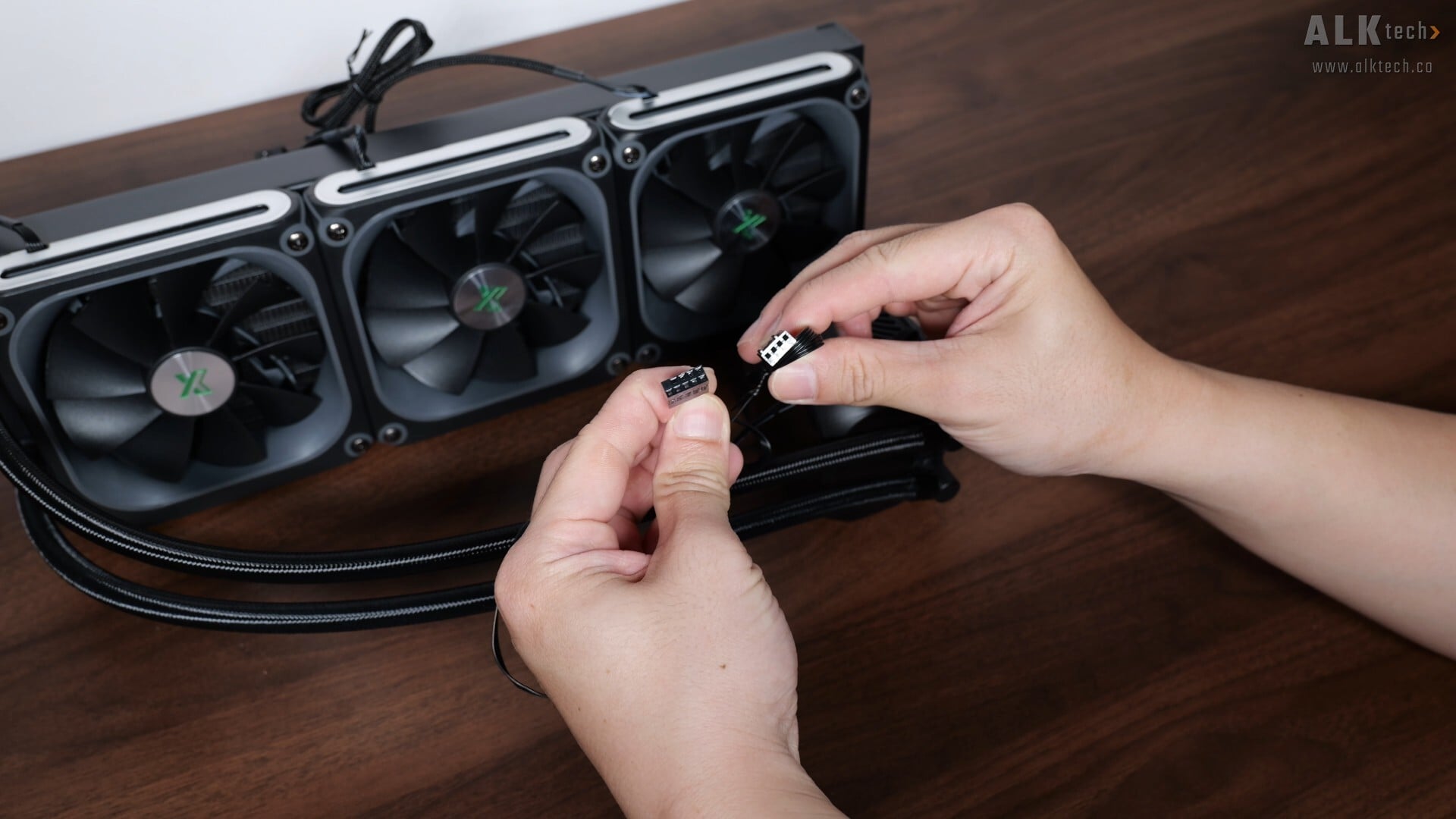
Ditto that for the pump block, where we also get the same proprietary nine-pin connector as well as a standalone PWM pump header.
Installation Experience
.jpg)
Installing the ASTRA LZ360 ARGB was pretty straightforward – for this review, I used it in a demo build with XASTRA’s QW505M ARGB microATX PC case, where this said build's powered by an AMD Ryzen 9 9900X processor.
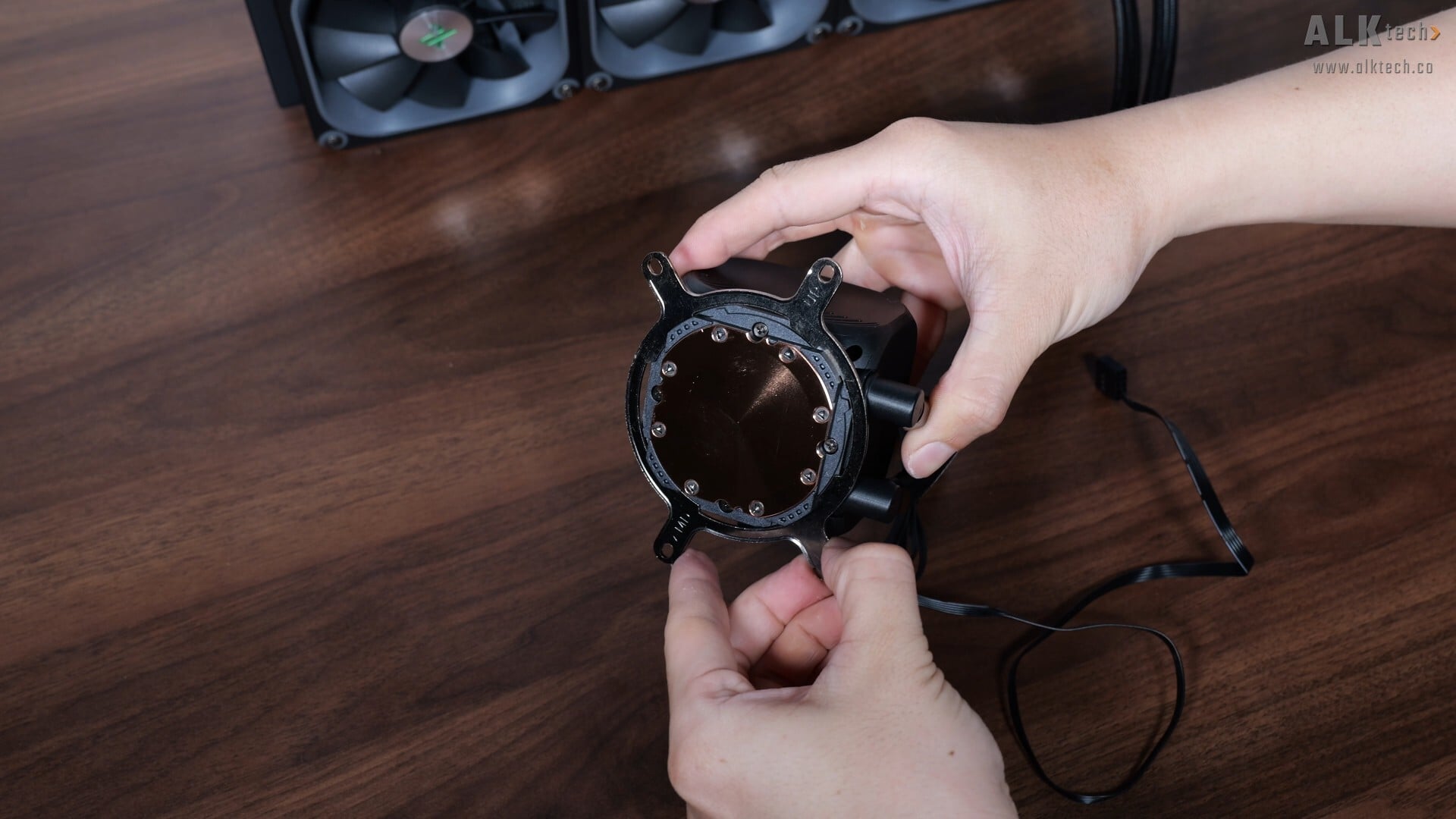
The AM5 installation experience was as straightforward as it gets, where it uses the default AM5 motherboard mounting backplate. First things first, you'll have to attach the AMD mounting bracket to the pump block, as pictured above.
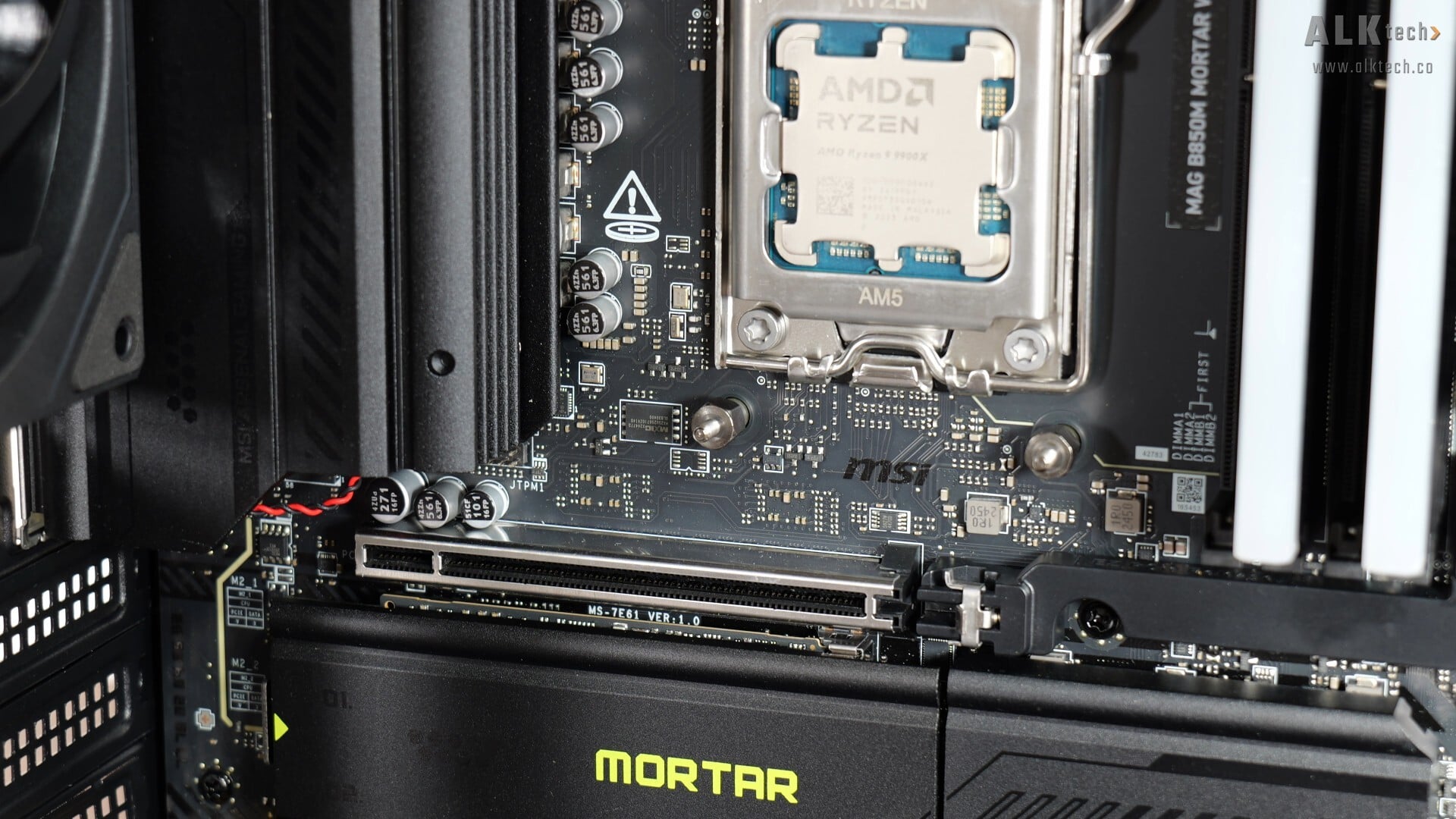
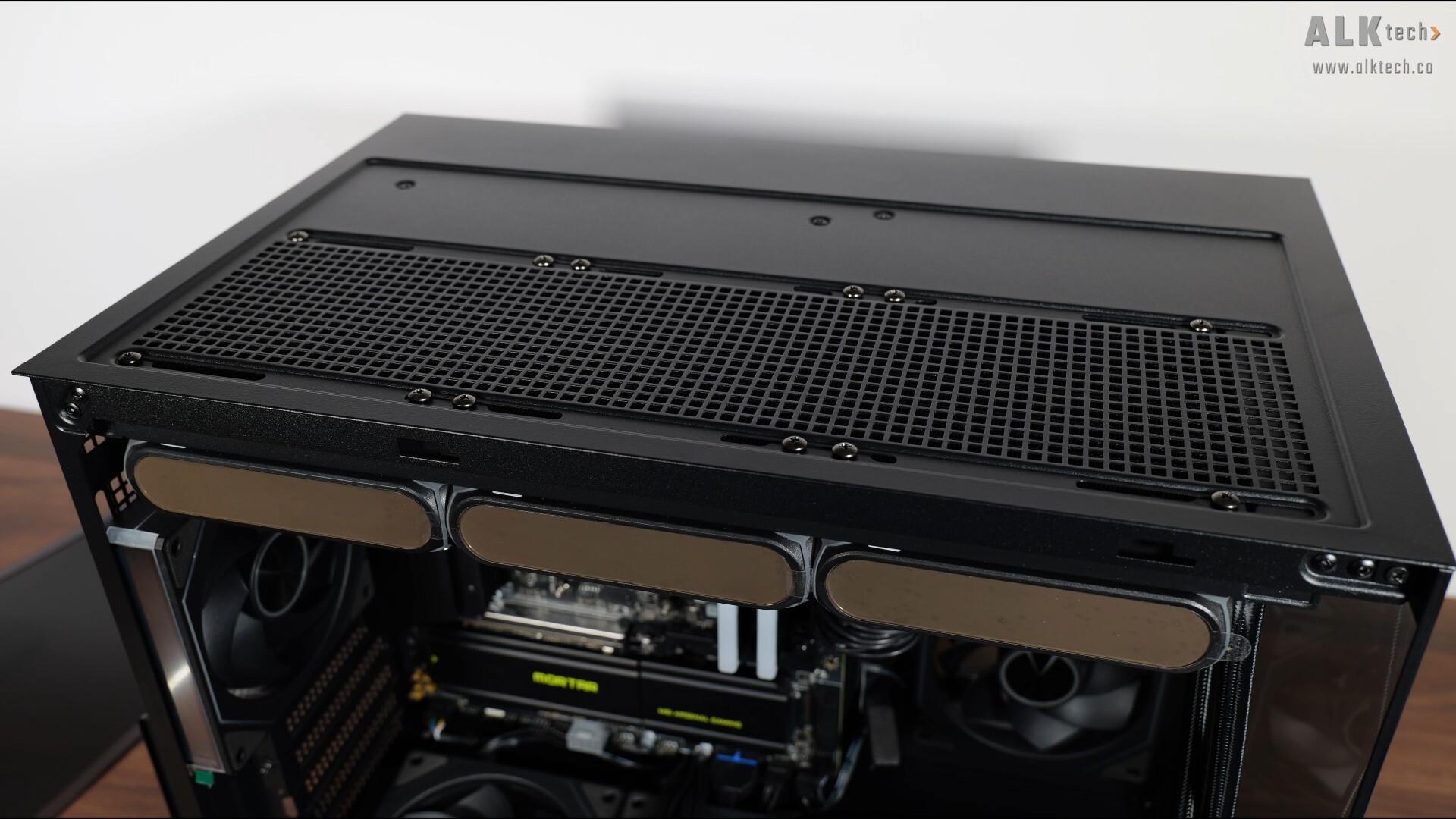
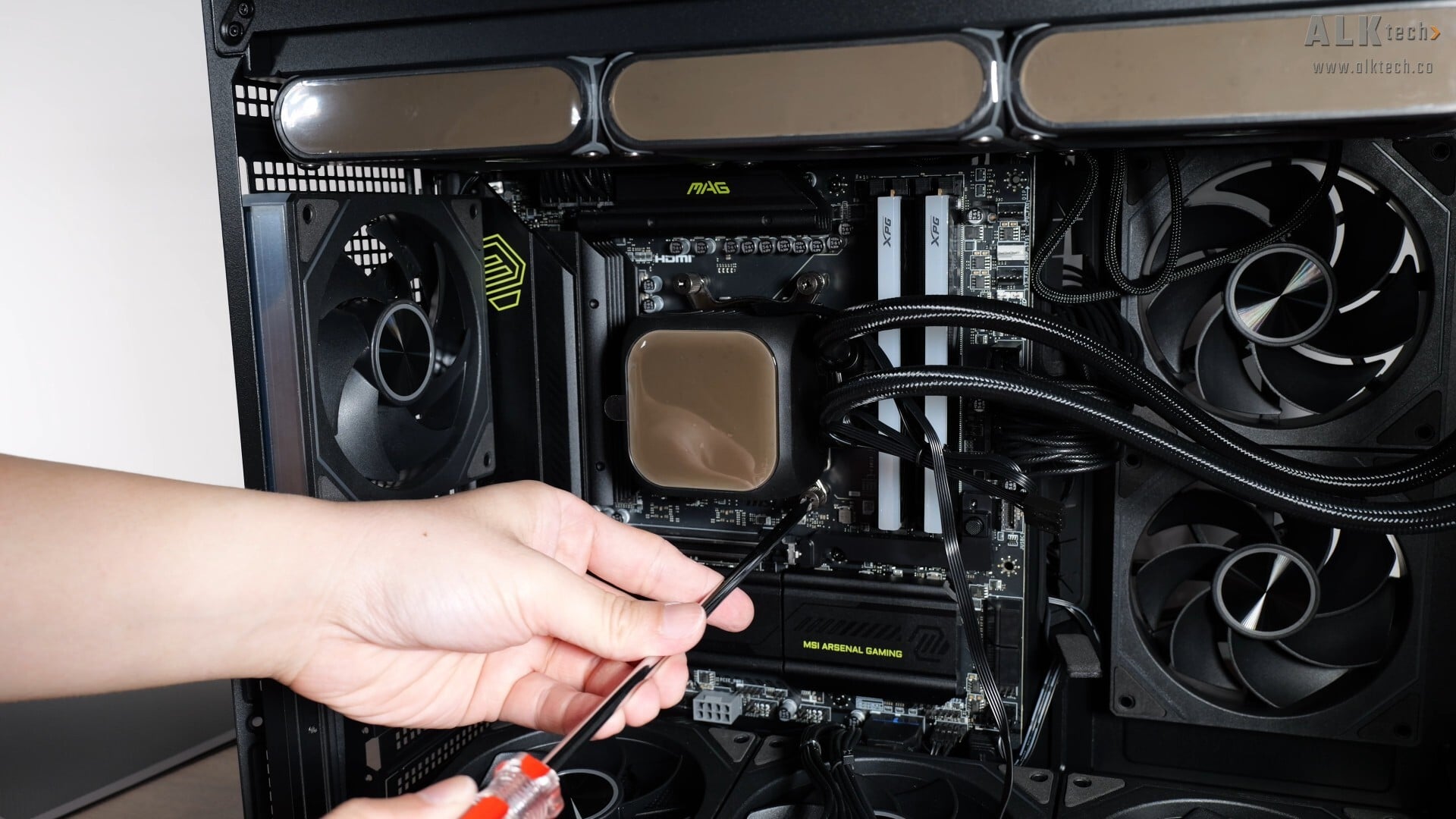
Thereafter, screw in the included standoffs on the mounting posts of your motherboard’s AM5 mounting bracket, apply thermal paste to the CPU, install the AIO’s radiator on the relevant mounting surface of your PC case, and secure the pump block to the mounting posts.
.jpg)
Getting the ARGB and fan hub installed was quite straightforward too, just bear in mind that the hub requires two SATA power connectors instead of one, which is more typical of ARGB/fan hubs.
Matrix LED Aesthetics
.jpg)
.jpg)
.jpg)
Once powered on, the matrix LED displays confer a certain character to the demo build, especially when compared to the ARGB fan lighting+LCD display on pump cover kind of combination that we typically get with higher-end AIO CPU coolers.
Thermal & Acoustic Performance
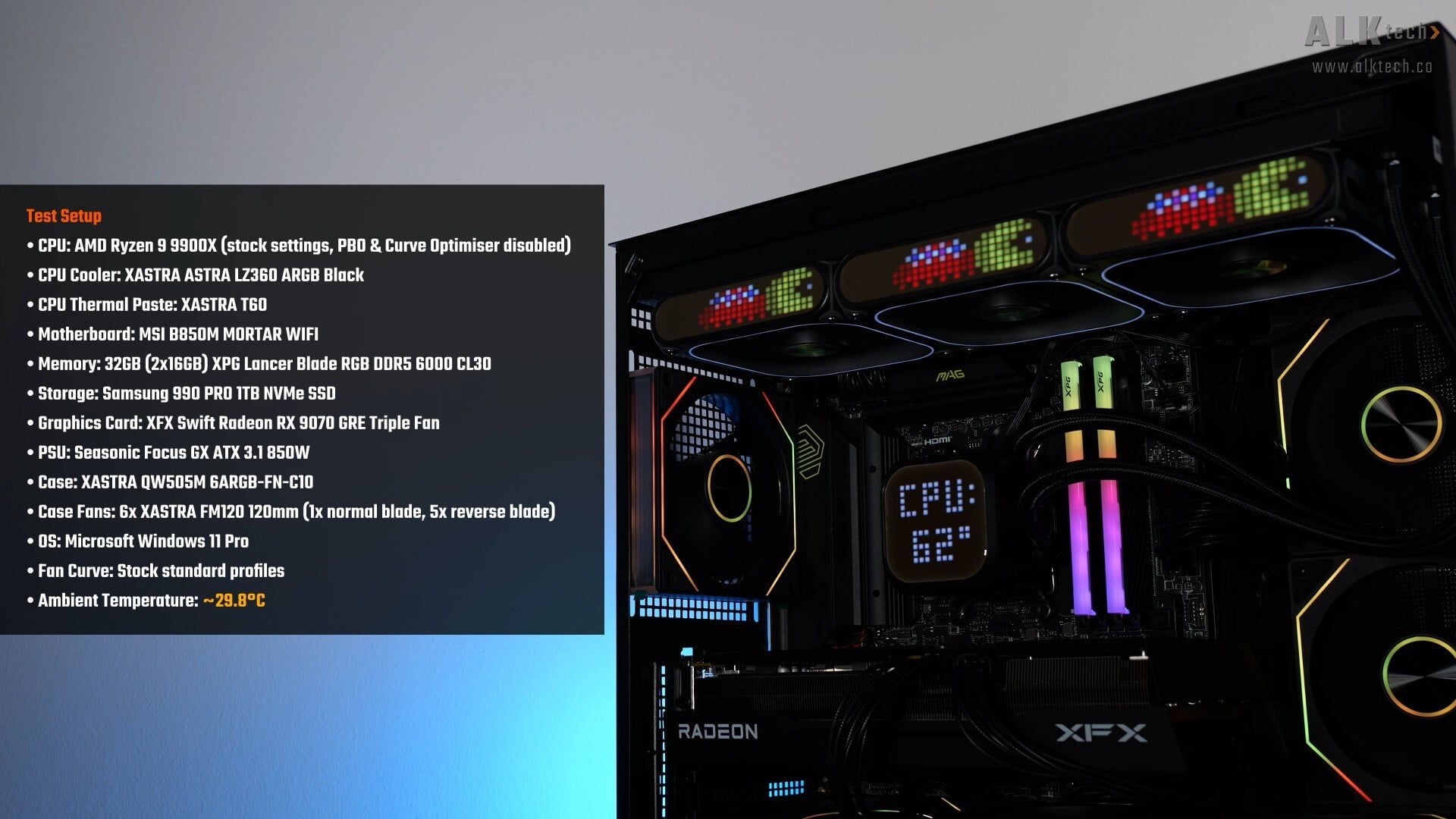
To benchmark the performance of the XASTRA ASTRA LZ360 ARGB, I put together a demo build with the following specifications:
- CPU: AMD Ryzen 9 9900X (stock settings, PBO and Curve Optimiser disabled)
- CPU Cooler: XASTRA ASTRA LZ360 ARGB
- CPU Thermal Paste: XASTRA T60
- Motherboard: MSI B850M Mortar WIFI
- Memory: 32GB (2x16GB) XPG Lancer Blade RGB DDR5 6000 CL30
- Graphics Card: XFX Swift Radeon RX 9070 GRE Triple Fan
- PSU: Seasonic Focus GX ATX 3.1 850W
- Case: XASTRA QW505M 6ARGB-FN-C10
- Case Fans: 6x XASTRA FM120 120mm (1x normal blade, 5x reverse blade)
- OS: Microsoft Windows 11 Pro (25H2 with all latest updates installed)
- Fan Curve: Stock standard profiles
To put the AIO through its paces, I’ll be running Cinebench 2024’s multi-core test, where I'll also be looking at the processor’s clock speed behavior and thermals when under an all-core workload – just for your info, I'll be running the 9900X on stock settings, that is, with PBO and Curve Optimiser disabled. I’ll also be running F1 23’s in-game benchmark to see how the AIO performs under a typical gaming workload.
For the purposes of the benchmarks, I left all the fan curves on their stock settings too, with no tweaks made whatsoever, and the tests were conducted in a non-airconditioned room with an ambient temperature of around 29.8°C. In addition, fan speeds were controlled via the motherboard instead of the XASTRA app.
Thermal Test Results
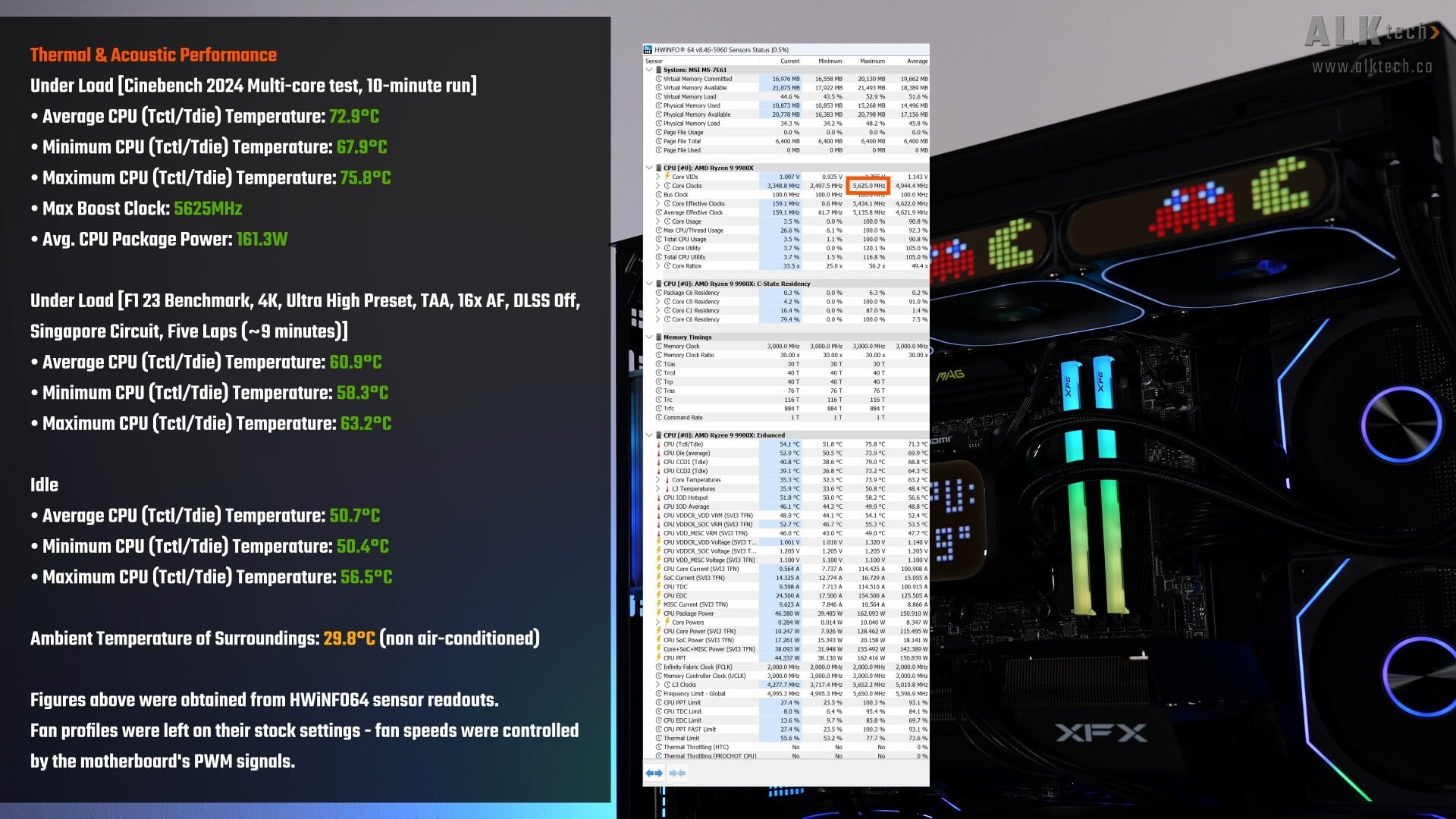
First up, we’ve got Cinebench 2024’s multi-core test, where after checking HWINFO64’s logs over the entirety of the test, the 9900X achieved an average CPU temperature reading of 72.9°C, with a low of 67.9°C, and a high of 75.8°C. During the multi-core test, the 9900X boosted to a maximum clock speed of slightly over 5.6GHz, and achieved an average CPU package power draw figure of 161.3W. In case you’re wondering, the 9900X scored 1799 for the multi-core test run.
Moving on to F1 23’s in-game benchmark test, the 9900X achieved an average CPU temperature reading of 60.9°C, with a low of 58.3°C, and a high of 63.2°C, and to wrap things up in the thermals department, I recorded an average CPU temperature of 50.7°C when the test bench was idle.
Acoustics
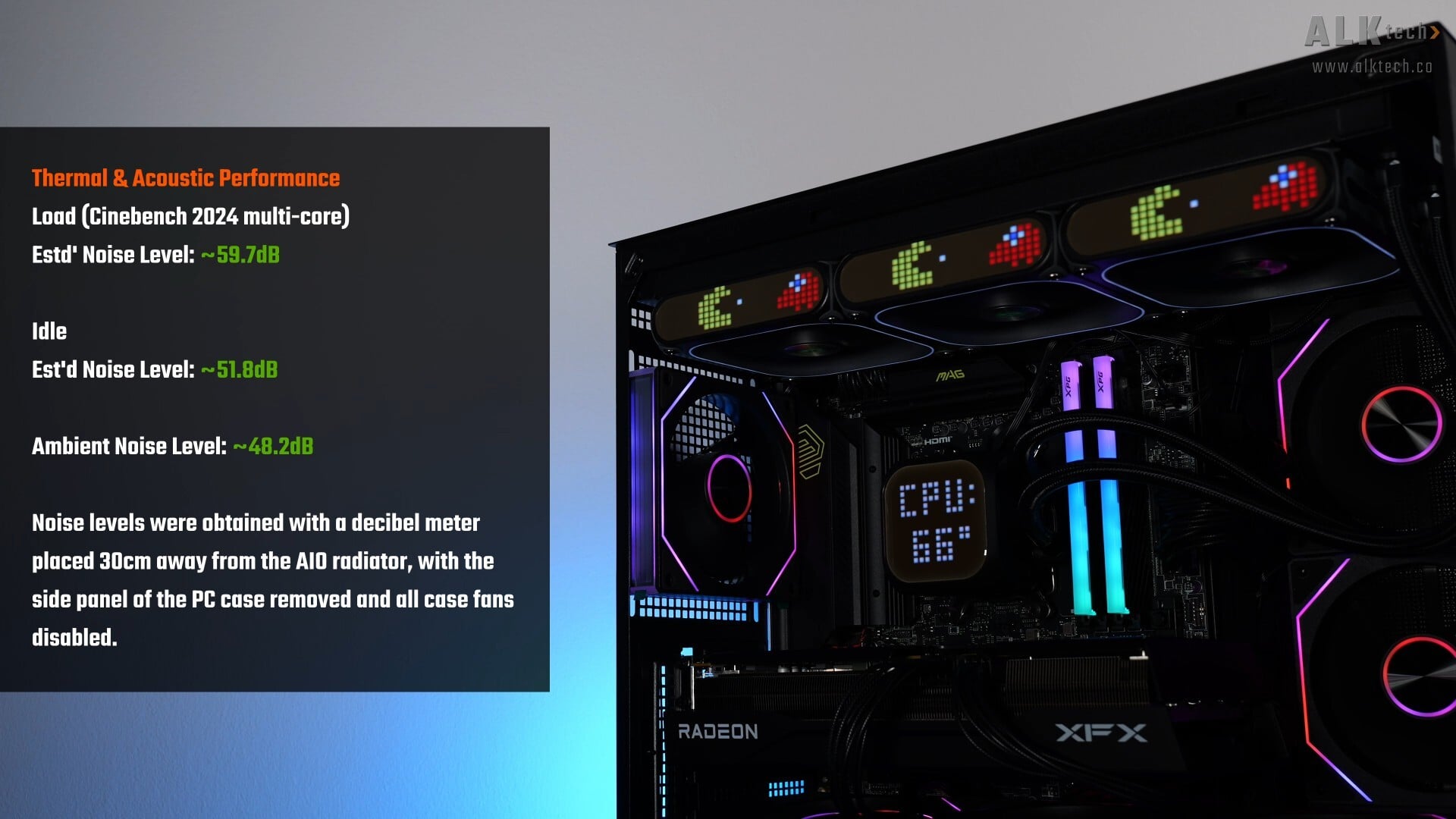
In terms of acoustics, during the Cinebench 2024 multi-core test, my decibel meter recorded an estimated average noise level of around 59.7dB during the multi-core test in an environment with an ambient noise level of 48.2dB, making the LZ360 ARGB audible for sure, but not to the extent that it was annoying, at least in my opinion.
At idle, the fans and pump were pretty silent, registering around 51.8dB on my decibel meter. To get these noise level readings, I had the side panel of the case open, and disconnected all case fans too, while having the decibel meter placed about 30cm away from the case.
XASTRA Matrix App
.jpg)
With that, let’s spend some time to talk about XASTRA’s Matrix app that you’ll have to use in order to configure what’s displayed on the matrix LED displays of the fans and the pump block. The app has a clean UI with four tabs, where under the "Fan" tab shown above, you can customise the appearance of the matrix display and the lighting effects of the AIO’s fans, as well as the fan speeds.
.jpg)
.jpg)
For the matrix display, we get a whole bunch of preset animations and statistics, and you get the ability to create your own custom graphic or animation as well – this is done by clicking on the “Pixel Screen” button, which brings up an interface for you to exercise your creative juices.
.jpg)
.jpg)
Under the “ARGB Light” sub-tab, we get lots of customisation options for the ARGB frame light found around the fan blades, and under the “Fan Speed” tab, we get software adjustments for fan speed, and you can of course have the AIO’s fans controlled via your motherboard’s PWM signals instead.
.jpg)
.jpg)
.jpg?width=1920&height=1080&name=XASTRA%20Matrix%20App%20(8).jpg)
Under the “Liquid Cooling” tab, we get an interface for customising what’s shown on the pump block’s matrix LED display, again with a bunch of preset animations and system statistics to choose from. Under “Pixel Screen”, you once again get the ability to come up with your own custom graphic or animation.
.jpg)
The "Air Cooler" tab I’m guessing, is for when you have a compatible XASTRA fan that comes with a matrix display screen (as of the time of writing this article, such a product doesn't seem to exist yet on XASTRA's product listing page), while finally, for the “Hardware” tab, we get information on the specs of your PC build.
Conclusion & Pricing
To sum up, I think that the ASTRA LZ360 ARGB is a pretty good AIO CPU cooler that stands out courtesy of its well-executed matrix LED displays, something that I've not really seen being offered with other competitor AIO CPU cooler offerings, at least as of the time of publishing this review. It’s also relatively well-built and from a thermal perspective, performs pretty well with high-end processors too.
One thing worth mentioning though, is the fact that the included fans all utilise a proprietary nine-pin connector, which means that you’ll be locked in to XASTRA’s ecosystem of matrix LED fans and the use of their included proprietary ARGB/fan hub - this is something to take note of, especially if your system already utilises a standard ARGB-and-four-pin PWM fan hub for say, your existing ARGB case fans.
In terms of pricing, the Astra LZ360 ARGB is currently available to purchase in Singapore for a price of around $229 Singapore dollars for the black variant, and around $239 for the white variant, placing it in higher-end territory as far as AIO CPU coolers are concerned. Outside of Singapore, global availability for XASTRA's products seems to be spotty at best - hopefully in due course, we'll start to see their products appear on mainstream PC hardware sales channels such as Amazon and Newegg.
Get this AIO CPU cooler from Amazon: https://amzn.to/46VmCtt (affiliate link)
ALKtech may earn commissions from qualifying purchases made using affiliate links, at no extra cost to you as a customer. These commissions go a long way in supporting the platform!
The AIO CPU cooler featured in this video was a media sample provided by CDL Trading, the official distributor for XASTRA in Singapore.