%20500x1200.png?width=200&height=83&name=ALK%20Tech%20Logo%20(TransparentTextured)%20500x1200.png "ALK Tech Logo (TransparentTextured) 500x1200")
If you're on the lookout for a flagship AM5 motherboard offering for a money-no-object PC build in white, you might want to check out ASUS's new ROG CROSSHAIR X870E GLACIAL, which sports a sleek white aesthetic and packs a ridiculously long list of premium features.
In case you're unaware, AM5 motherboard refresh season is in full swing - when you consider the fact that the first wave of AMD X870E and X870 motherboards first hit the market back in September 2024, and the fact that AMD has committed to launching its next-generation "Zen 6" processors on the AM5 socket as well, it's no wonder that motherboard manufacturers have been busy releasing new AM5 motherboard offerings with the latest features, so as to be ready for AMD's "Zen 6" processors when they launch, likely in the later part of this year.
In this regard, ASUS's pulled out the stops and unveiled its newest flagship AM5 motherboard that's targeted at only the highest-end of AMD PC builds, the ROG CROSSHAIR X870E GLACIAL. Featuring support for AMD's "Zen 5" Ryzen 9000 series of processors, the Ryzen 8000 series of APUs and CPUs, as well as the older Ryzen 7000 series of CPUs, this motherboard comes with an extensive list of premium features such as dual 10 Gigabit Ethernet ports , a full-fledged WIFI 7 module that supports the 320MHz channel width, and up to seven M.2 slots with ASUS's ROG Hyper M.2 add-on card and ROG Q-DIMM.2 add-on card, both of which come included with the X870E GLACIAL.
The board also comes a pretty overkill VRM setup, plenty of overclocker-friendly features, and dual PCIe 5.0 x16 slots - a core improvement comes in the form of better-managed PCIe lane sharing, where the graphics card slots no longer share bandwidth with one of the PCIe 5.0 x4 M.2 slots, a situation that plagued the earlier wave of X870E and X870 board offerings. Read on to learn more about this motherboard!
Summary of Specifications
Processor Support: AMD Ryzen 9000/8000/7000 series processors
Chipset: AMD X870E
Memory: 4x DDR5 slots, max 256GB, up to DDR5 9200 support (as of March 2026 - max RAM speed is processor dependent)
Audio: Realtek ALC4082 audio codec with ESS ES9219 QUAD DAC
LAN: Dual Realtek RTL8127 10 Gigabit Ethernet
WIFI: MediaTek MT7927 WIFI 7 module with built-in Bluetooth 5.4
Expansion Slots: 2x PCIe 5.0 x16 (supports x16 or x8/x8 or x8/x4/x4 or x4/x4/x4/x4 modes)
Storage: 4x SATA III, 2x PCIe 5.0 x4 M.2, 1x PCIe 4.0 x4 M.2, 2x PCIe 5.0 x4 M.2 (via ROG Hyper M.2 card), 1x PCIe 4.0 x4 M.2 & 1x PCIe 4.0 x2 M.2 (via ROG Q-DIMM.2) (M.2 slots support NVMe drives only)
Form Factor: ATX
Official Product Page: https://rog.asus.com/motherboards/rog-crosshair/rog-crosshair-x870e-glacial/
Do note that PCIe 5.0 is supported only when a Ryzen 9000 or Ryzen 7000 series CPU is installed on this motherboard - the Ryzen 8000 series of APUs and CPUs only support the PCIe 4.0 standard.
Packaging & Contents
.jpg)
.jpg)
As a white-coloured motherboard offering, no surprises here that the board comes in a white-coloured box with the ROG logo emblazoned on the front, and over on the rear of the box, we get another stylised variant of the ROG logo for good measure.
.jpg)
.jpg)
Just to put it out there, the box is really hefty, and opening it’s quite the experience, where ASUS has helpfully included some graphics on how some of the board’s quality-of-life features are supposed to work.
.jpg)
Removing this cardboard divider with foam, we get access to the X870E GLACIAL, which we’ll set aside for the moment.
.jpg)
We get a drawer right beneath where the motherboard’s placed, where we get multiple segments of accessories. For a proper look at the laundry list of accessories that the board comes shipped with, do check out the YouTube video embedded at the top of the article, from around 3:39 onwards. In any case, the ROG CROSSHAIR X870E GLACIAL comes with the following accessories:
Cables
● 1x 1-to-4 ARGB splitter cable
● 1x 1-to-2 ARGB splitter cable
● 2x 1-to-3 fan splitter cable
● 4x SATA III weaved cables
ROG Hyper M.2 Card
● 1x ROG Hyper M.2 add-on card
● 1x M.2 pad package for ROG Hyper M.2 card
● 2x thermal pads for ROG Hyper M.2 card
ROG Q-DIMM.2 Add-on card
● 1x ROG Q-DIMM.2 add-on card
● 1x M.2 pad package for ROG Q-DIMM.2
● 2x thermal pads for ROG Q-DIMM.2
Additional Cooling Kit
● 1x thermal pad for M.2 22110
● 1x ROG Memory Q-Fan
Miscellaneous
● 1x ASUS WIFI Q-Antenna
● 1x Q-connector
● 1x ROG logo plate sticker
● 1x ROG stickers
● 1x ROG VIP card
● 1x M.2 Q-Slide package
● 7x M.2 backplate rubber packages
● 1x ROG Bottle Opener
Documentation
● 1x WebStorage promotional leaflet
● 1x Quick start guide
Board Aesthetics
.jpg)
On to the board itself, we see that ASUS has gone for a properly white-and-silver aesthetic – looks like motherboard manufacturers have finally followed Gigabyte’s lead when it comes to white-coloured motherboards, where black-coloured connectors and hardware bits are no longer a thing, at least for the X870E GLACIAL.
.jpg)
.jpg)
.jpg)
We’ve got plenty of metal shrouds and heatsinks all around for a very clean and premium appearance – ASUS has included white-coloured metal shrouds in the areas shown above to help hide the various motherboard connectors and headers from view.
.jpg)
.jpg)
These two shrouds along the short edges of the board in particular, are held in place by magnets, a feature that ASUS terms MagnetiCover.
.jpg)
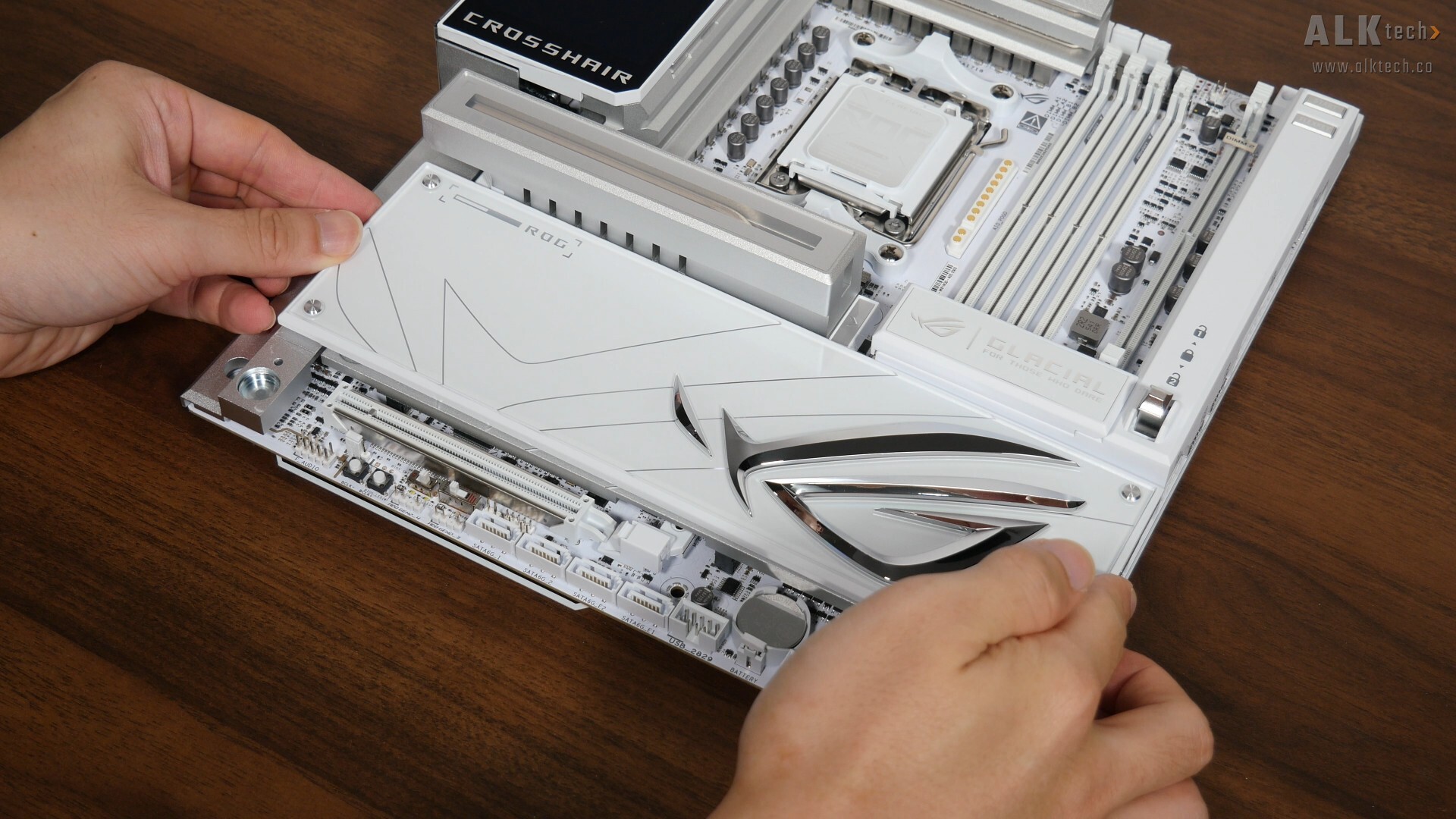
We’ve also got an aesthetic cover right here that features a large 3D ROG logo - this really adds a touch of pop to the motherboard’s appearance. As can be seen, this aesthetic cover is held in place by magnets and can be removed and reinstalled pretty easily. It’s kind of a white elephant though, as this very cover does obscure the two PCIe 5.0 x16 slots that the board comes with.
.jpg)
Over on the rear of the board, we see that the board comes with a full-sized metal backplate that certainly contributes to the heftiness of the board.
.jpg)
.jpg)
This being a flagship AM5 motherboard offering, ASUS has gone all-out in terms of on-board bling. On the integrated I/O shield shroud, we get a 5” full-colour LCD screen that can be customised via the ASUS Armoury Crate app, and the said panel can be shifted to the right so as to avoid being obscured by the rear exhaust fan of a typical PC case. A very thoughtful feature to have for sure!
.jpg)
This LCD screen also provides a visual on the Power On Self Test process when you switch on your PC, a feature that'll definitely come in handy for troubleshooting any PC startup issues.
.jpg)
In terms of customising what’s displayed on the screen, you’ll have to head over to the ASUS Armoury Crate app, where you have the ability to select from eight preset static images and animations, or if you’re feeling creative, you can upload your own JPEG image as well.
.jpg)
.jpg)
We also get a Hardware Information section, where you can select from four preset layout templates, and you do also have the ability to customise which hardware statistics you’d like to have displayed on the screen.
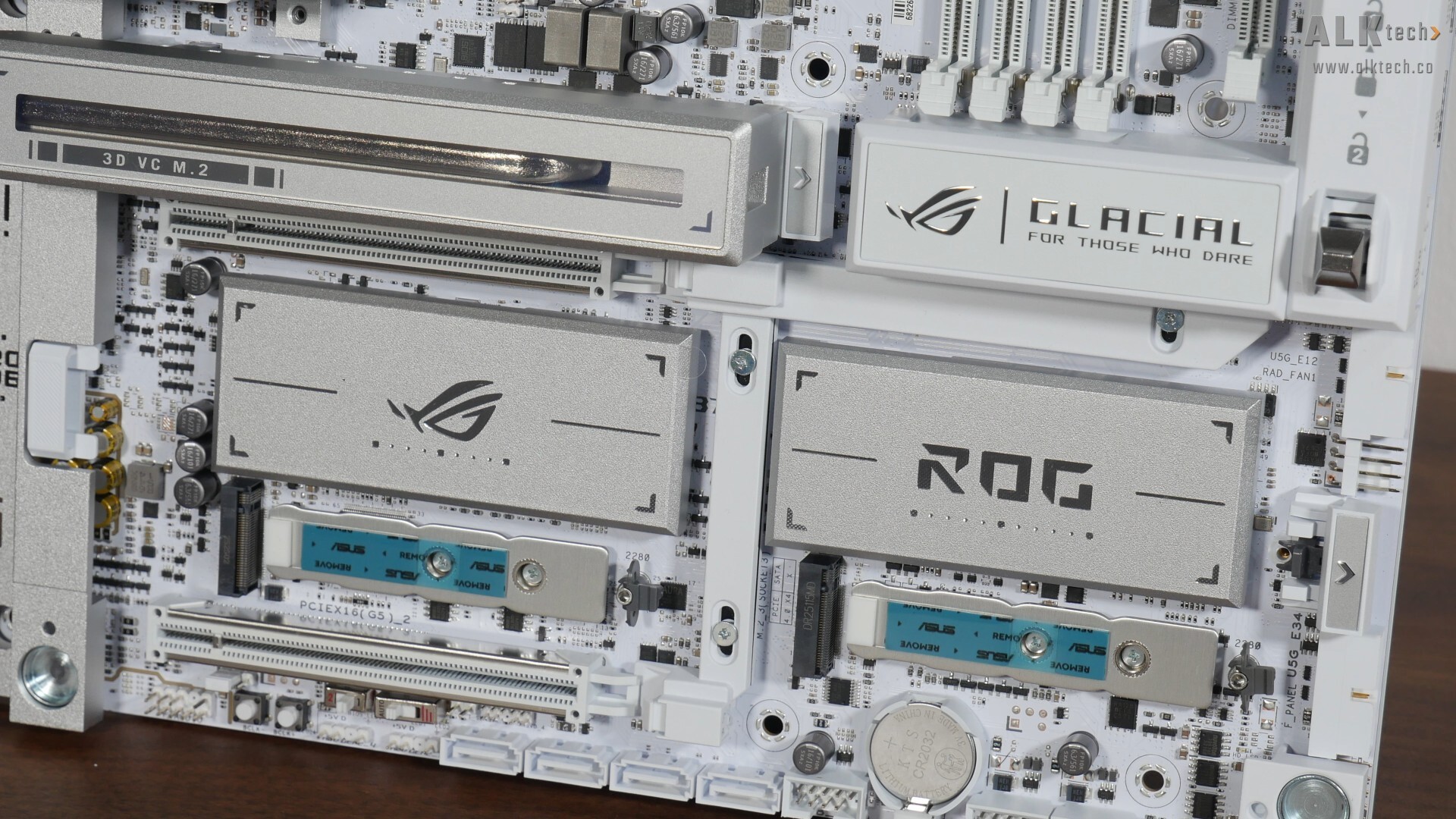
Moving on, the X870E employs the use of a dual chipset design, and the said chips are located beneath these two rectangular silver heatsinks – man this sure is heatsink-ception taken to the next level, given the number of shrouds and heatsinks we’ve got on this board.
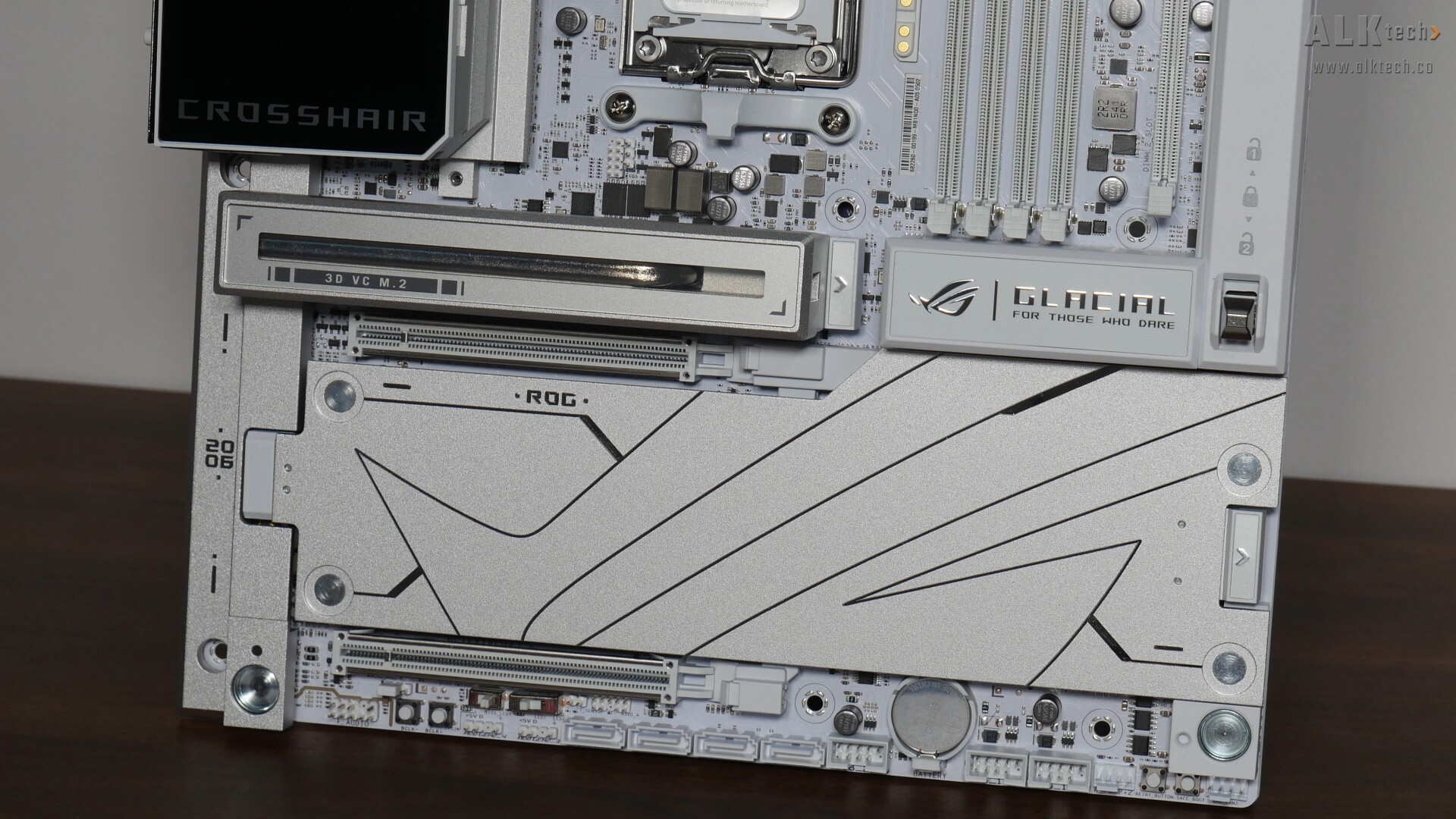
For M.2 drive cooling, ASUS has got you covered with M.2 drive heatsinks for the three onboard M.2 slots that the board comes with.
VRM & Memory Support
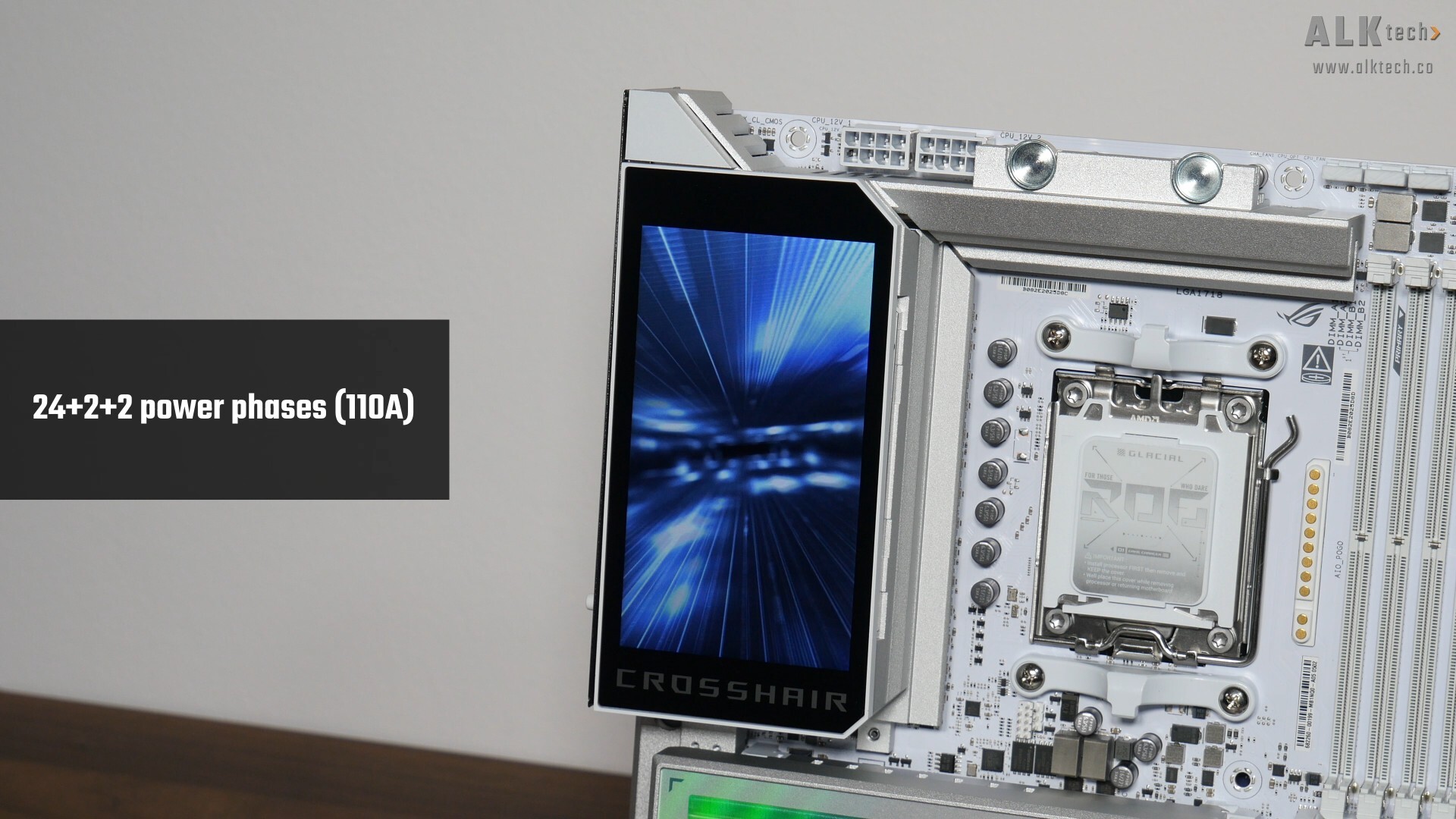
The VRM heatsinks for this board are as expected, sizable, and ASUS has included a whopping 24+2+2 power phases with 110A power stages, which is pretty overkill. For you folks intending to do a fair bit of processor and memory overclocking, it definitely helps that the ROG CROSSHAIR X870E GLACIAL uses an eight-layer PCB design.
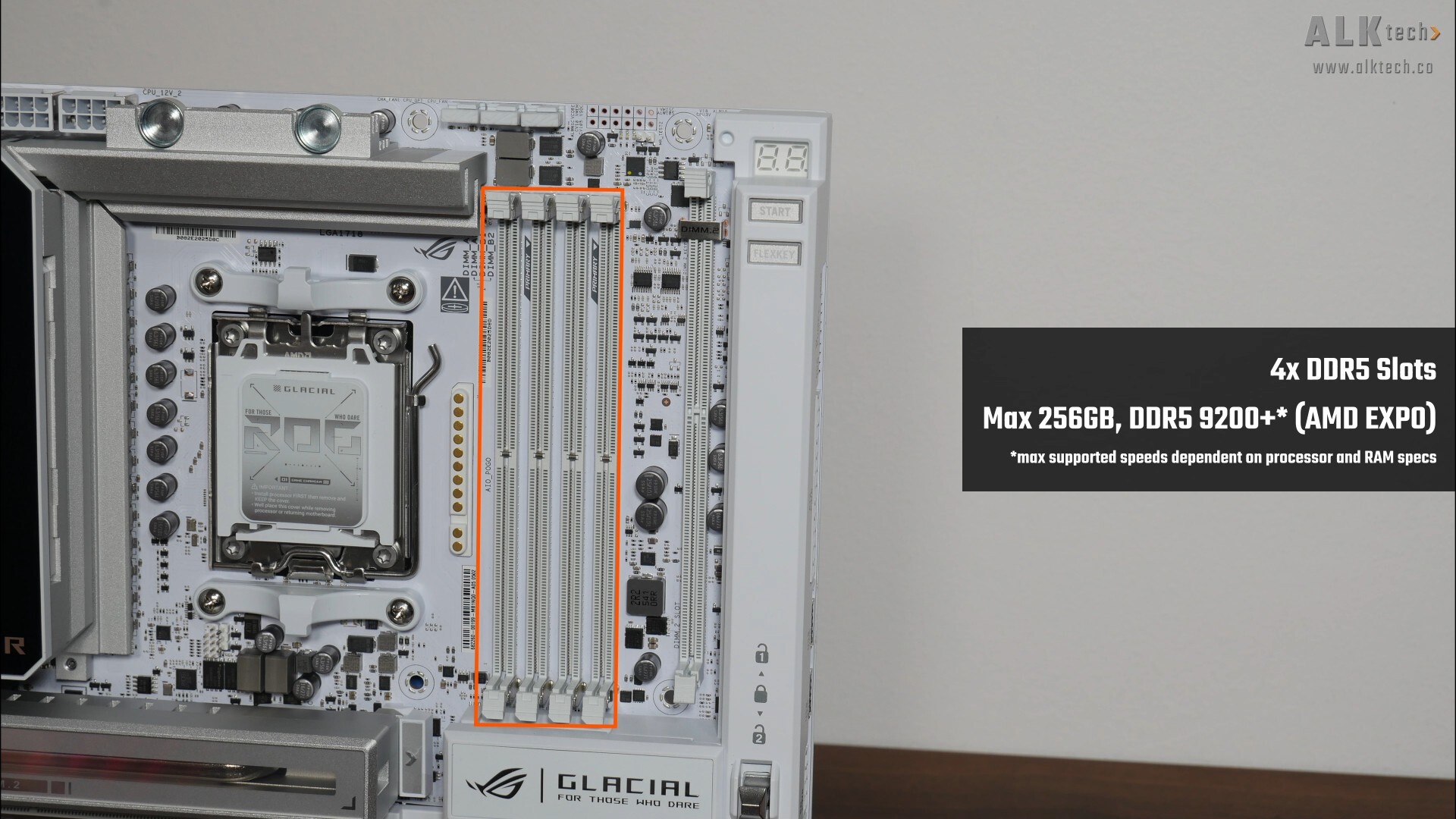
For memory support, the ROG CROSSHAIR X870E GLACIAL comes with four DDR5 slots that as of the time of publishing this article, comes with support for up to 256GBs of RAM and the DDR5 9200 standard - the maximum RAM speed supported is processor-dependent.
.jpg)
.jpg)
This being a flagship motherboard targeted at enthusiasts who would likely be overclocking their hardware a fair bit, ASUS has also included a cooling fan that it terms “ROG Memory Q-Fan”. It attaches to the board magnetically, and you’ll have to remove the metal shroud pictured above that covers the connection pins.
Front Panel USB Headers
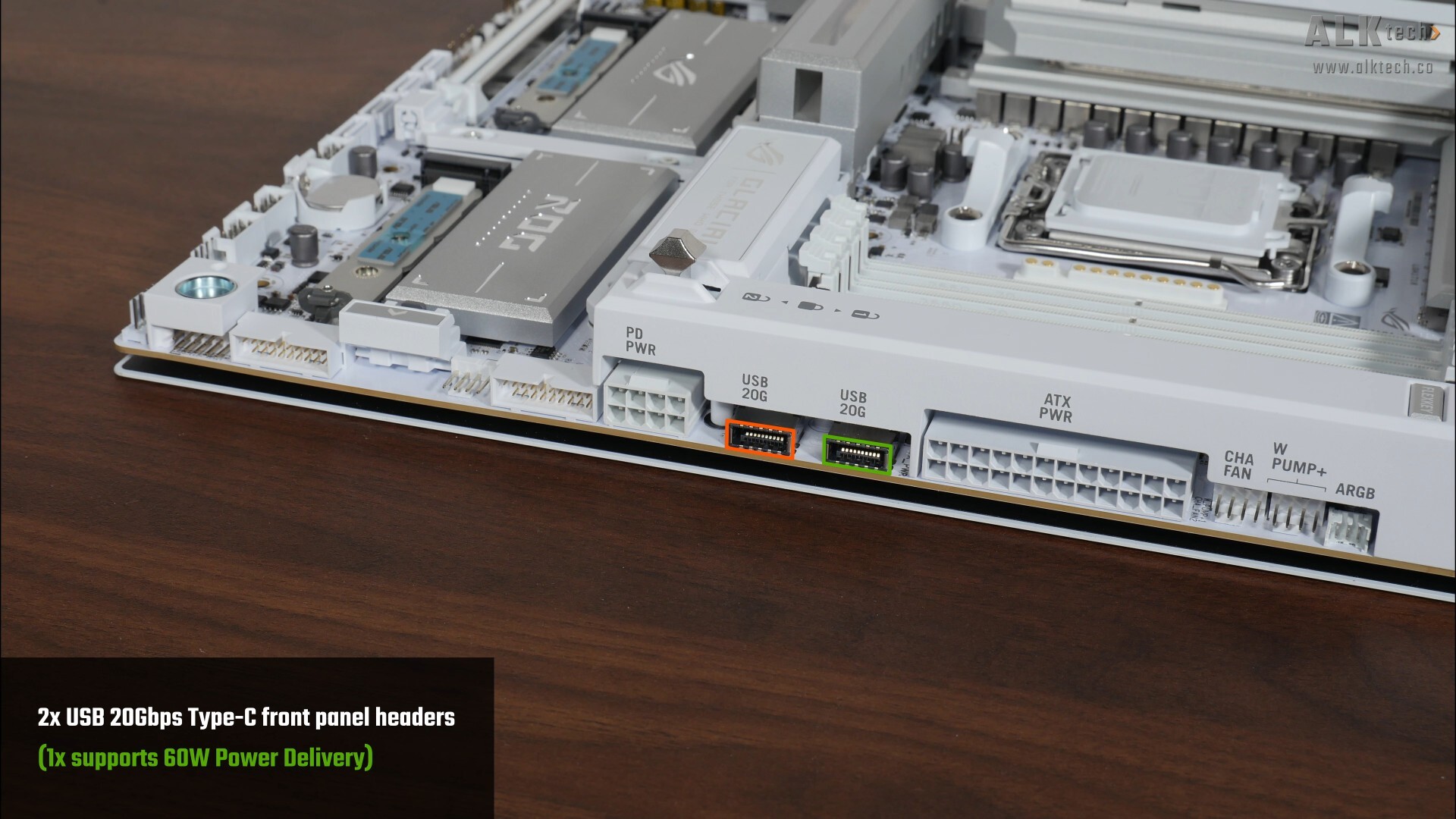
In the interest of cable management and aesthetics, the X870E GLACIAL has its various headers and connectors situated along the long edge of the board oriented 90 degrees from their typical front-facing orientations. In terms of front panel USB connectivity, we get two USB 20Gbps Type-C front panel headers along the long edge of the board, where of these USB Type-C ports, one of them supports up to 60W of Power Delivery for fast charging. Correspondingly, we get an eight-pin 2x4 12V power connector (PD PWR) that’s to be hooked up to your power supply unit should you wish to enable the said fast charging feature.
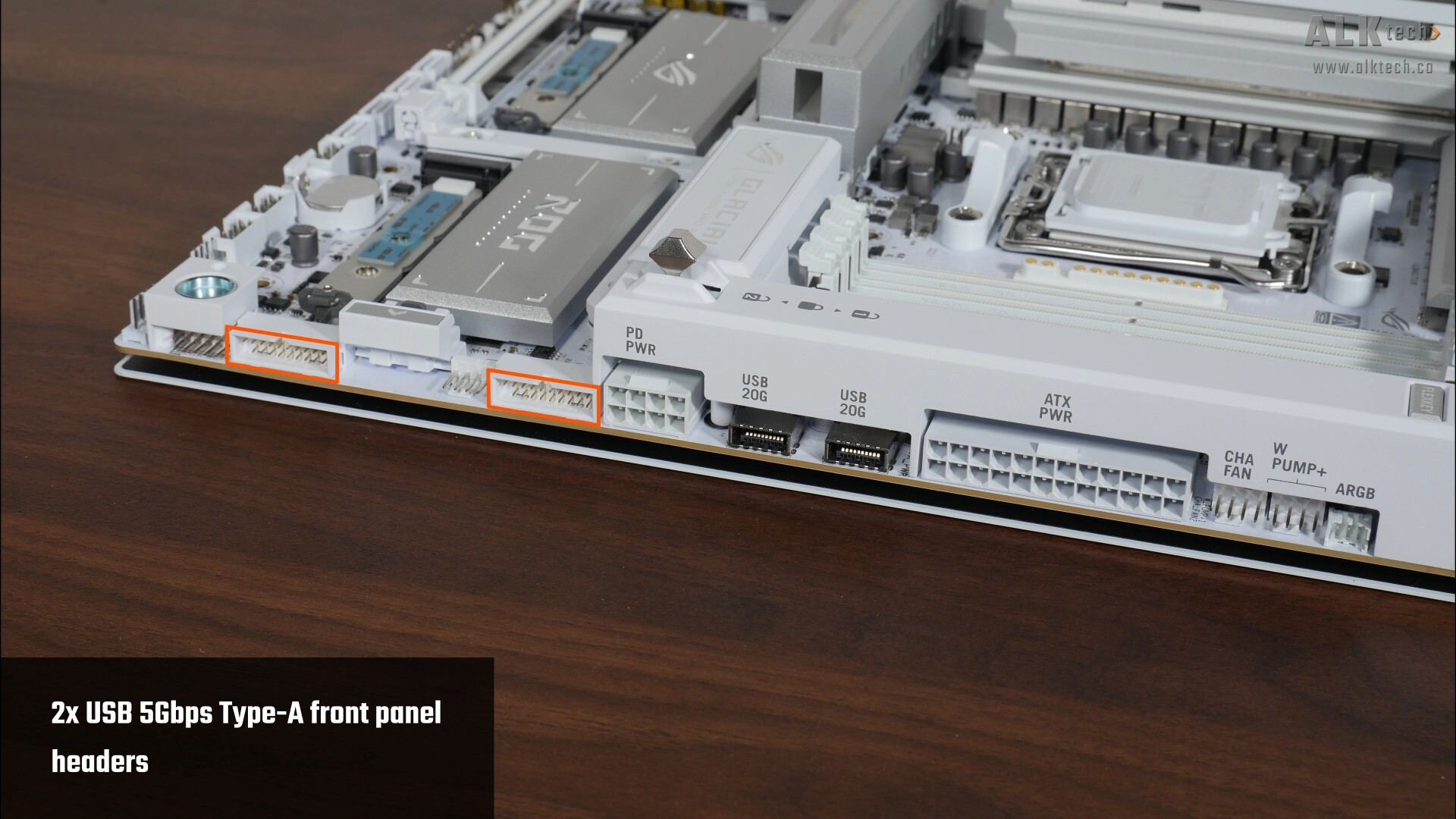
We also get two USB 5Gbps Type-A front panel headers located further down along the long edge of the board, where each of these headers provide support for up to two USB 5Gbps Type-A ports, for a total of four ports.
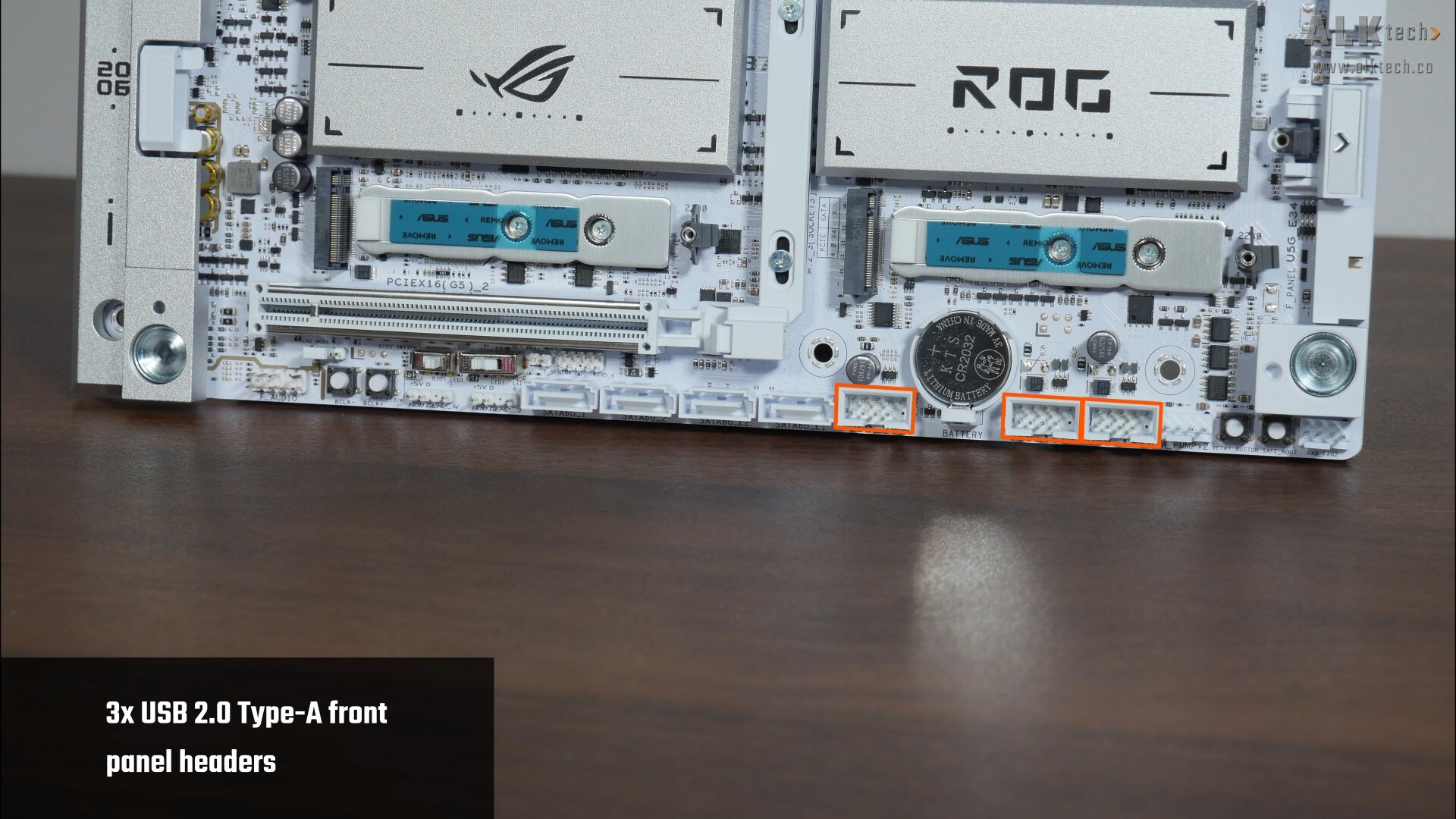
Rounding things off in the front panel USB connectivity section are three USB 2.0 front panel headers along the bottom edge of the board, with each header providing support for two USB 2.0 Type-A ports, for a total of six ports.
Expansion Slots & Storage Options
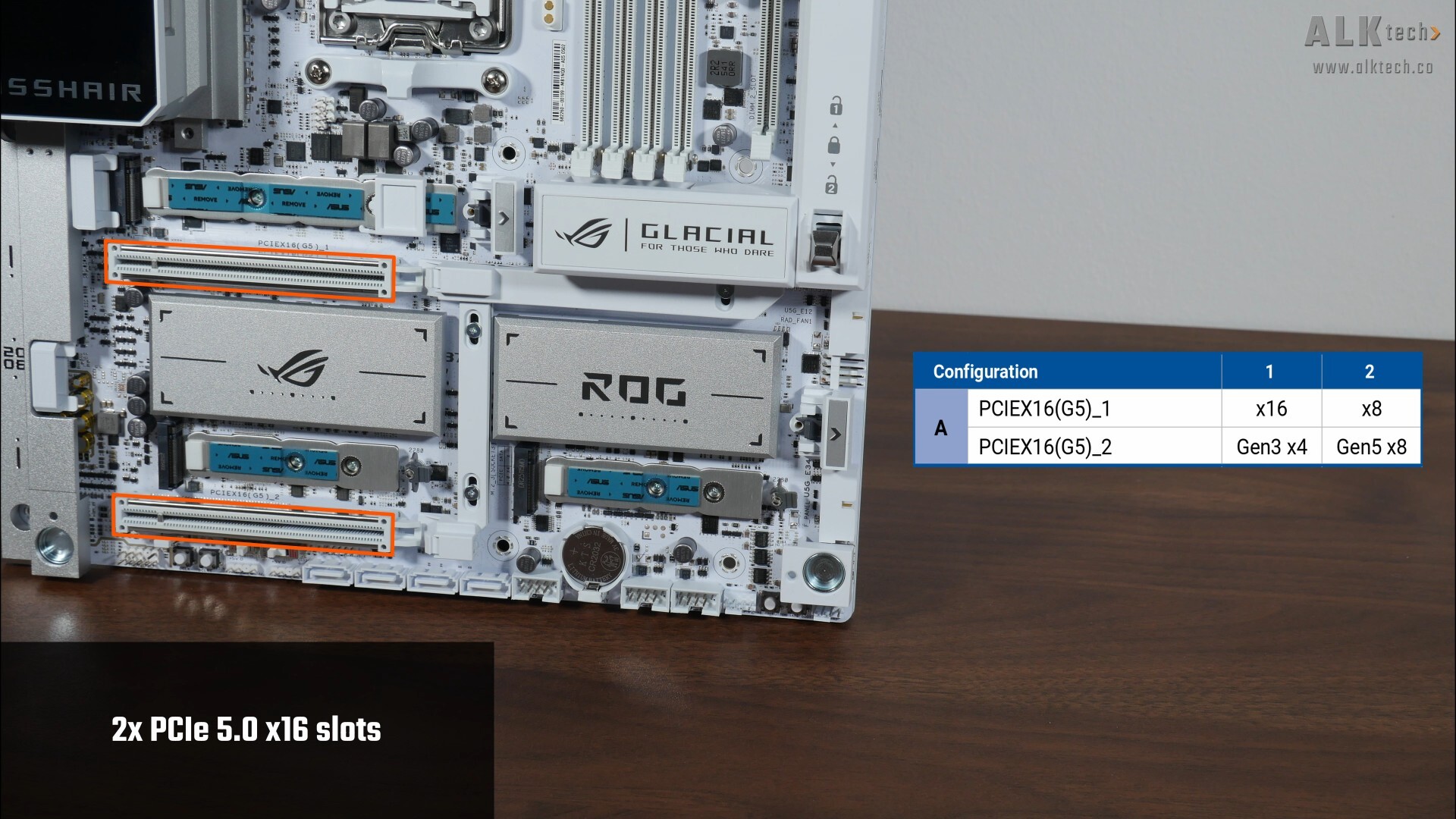
In terms of expansion slots, this board comes with two fancy-looking PCIe 5.0 x16 slots, where the second PCIe 5.0 x16 slot will run at PCIe 3.0 x4 speeds if the primary PCIe 5.0 x16 slot is running at full x16 link speed. Otherwise, you can have both PCIe 5.0 slots running at x8 mode instead, as per the table shown above that was lifted from the motherboard manual.
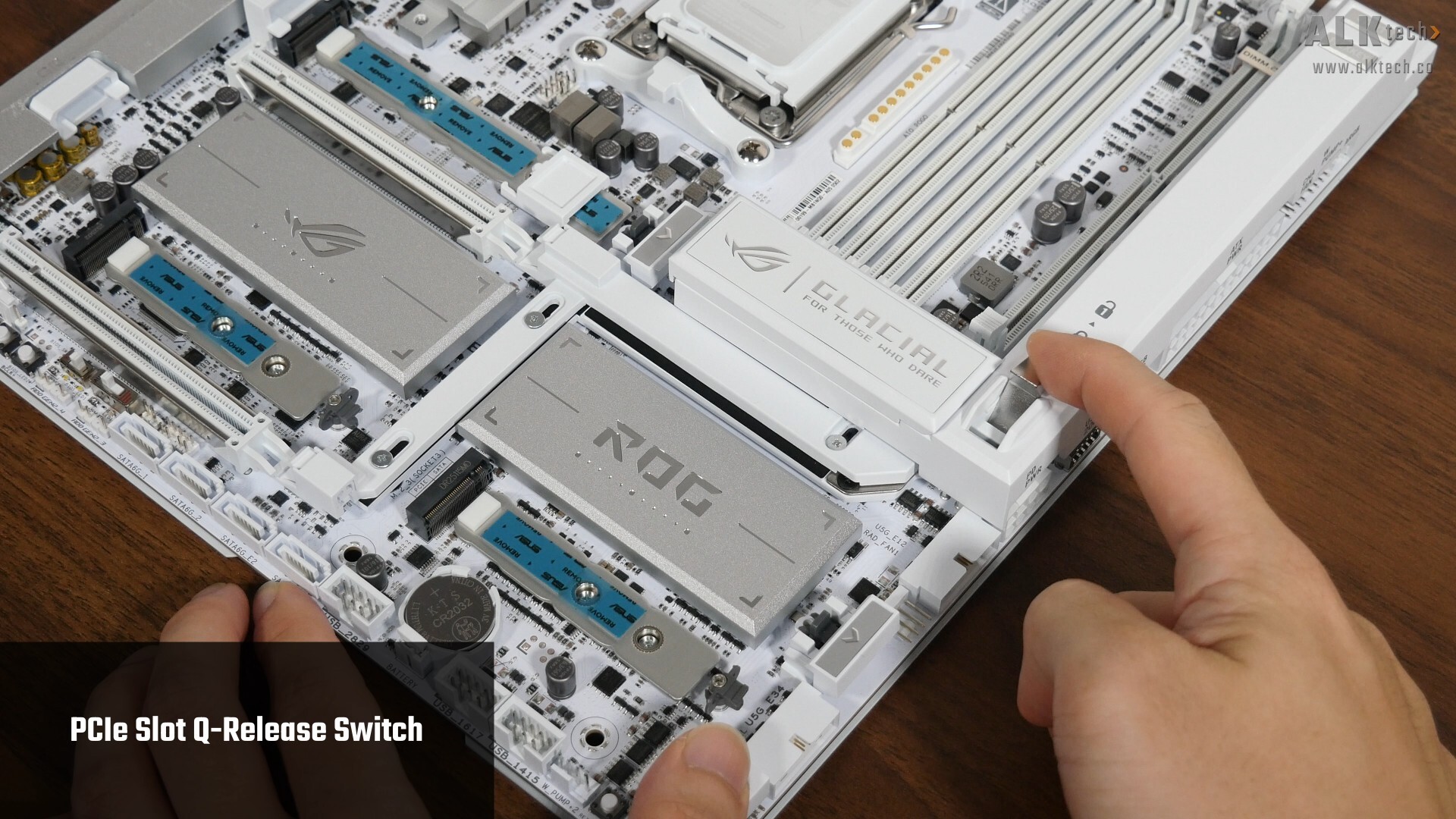
These two slots feature a new Q-Release Switch feature that makes removing expansion cards from these two slots pretty simple. Pushing the switch to the top disengages the retention catch for the first PCIe 5.0 x16 slot, while pushing the switch down to the bottom setting disengages the retention catch for the second PCIe 5.0 x16 slot – the center switch position locks both catches in place.
That aside, do note that PCIe 5.0 is only supported when you have a Ryzen 9000 series or Ryzen 7000 series processor installed – its worth noting that the Ryzen 8000 series of APUs and CPUs only support the PCIe 4.0 standard, though it’s really unlikely that you’d be using a Ryzen 8000 series part with this board!
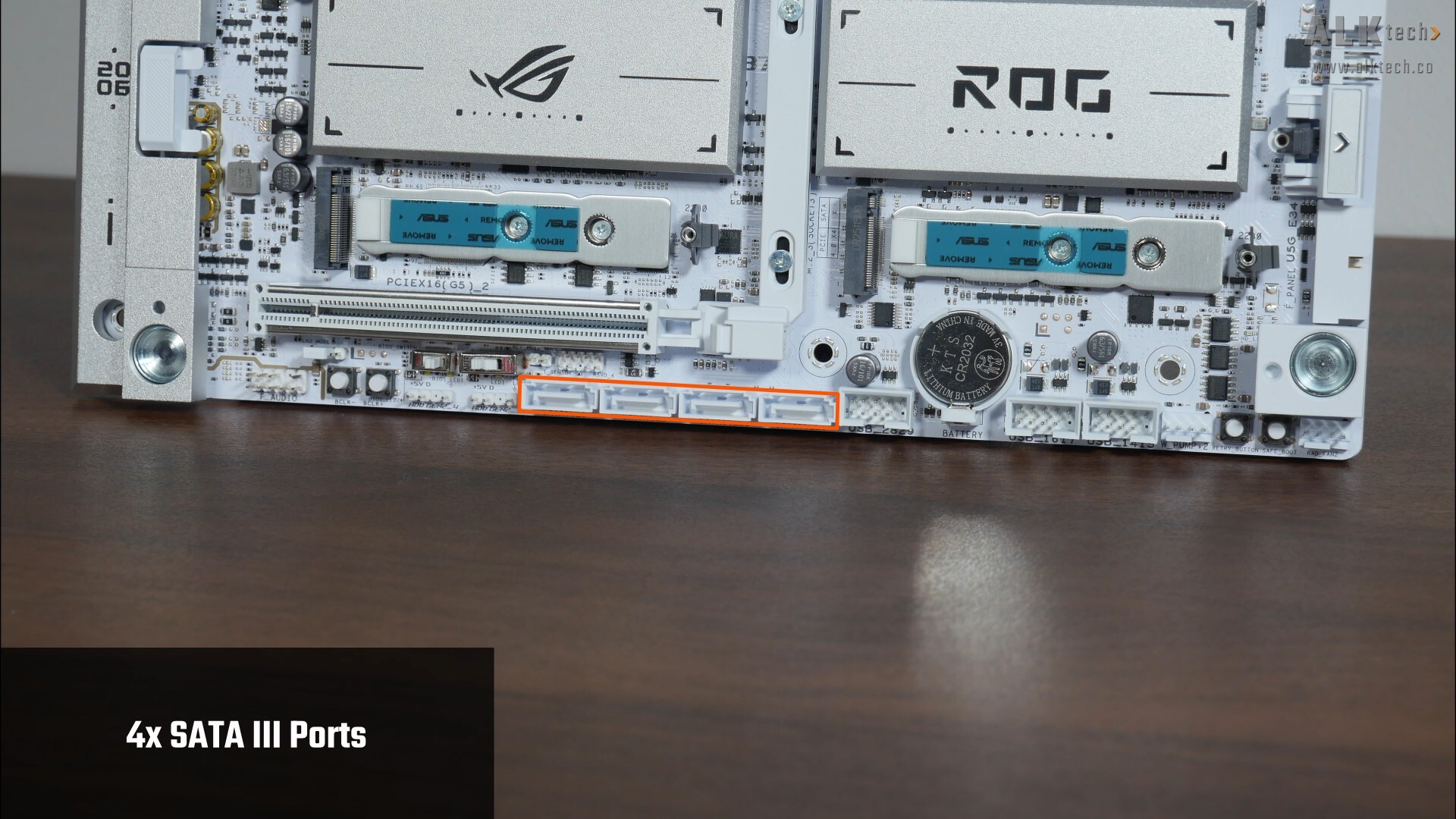
In the storage department, ASUS has included four SATA III ports that are all located along the bottom edge of the board.
.jpg)
For M.2. slots, it comes with two PCIe 5.0 x4 M.2 slots and a single PCIe 4.0 x4 M.2 slot. Do note that these three slots support NVMe SSDs only, M.2 SATA drives will not work in any of these slots.
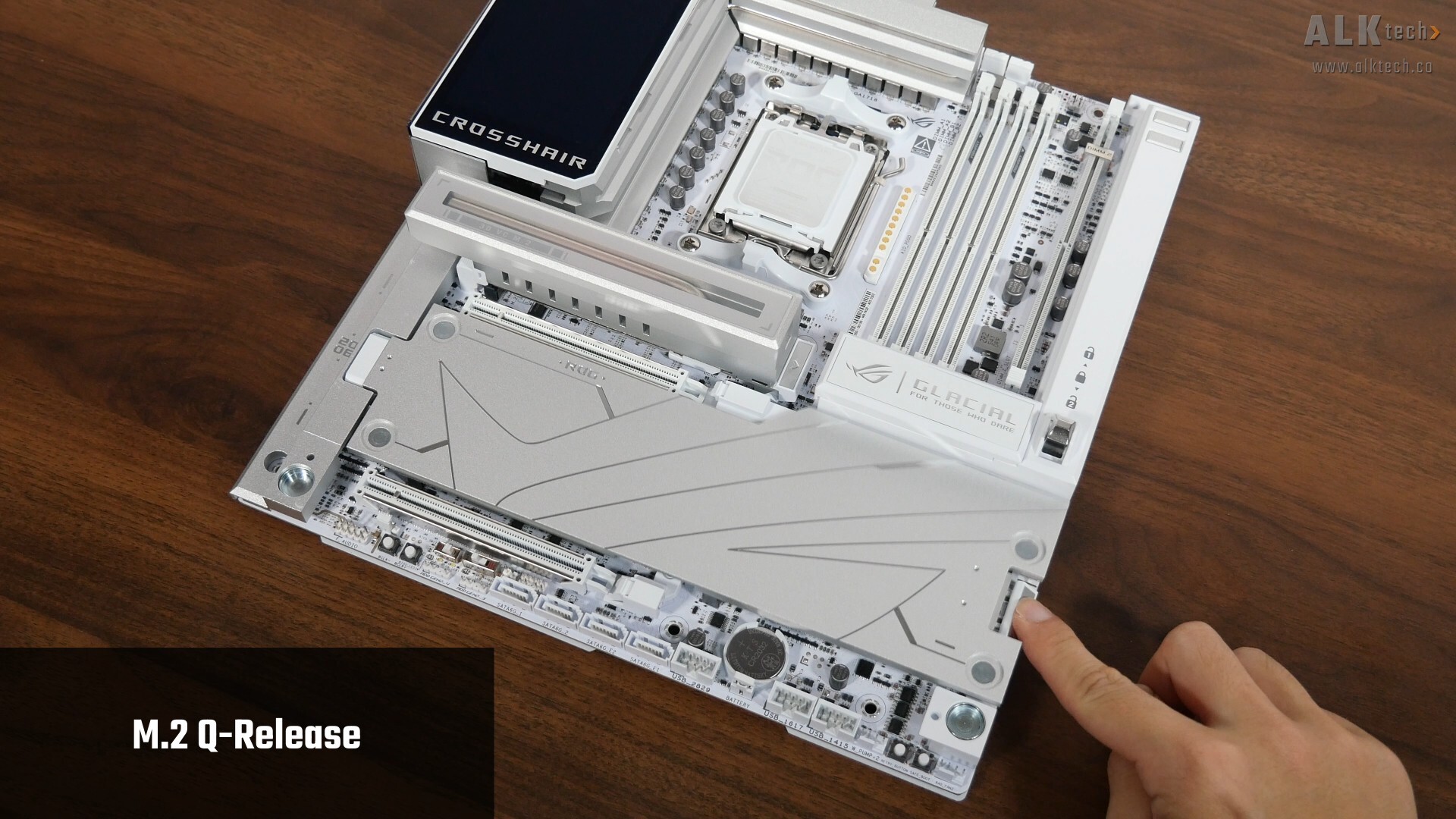
That said, both M.2 heatsinks come with the M.2 Q-Release mechanism that makes heatsink removal and installation really easy.
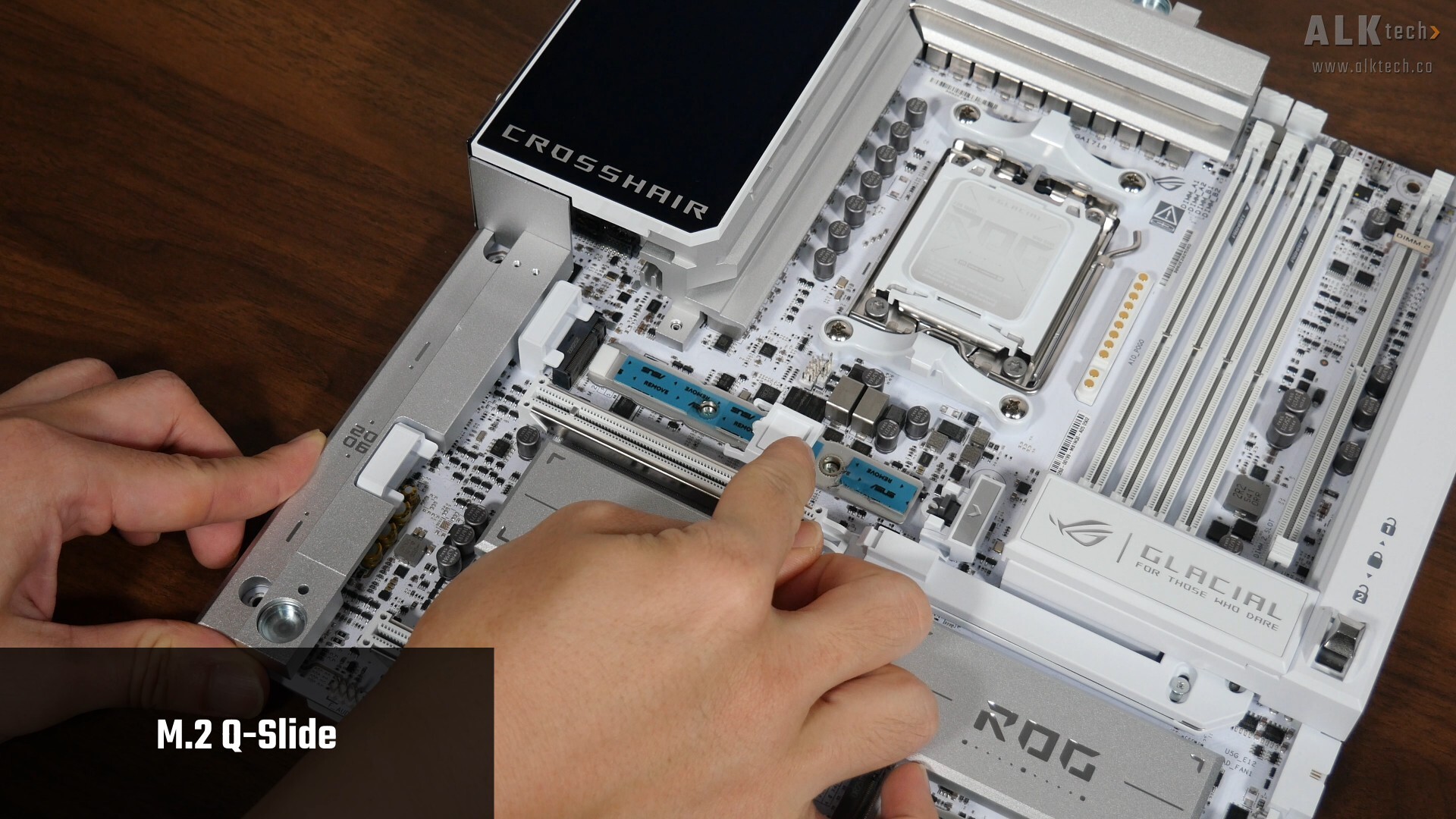
Another quality-of-life feature that the M.2 slots have is M.2 Q-Slide, a mechanism that slides along a track and snaps into place to securely hold a M.2 device of varying lengths. Given its design, you might have to use some elbow grease to slide the attachment to where it needs to go!
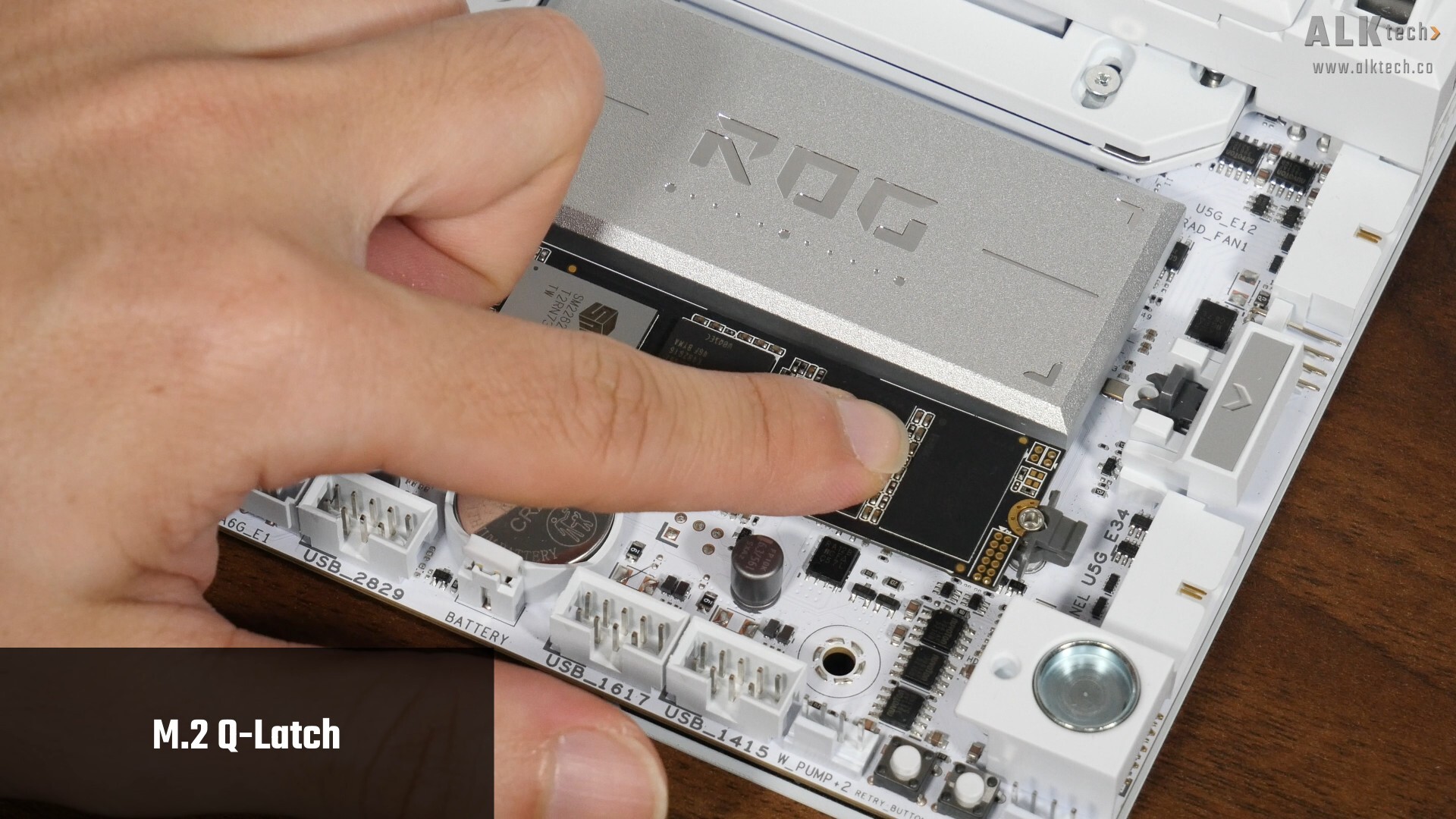
The bottom two M.2 slots also feature M.2 Q-Latch, which makes installing and removing M.2 drives a breeze. You can also install the Q-Slide attachment for these two slots in particular, for drives shorter than the 2280 form factor.
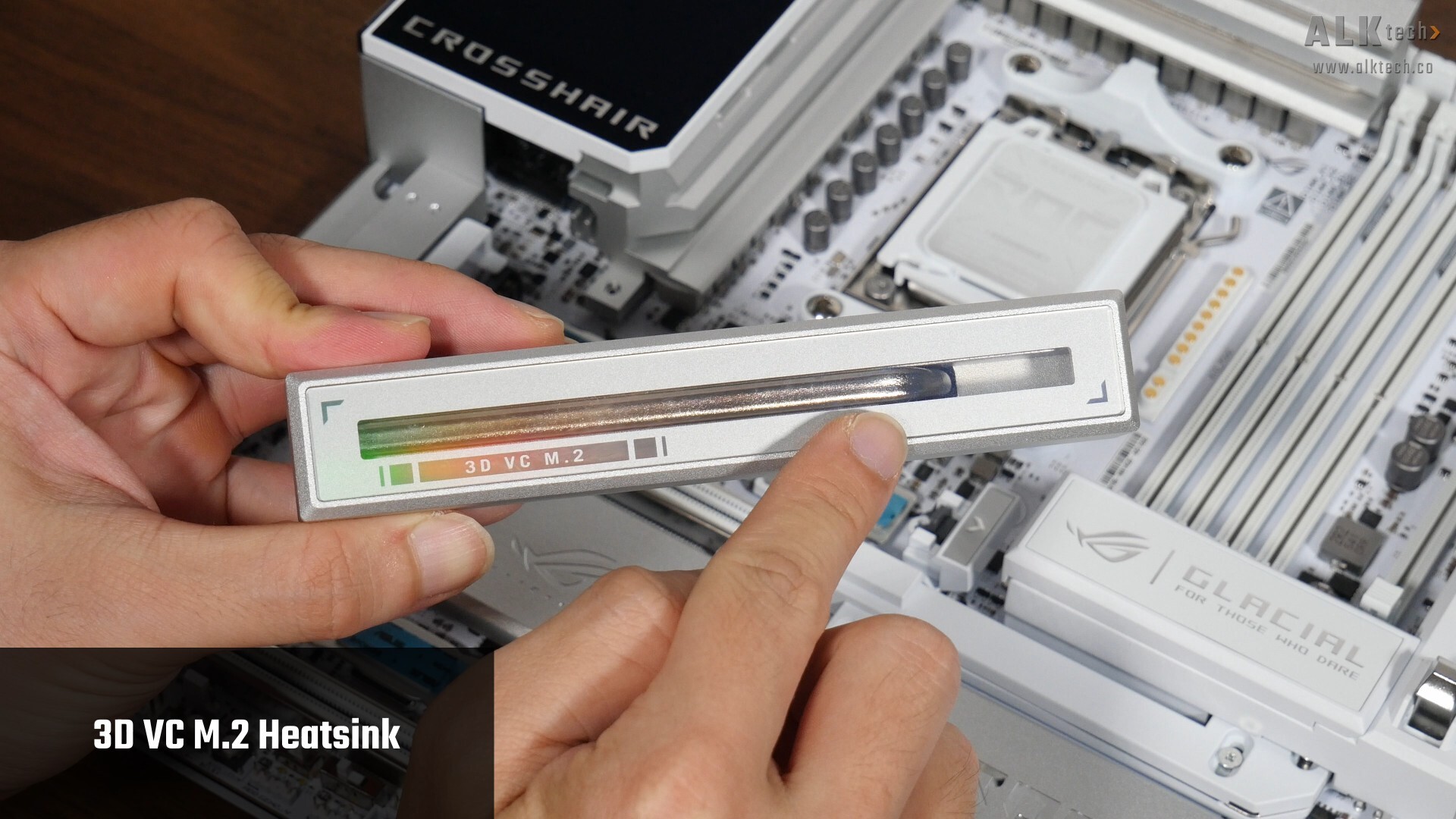
The primary PCIe 5.0 x4 M.2 slot has a chonker of a heatsink – ASUS calls this a 3D VC M.2 heatsink, where it features a vapour chamber to help keep the temperatures of toasty Gen5 M.2 drives at bay.
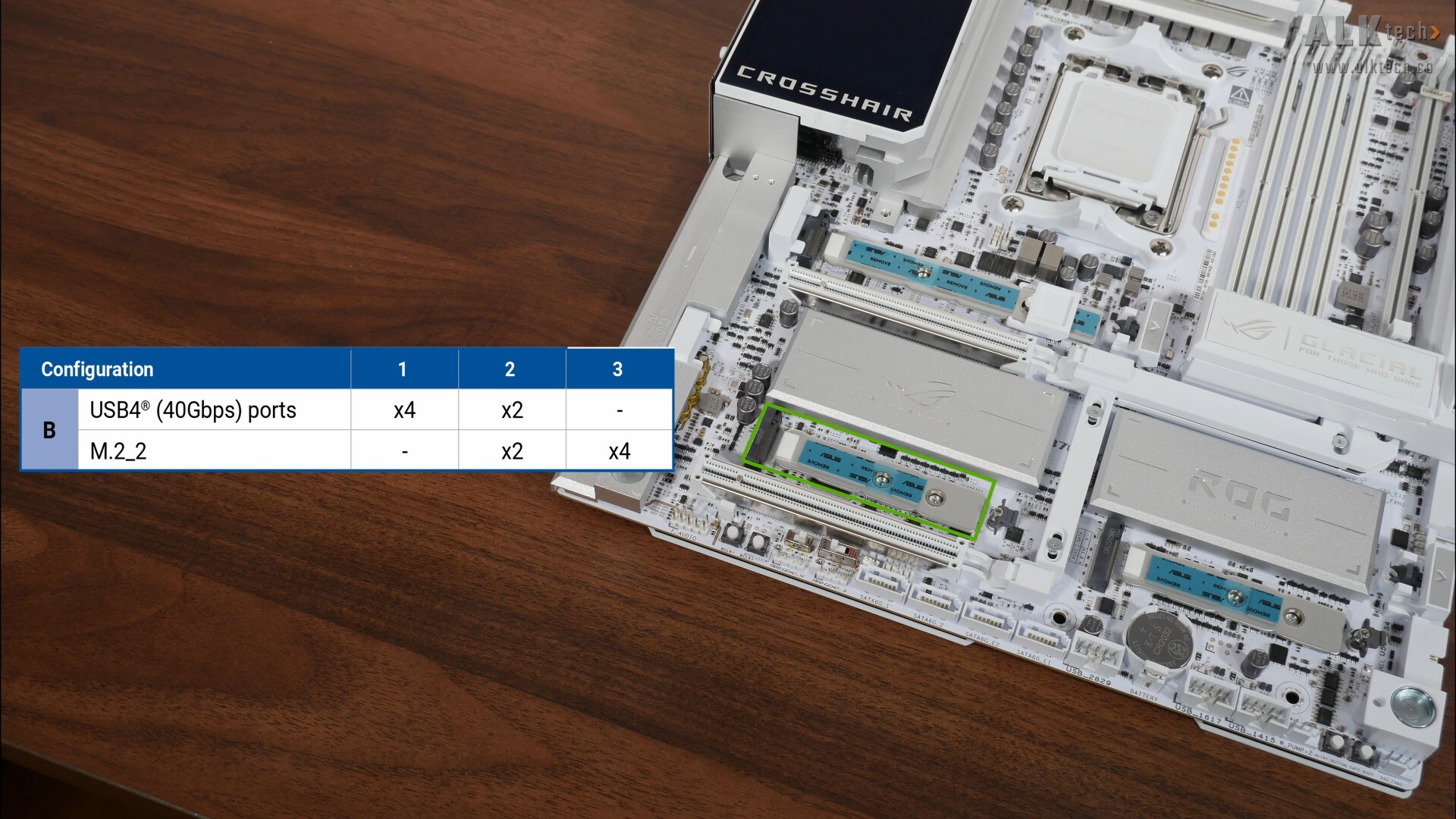
As mentioned earlier, this board comes with improvements to the way that PCIe lane sharing occurs – in case you’re unaware, here’s a quick lowdown on why we’ve got lane sharing on most, if not all X870E and X870 motherboards. The X870E and X870 chipsets are effectively a rebrand of the previous generation X670E and B650E chipsets respectively with USB4 support made mandatory by AMD, where given that these chipsets have pretty much the same silicon and hence a fixed number of PCIe 5.0 lanes, motherboard manufacturers have had to look elsewhere for PCIe 5.0 lanes to support the USB4 controller. As a result of this, the first few waves of X870E and X870 boards saw the PCIe 5.0 x16 slot sharing bandwidth with one of the two PCIe 5.0 x4 M.2 slots that X870E and X870 boards typically have, which isn’t really ideal.
With the later waves of X870E and X870 motherboards, board manufacturers have wisened up, and lane sharing now tends to happen just between the PCIe 5.0 x4 M.2 slot and the USB4 controller, which in my opinion is the lesser of two evils. In the case of the ROG CROSSHAIR X870E GLACIAL, as per the table shown above that was lifted from the manual, the second PCIe 5.0 x4 M.2 slot, slot M.2_2, shares lanes with the USB4 controller, where if you’ve got a M.2 drive installed in slot M.2_2, both slot M.2_2 and the USB4 controller will run at x2 speeds instead. You do also get the option of disabling the USB4 ports altogether to get full x4 link speeds for slot M.2_2 - all of this can be configured from within the BIOS.
.jpg)
.jpg)
.jpg)
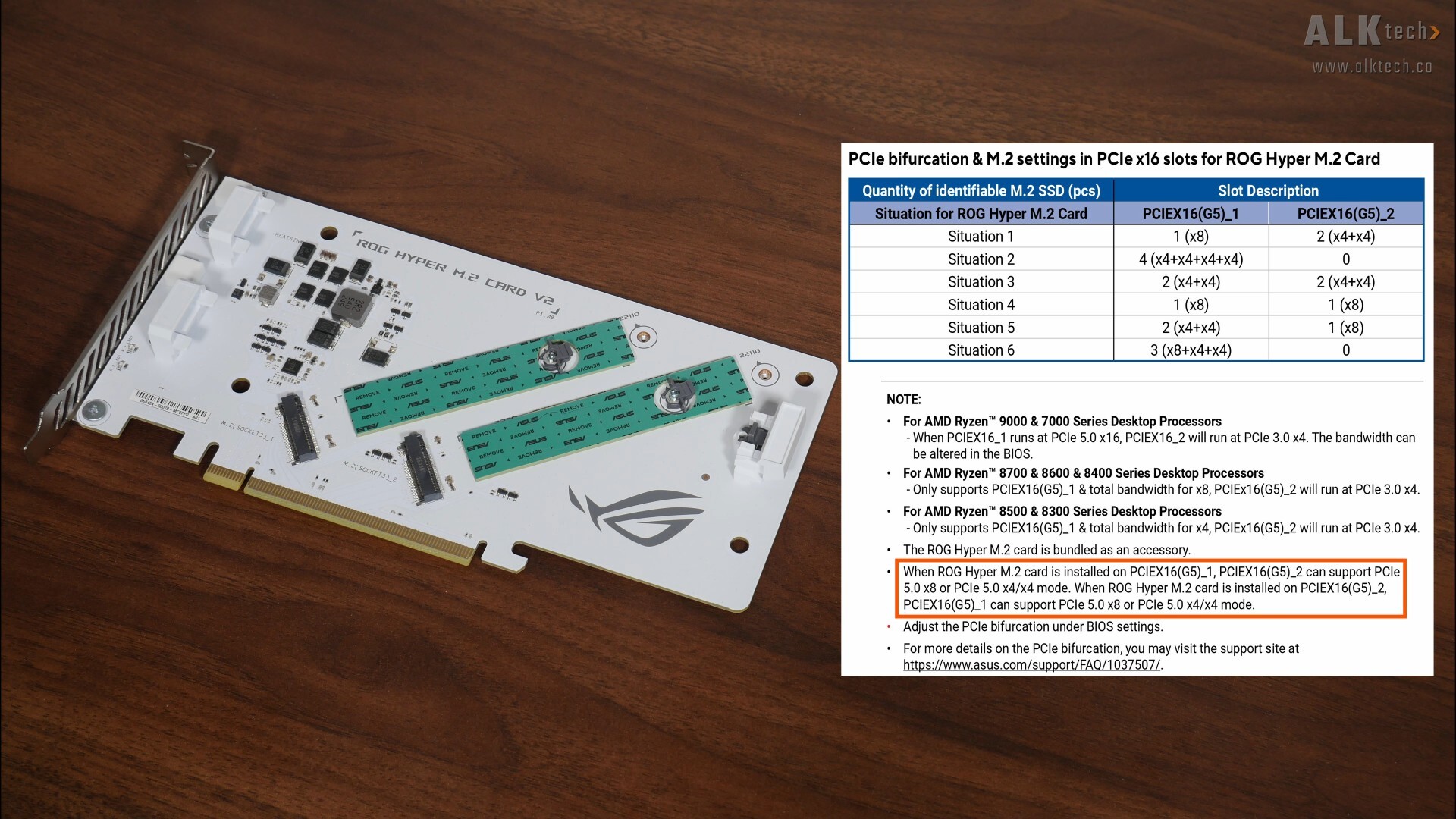
That aside, the X870E GLACIAL comes with a ROG Hyper M.2 add on card that adds two PCIe 5.0 x4 M.2 slots, where this card can be used in either of the board’s PCIe 5.0 x16 slots to enable these two M.2 slots to run at full PCIe 5.0 x4 link speeds – of course in doing so, both PCIe 5.0 x16 slots will run at x8 mode each.
.jpg)
.jpg)
Eagle-eyed viewers would have noticed the DIMM.2 slot pictured above that's located right next to the DDR5 slots – this slot is to be used in conjunction with the ROG Q-DIMM.2 add-on card, which adds an additional PCIe 4.0 x4 M.2 slot and a PCIe 4.0 x2 M.2 slot. As can be seen, the DIMM.2 add-on card comes with a pretty chunky heatsink that has to be removed first to get access to the two M.2 slots.
Again, a gentle reminder that PCIe 5.0 is only supported with a Ryzen 9000 series or Ryzen 7000 series processor installed – the Ryzen 8000 series of APUs and CPUs only support the PCIe 4.0 standard.
Audio & Internet Connectivity
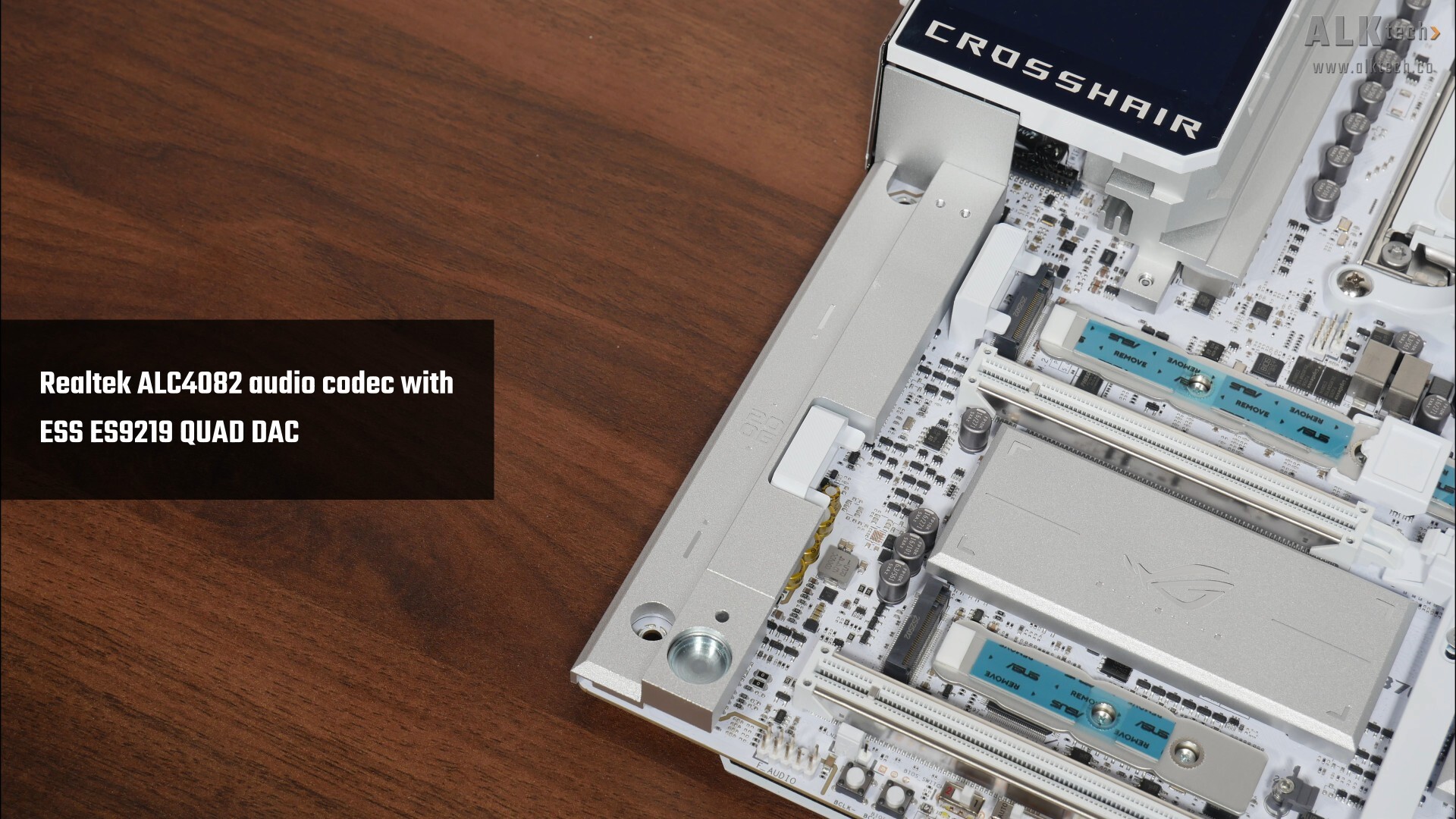
For audio, ASUS has included a high-end Realtek ALC4082 audio codec with premium audio capacitors, as well as an ESS ES9219 QUAD DAC chip. Wired internet connectivity is courtesy of dual Realtek RTL8127 10 Gigabit Ethernet chips, while WIFI support is courtesy of a Mediatek MT7927 WIFI 7 part that supports the full-fat 320MHz channel width and also serves up Bluetooth 5.4 support.
Fan & RGB Headers
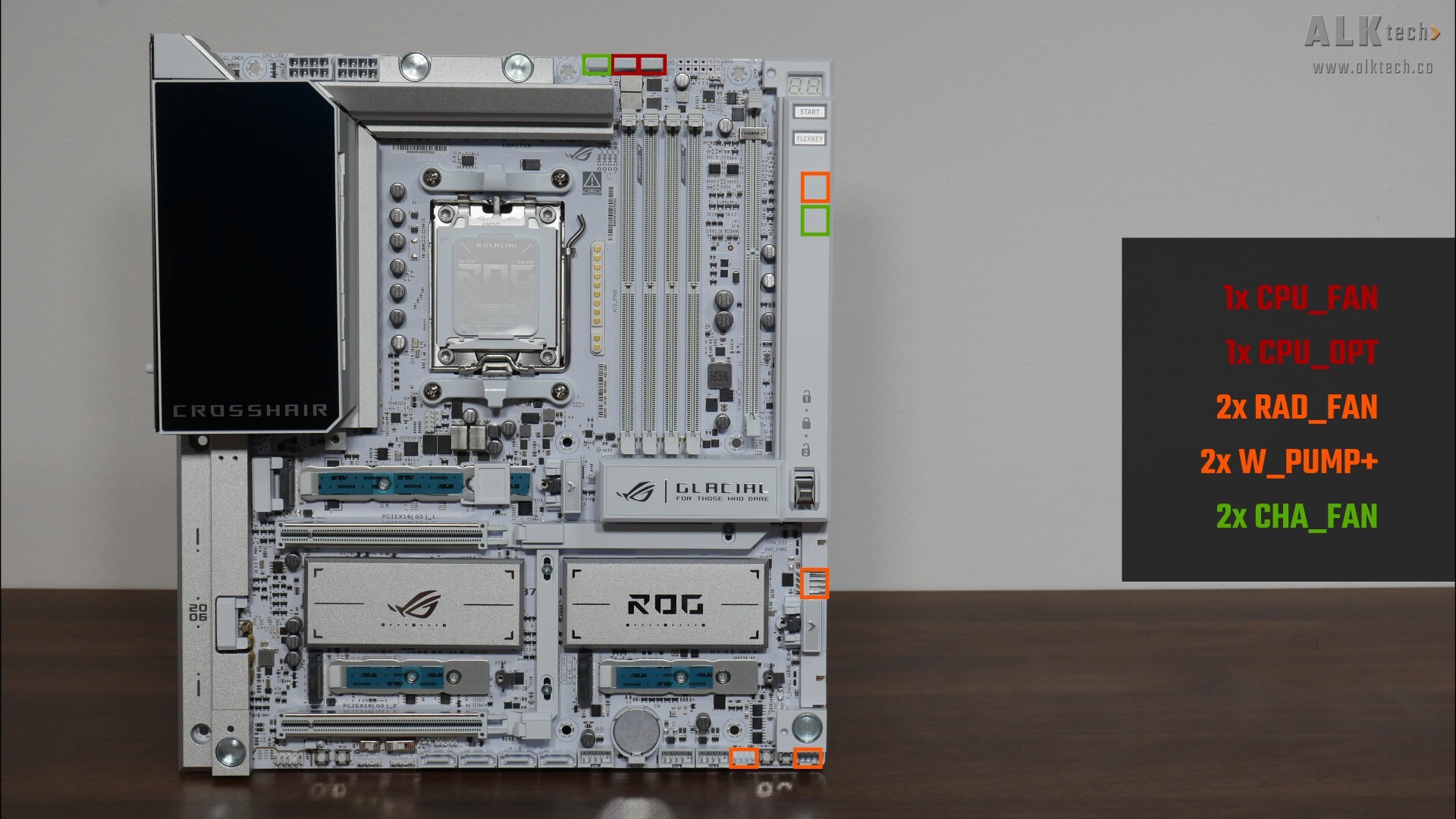
The X870E GLACIAL comes with no shortage of fan headers, eight of them to be precise:
- 1x CPU_FAN
- 1x CPU_OPT
- 2x RAD_FAN
- 2x W_PUMP+
- 2x CHA_FAN
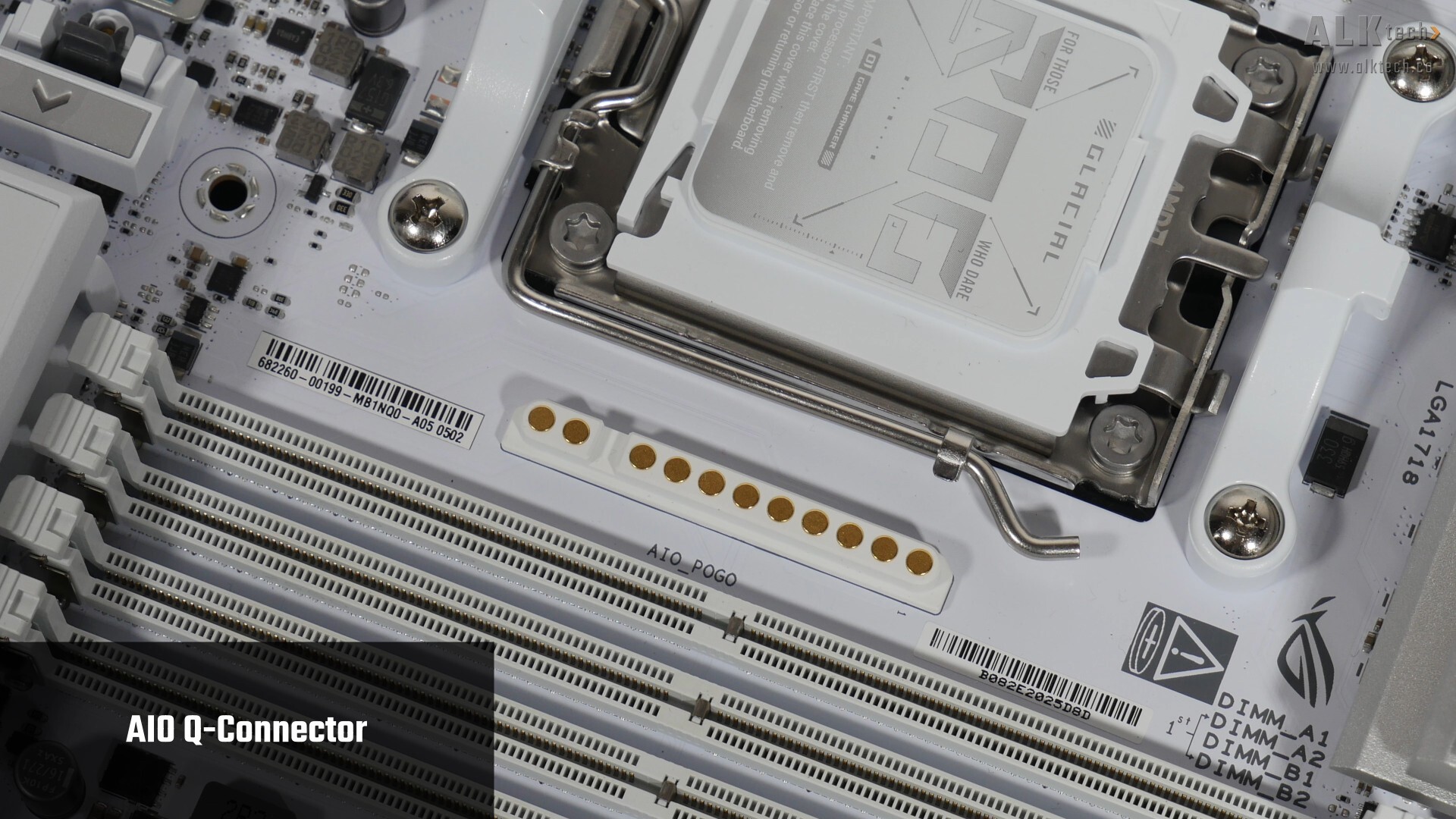
In addition, we’ve got what ASUS terms an AIO Q-Connector, a new proprietary connector that’s similar to MSI’s EZ Conn, which consolidates the four-pin PWM fan connector, ARGB connector and USB 2.0 connector that one would typically get with an AIO CPU cooler, into just one connector.
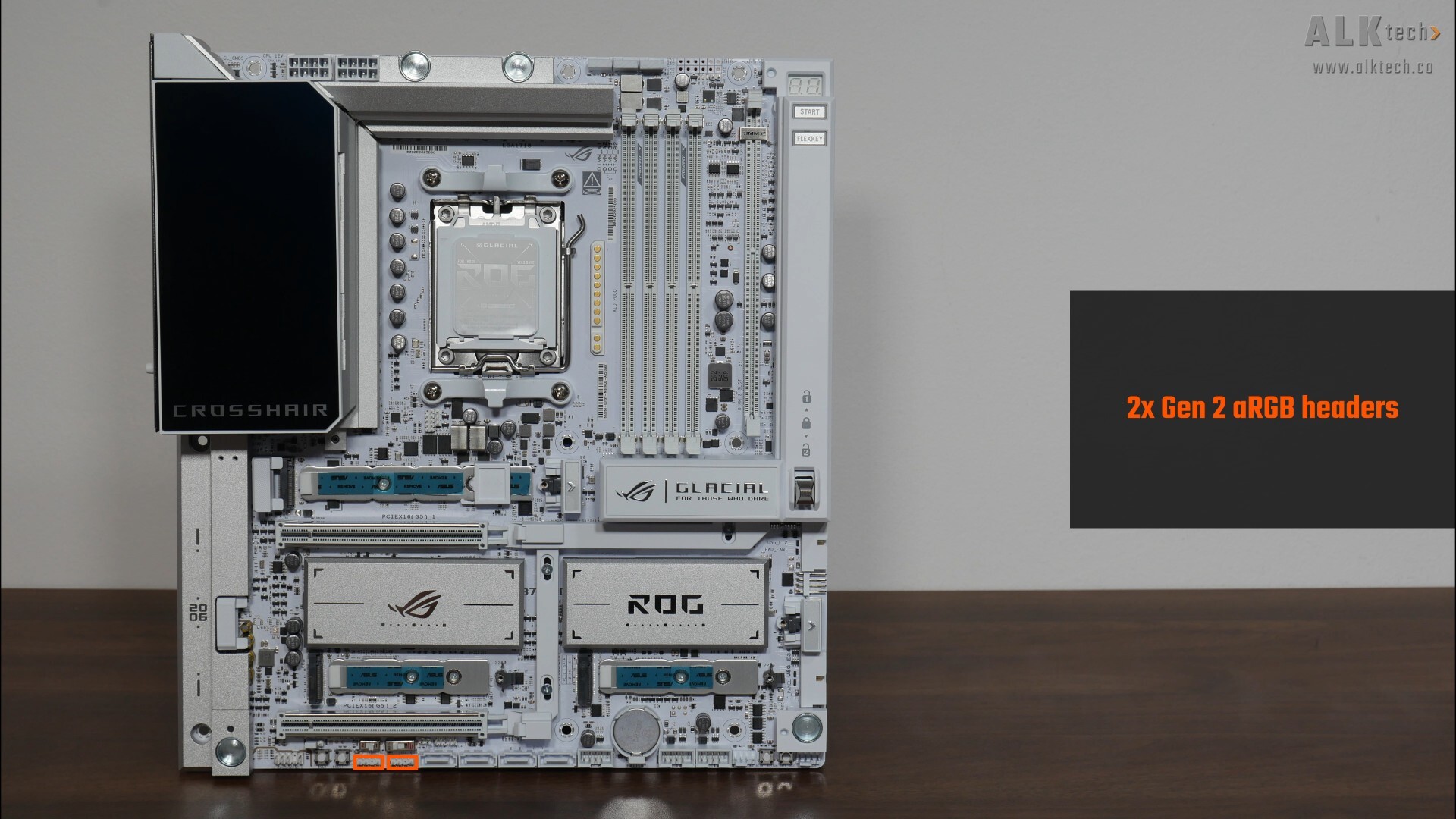
.jpg)
Also included are two Gen 2 addressable RGB headers, and a special Gen 2 addressable RGB header along the long edge of the board that allows you to use the included 1-2 ARGB splitter cable to get two additional Gen 2 addressable RGB headers.
Other Features
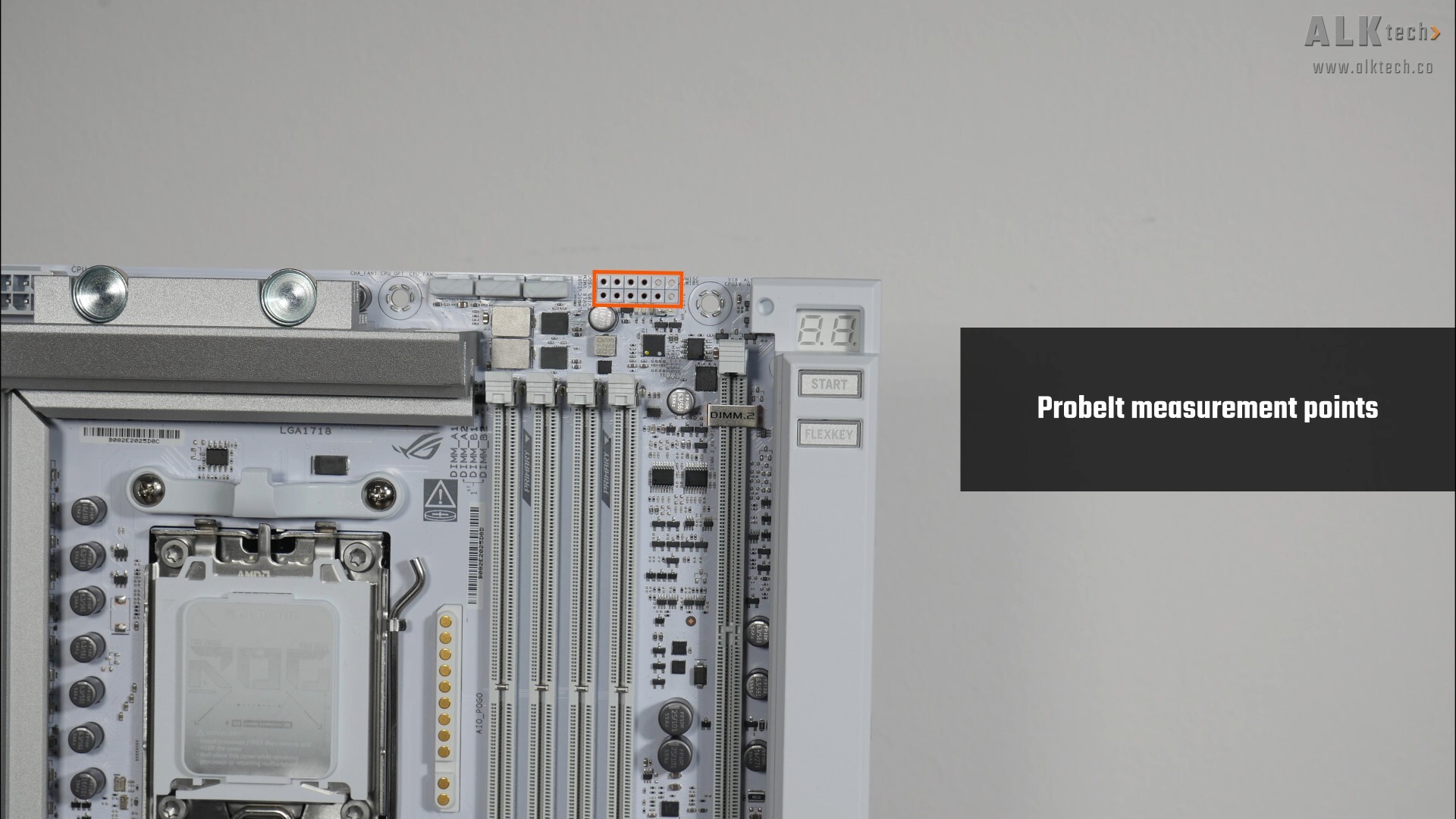
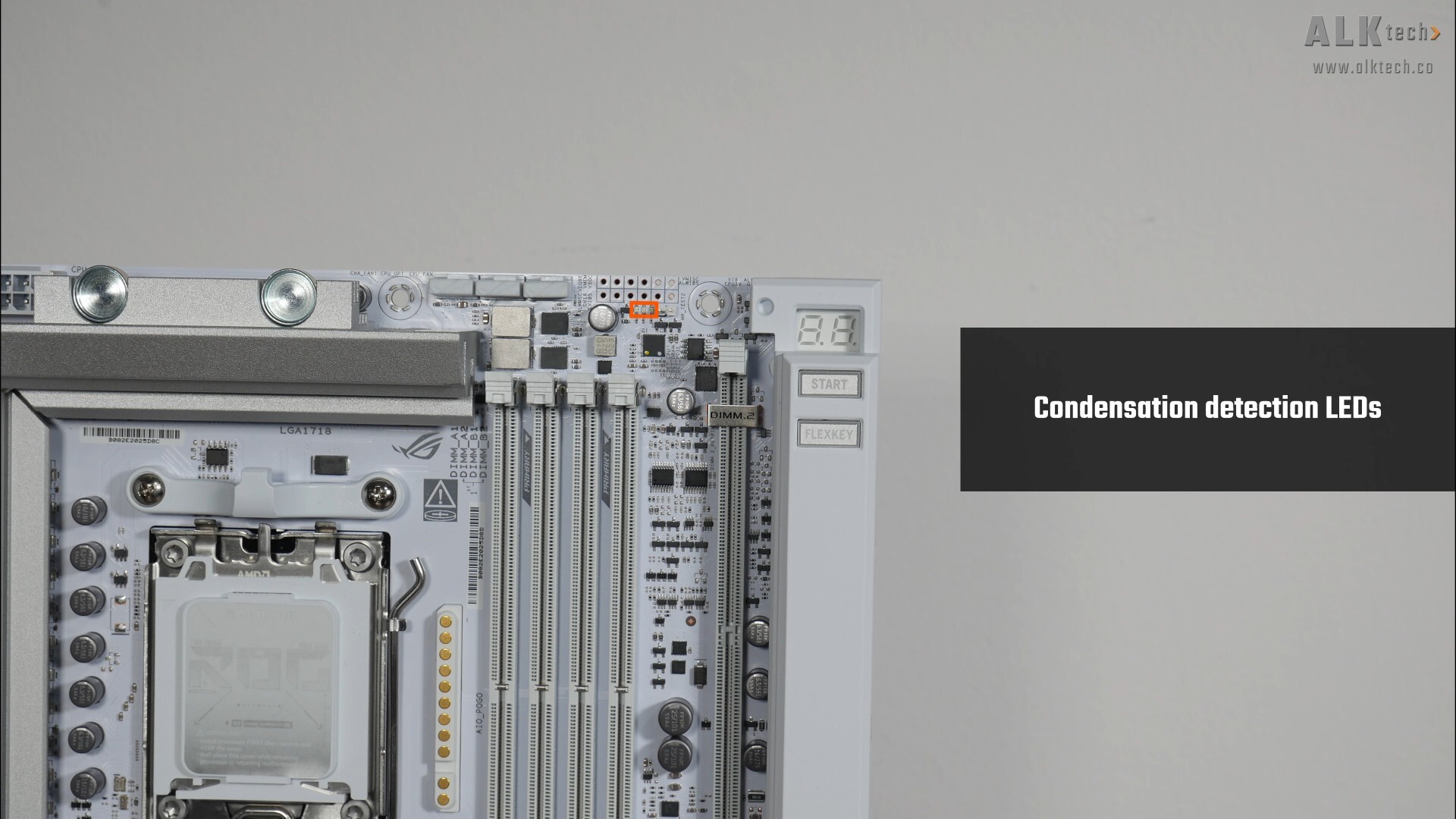
Some interesting features to highlight, back at the top of the motherboard, we get a set of ProbeIt voltage reading points for overclocking enthusiasts to connect a multimeter to so as to get on-the-fly voltage readouts for their CPUs, memory and such. Nearby is a set of condensation detection LEDs that light up when condensation is detected on your CPU, RAM or PCIE slots = a feature targeted at folks intending to do extreme overclocking with say, liquid nitrogen.
.jpg)
.jpg)
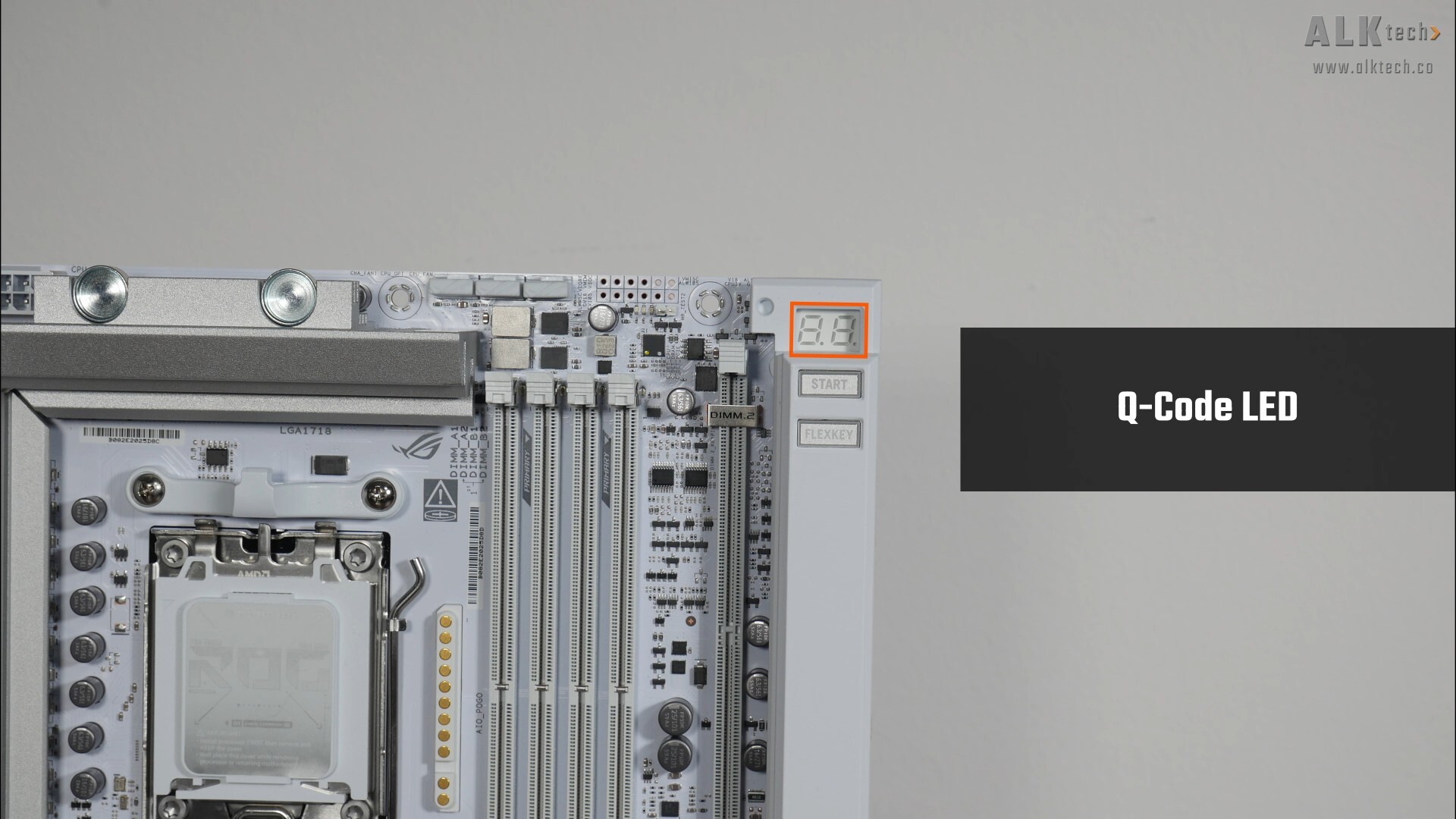
Moving on, we get a set of Q-LEDs that are obscured behind the aesthetic shroud, which is kind of unfortunate. We do also get a Q-Code LED; both these features can be used to help troubleshoot PC Power On Self Test (POST) issues.
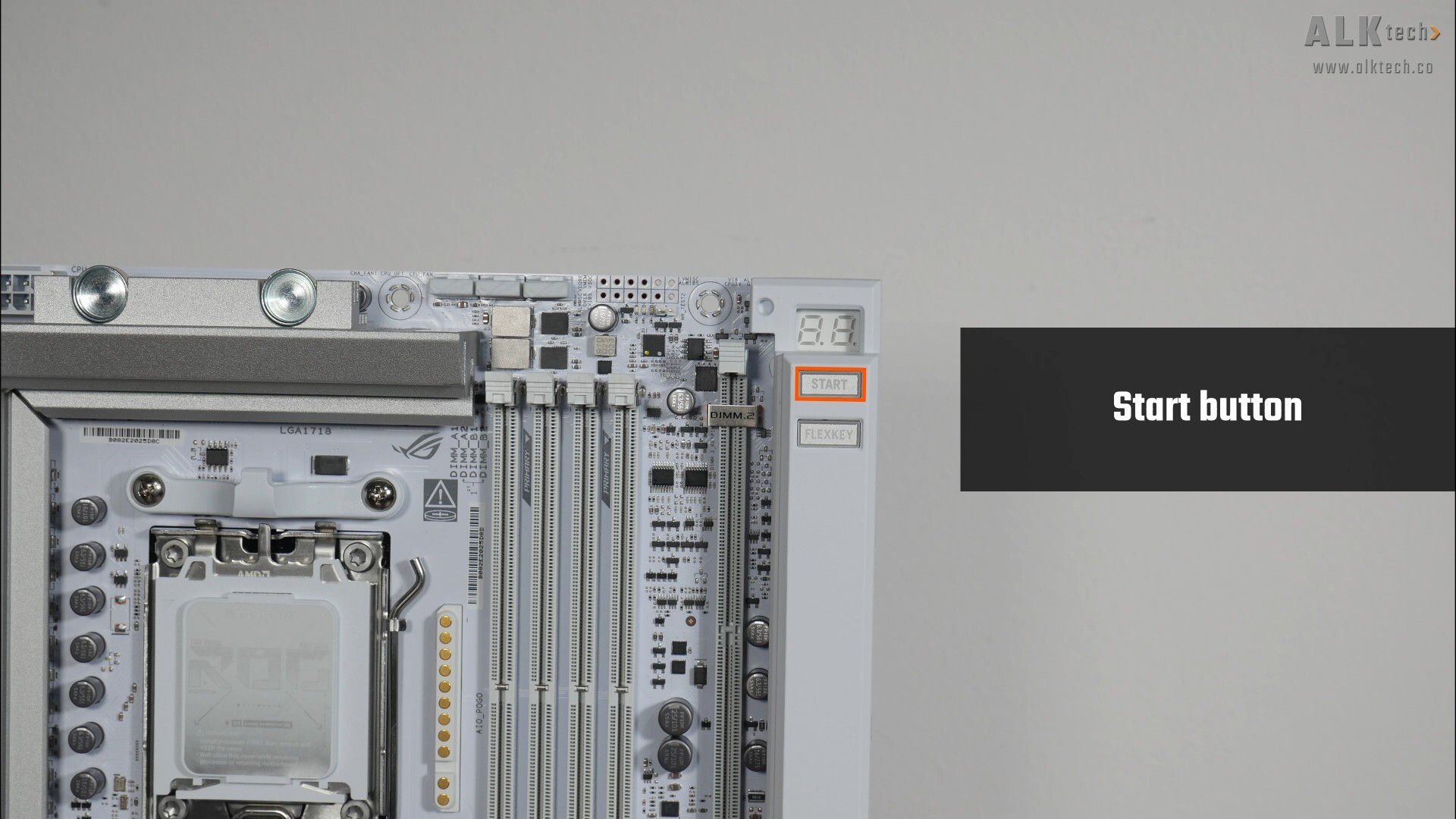
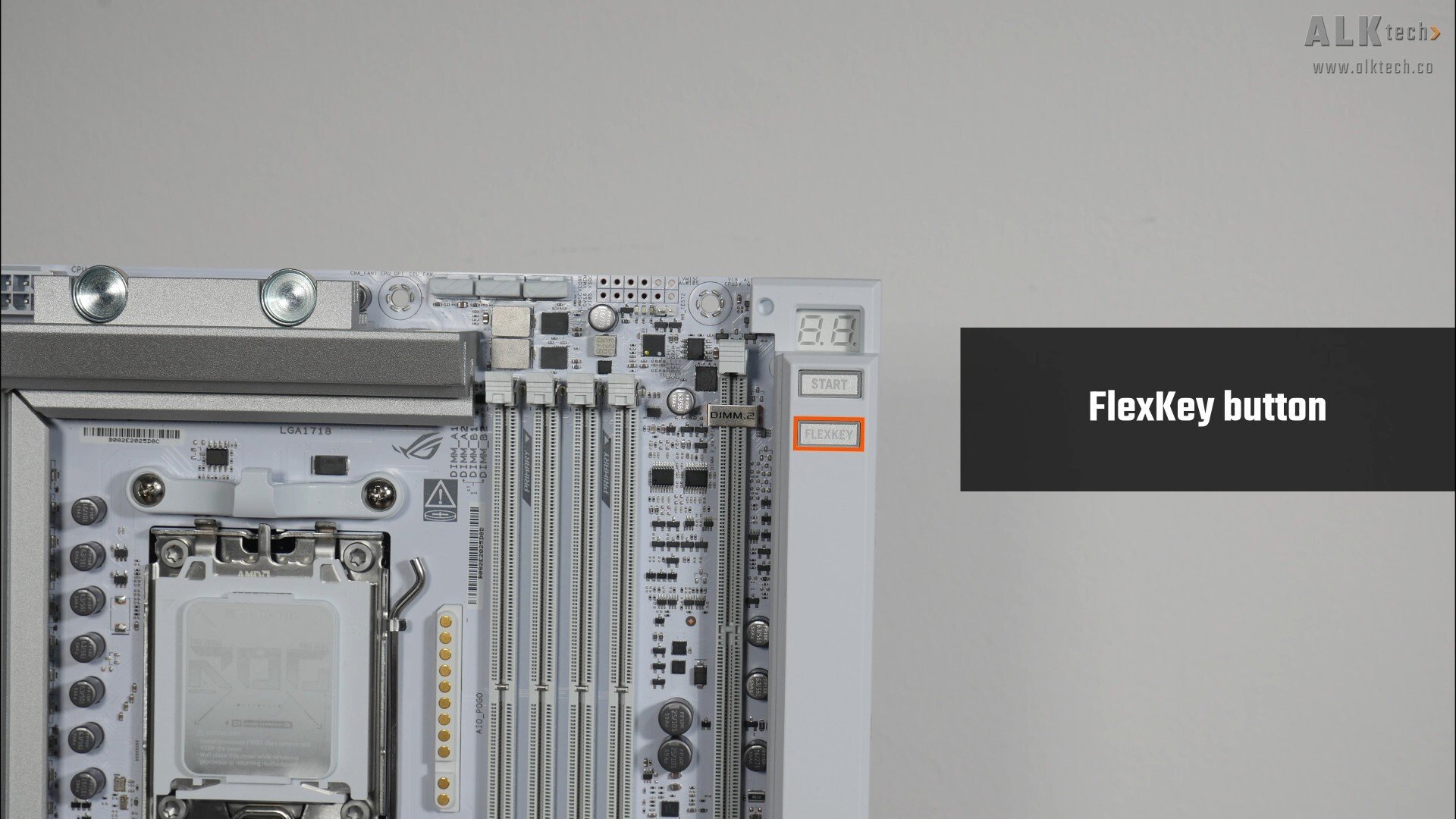
We also get a Start button that allows end-users to power on the PC as well as a FlexKey button that by default, serves as a Reset button, and can be customised from within the BIOS to perform a variety of different functions.
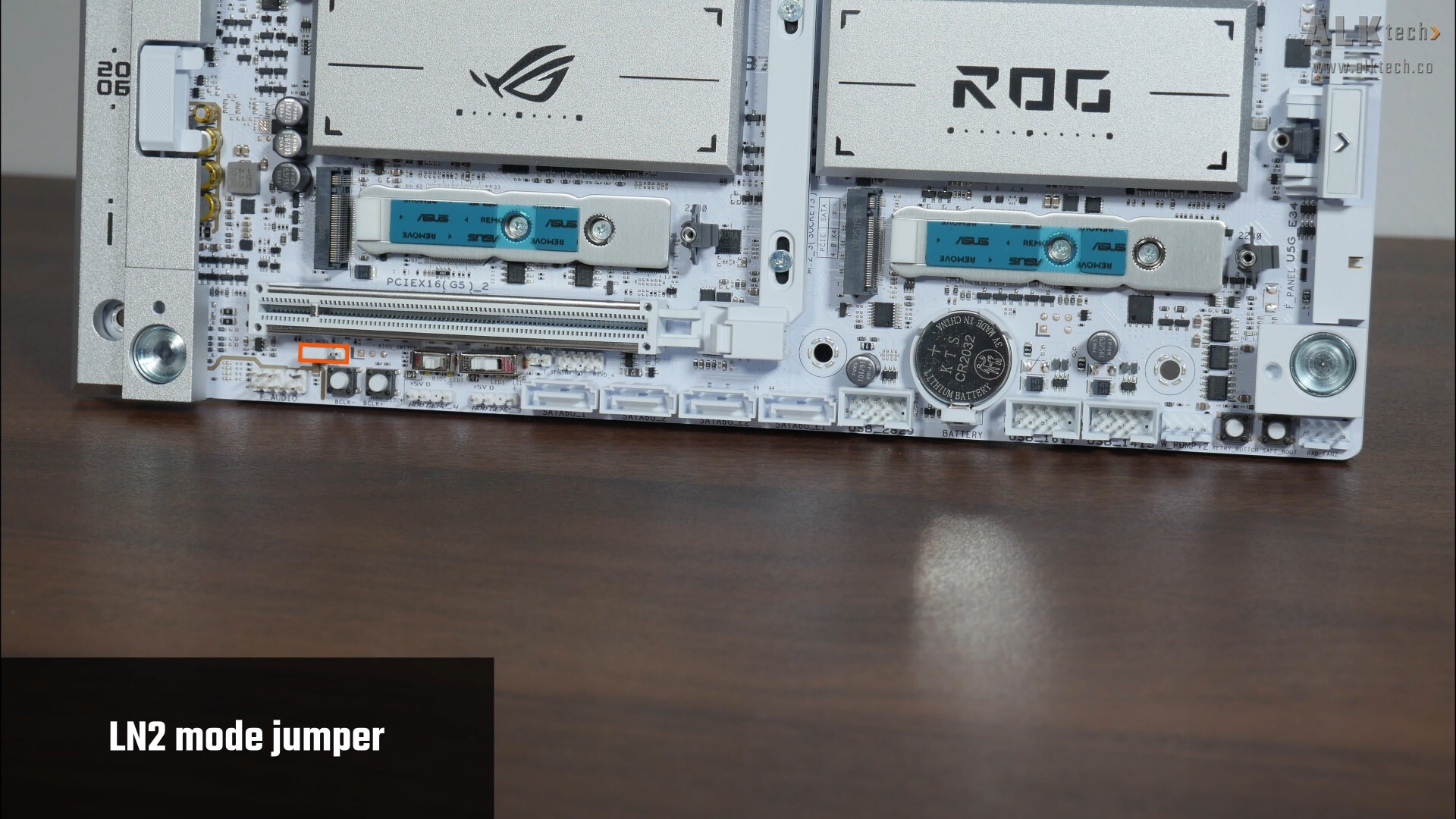
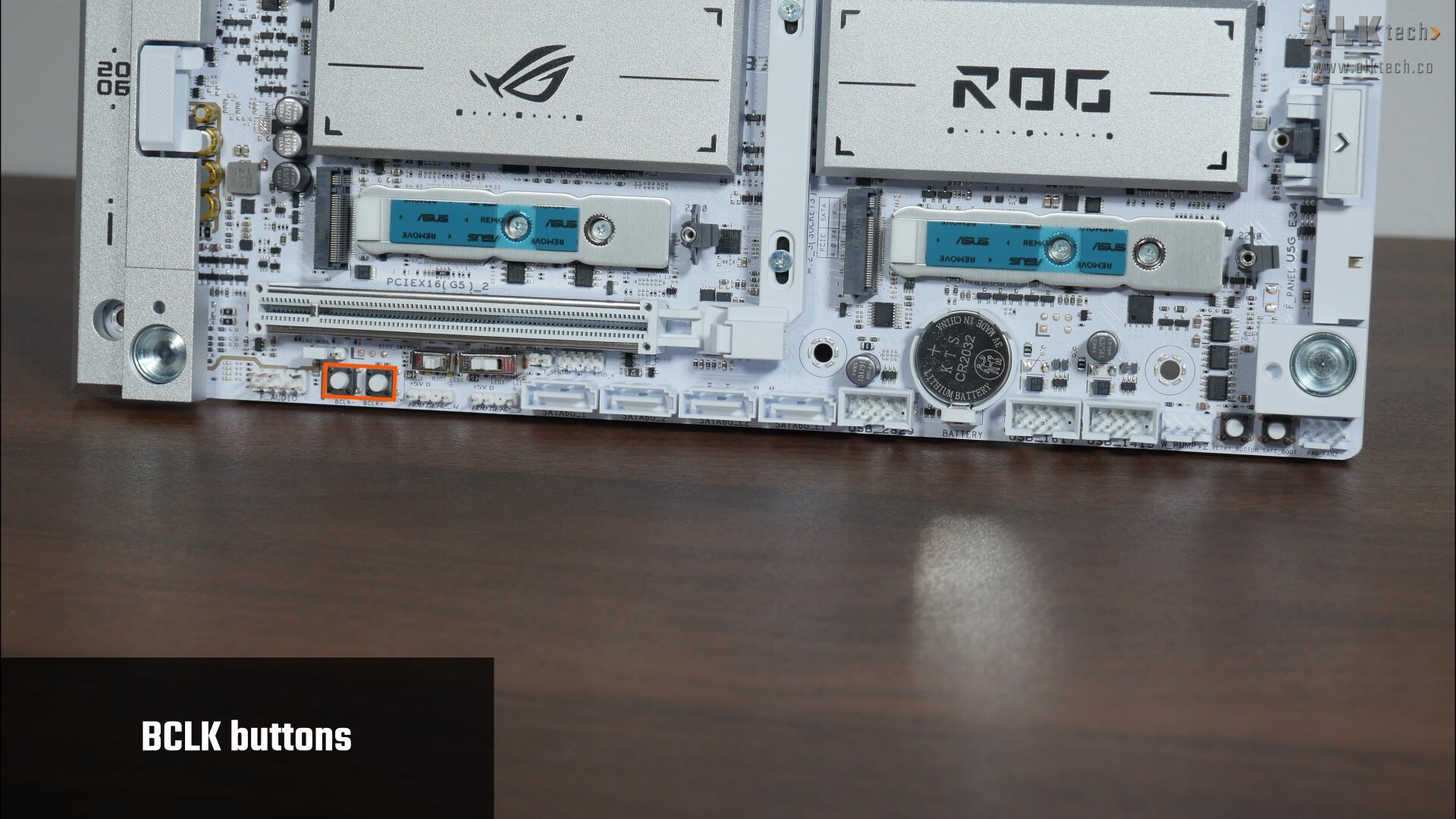
Moving over to the bottom edge of the board, we get a LN2 mode jumper that’s to be used for you folks intending to do a spot of liquid nitrogen CPU cooling for extreme overclocking purposes, as well as a pair of BCLK buttons that allow you to increase or decrease the base clock of your system on the fly, also for overclocking purposes.
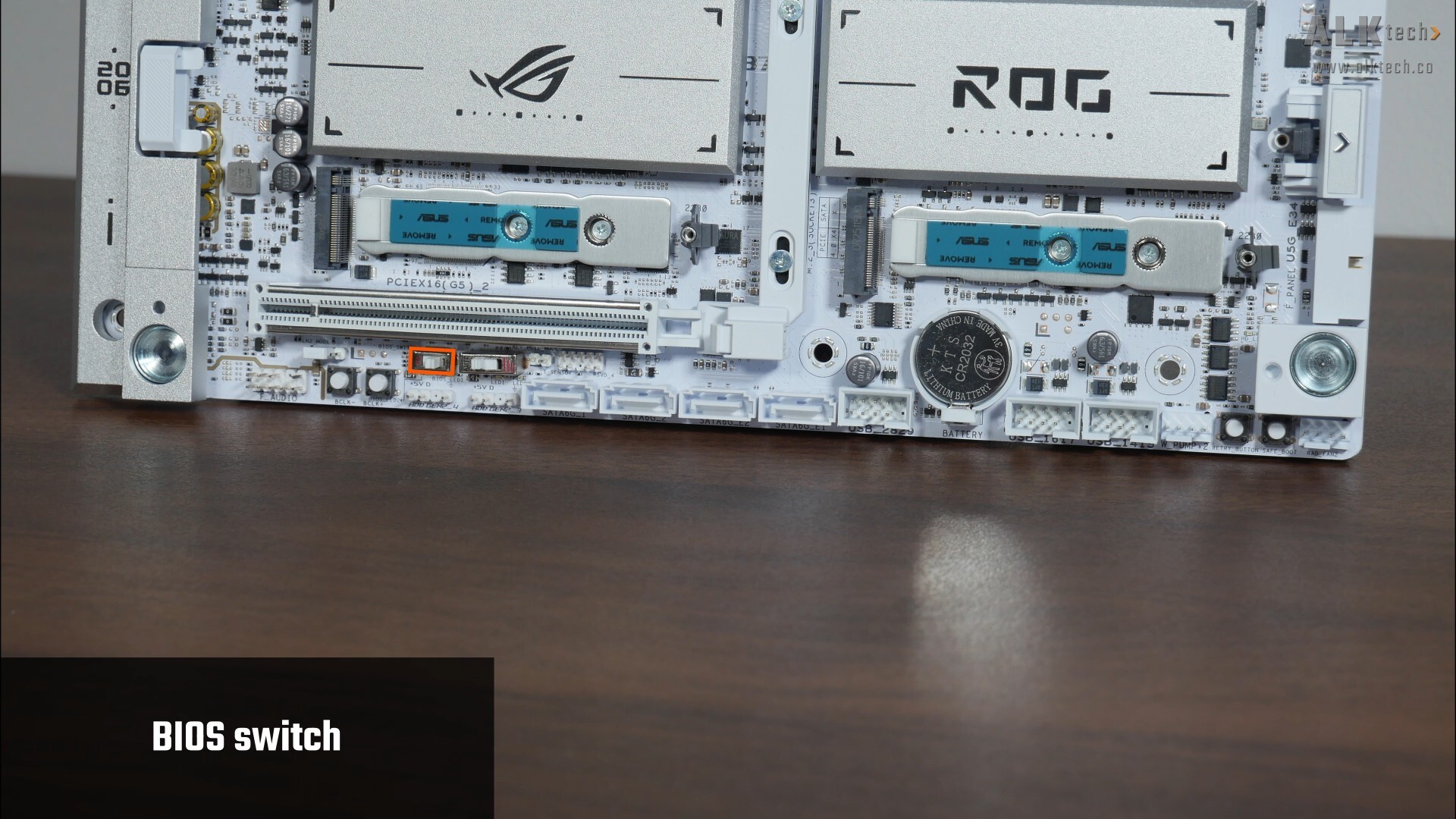
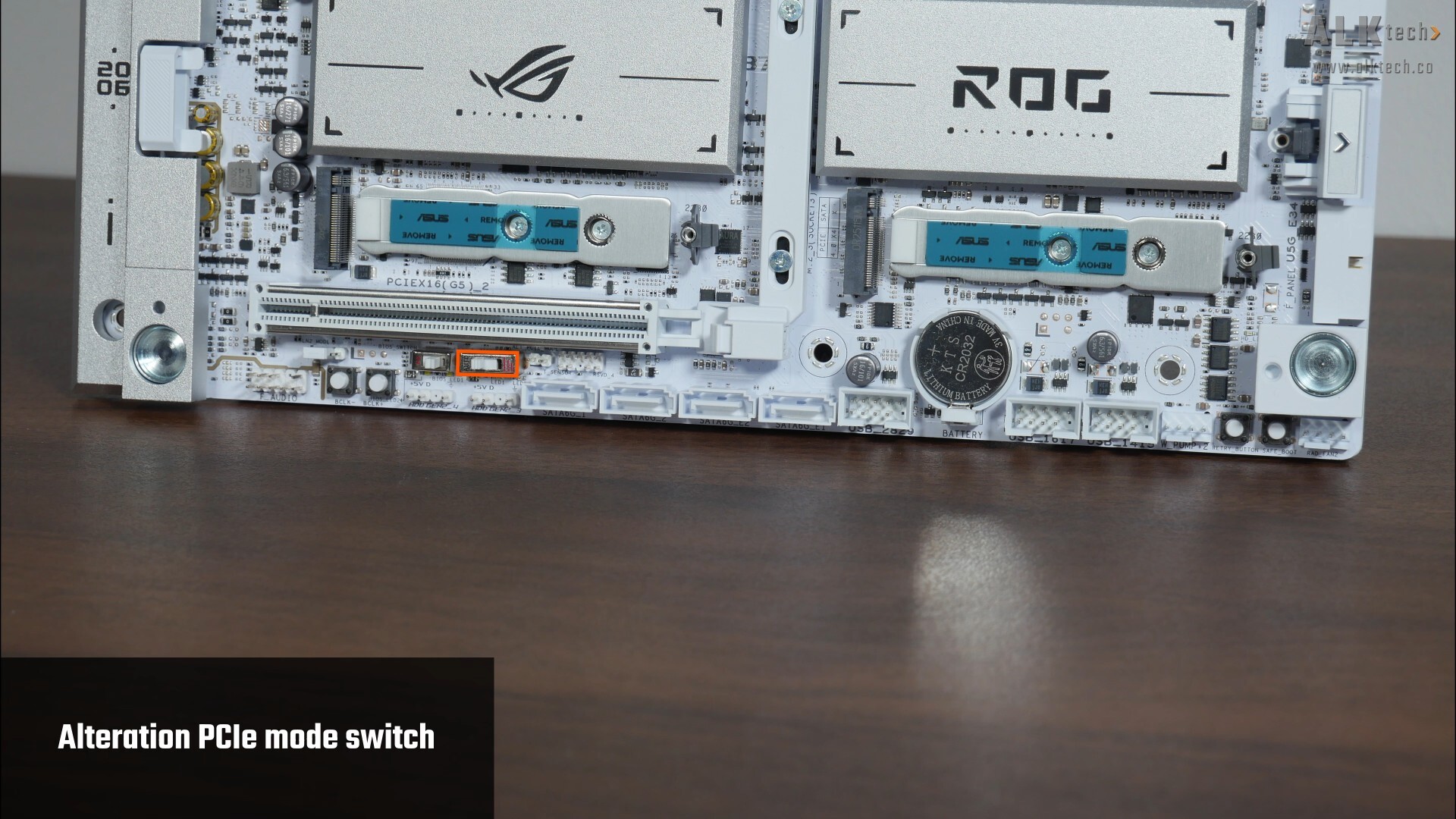
Next up is a BIOS switch that allows you to select between the two BIOS chips that the board comes with, as well as an Alteration PCIe Mode Switch that allows you to change the generation of PCIe signal that originates from the CPU, to Gen 4 or even Gen 3.
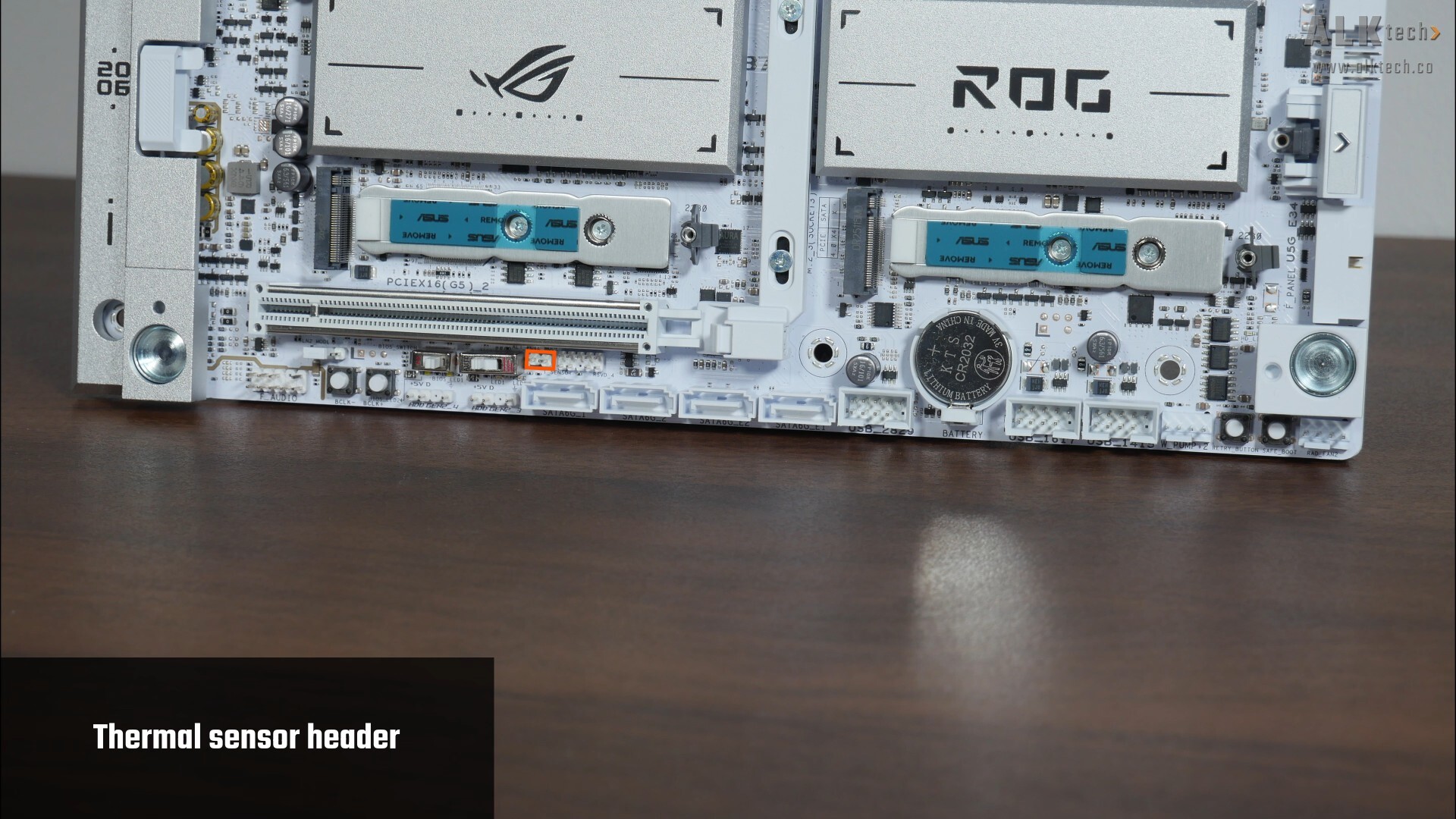
ASUS's also included a Thermal Sensor header that allows you to connect an optional thermistor cable to monitor the temperature of devices within your PC.
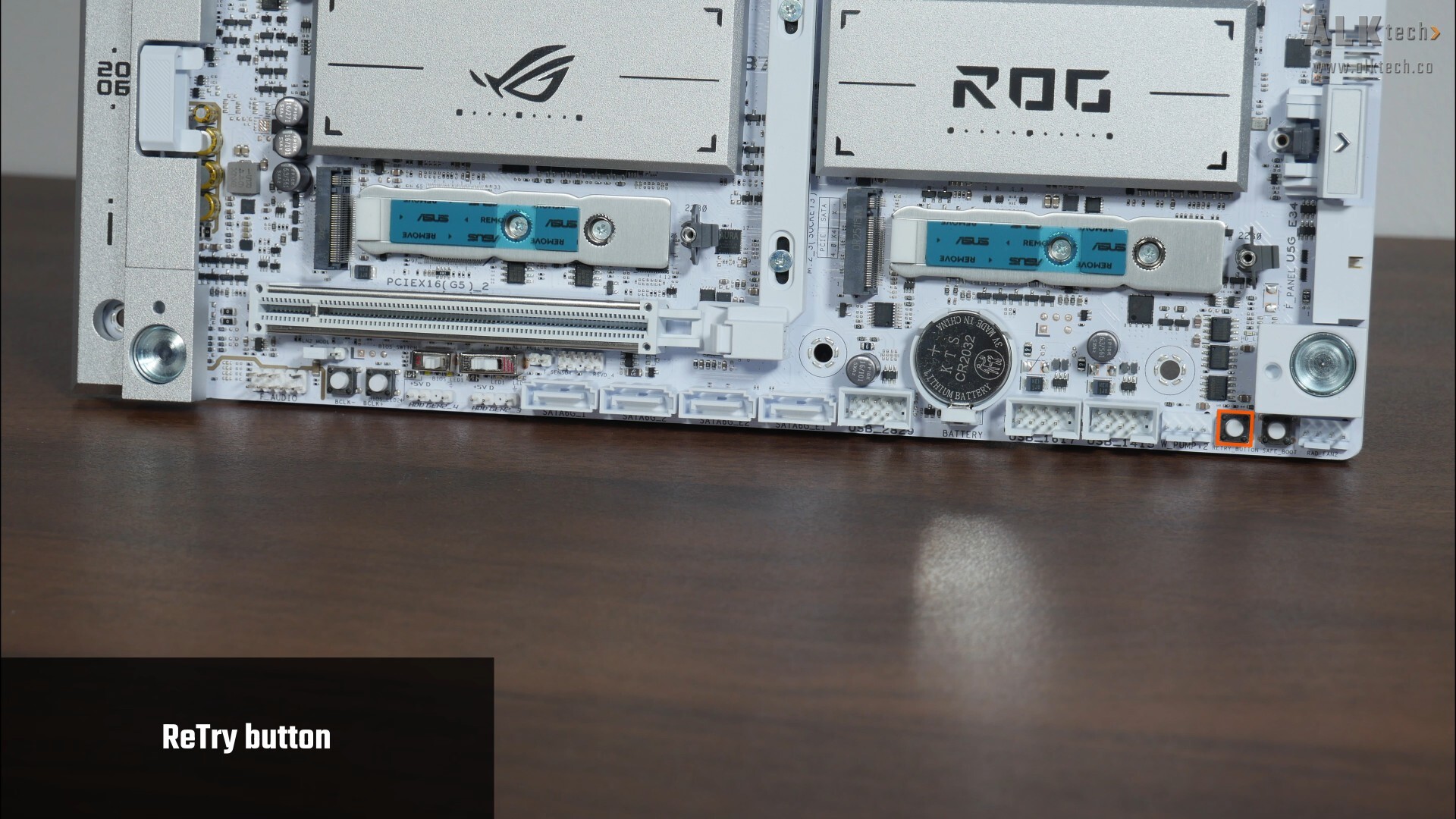
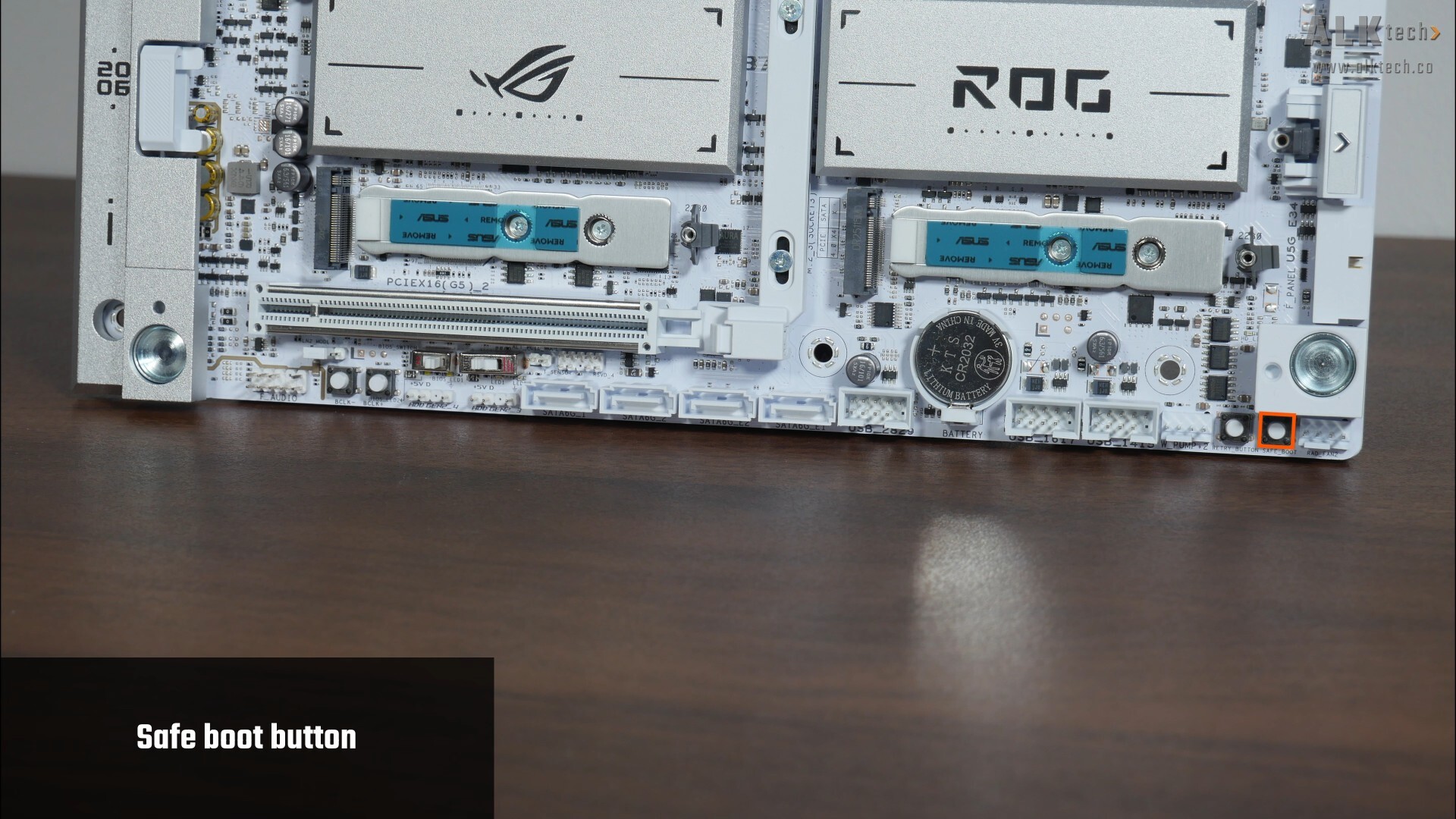
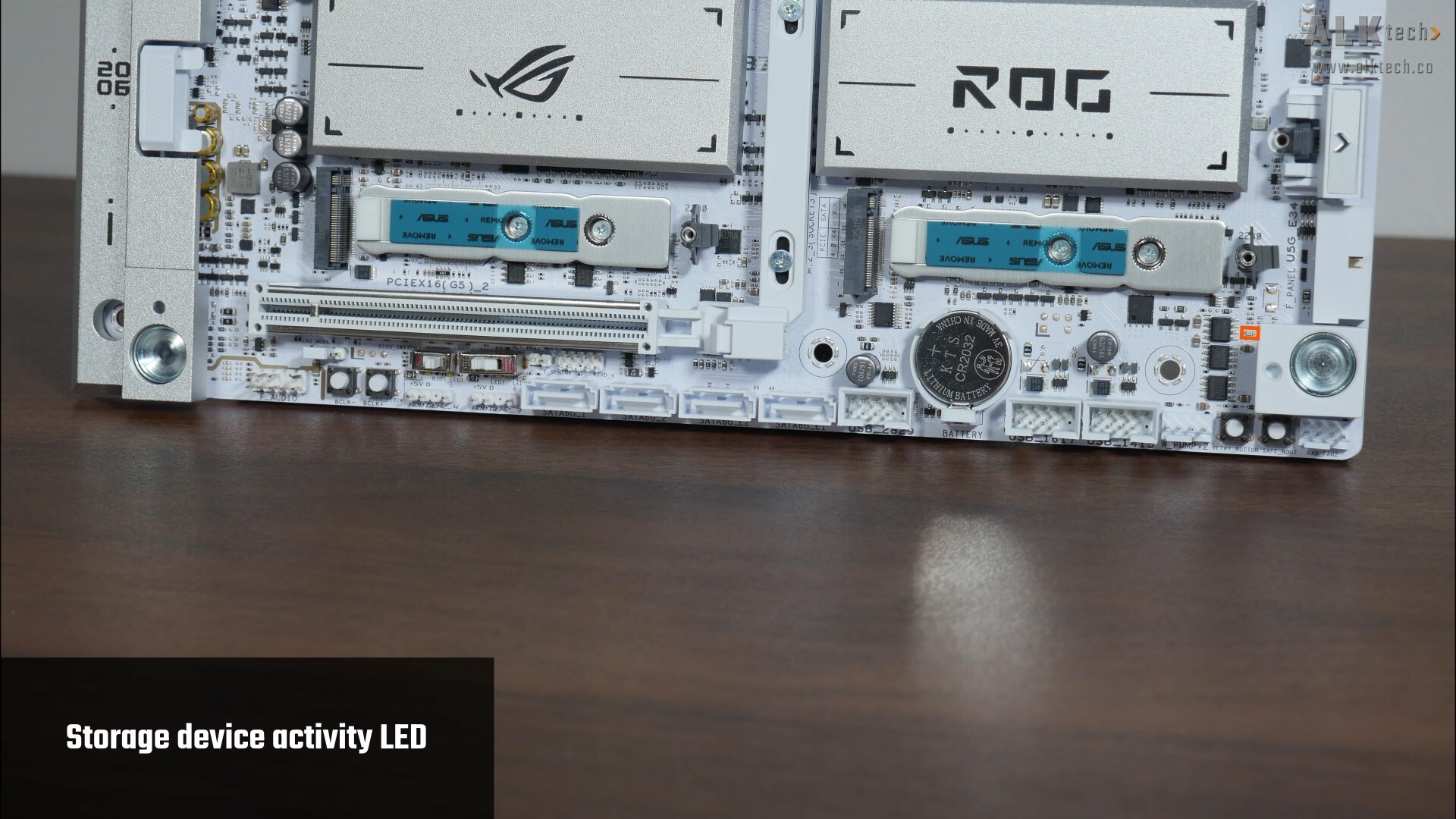
Further to the right, we get a ReTry button that allows you to reboot the system while retaining the same BIOS settings, a feature that’ll come in handy for overclockers for sure. We also get a Safe Boot button that forces the system to reboot into the BIOS in safe mode while retaining your overclocking settings, and finally, an onboard storage device activity LED that lights up when data is being read from or written to the storage drives of your PC build with this motherboard.
Rear I/O
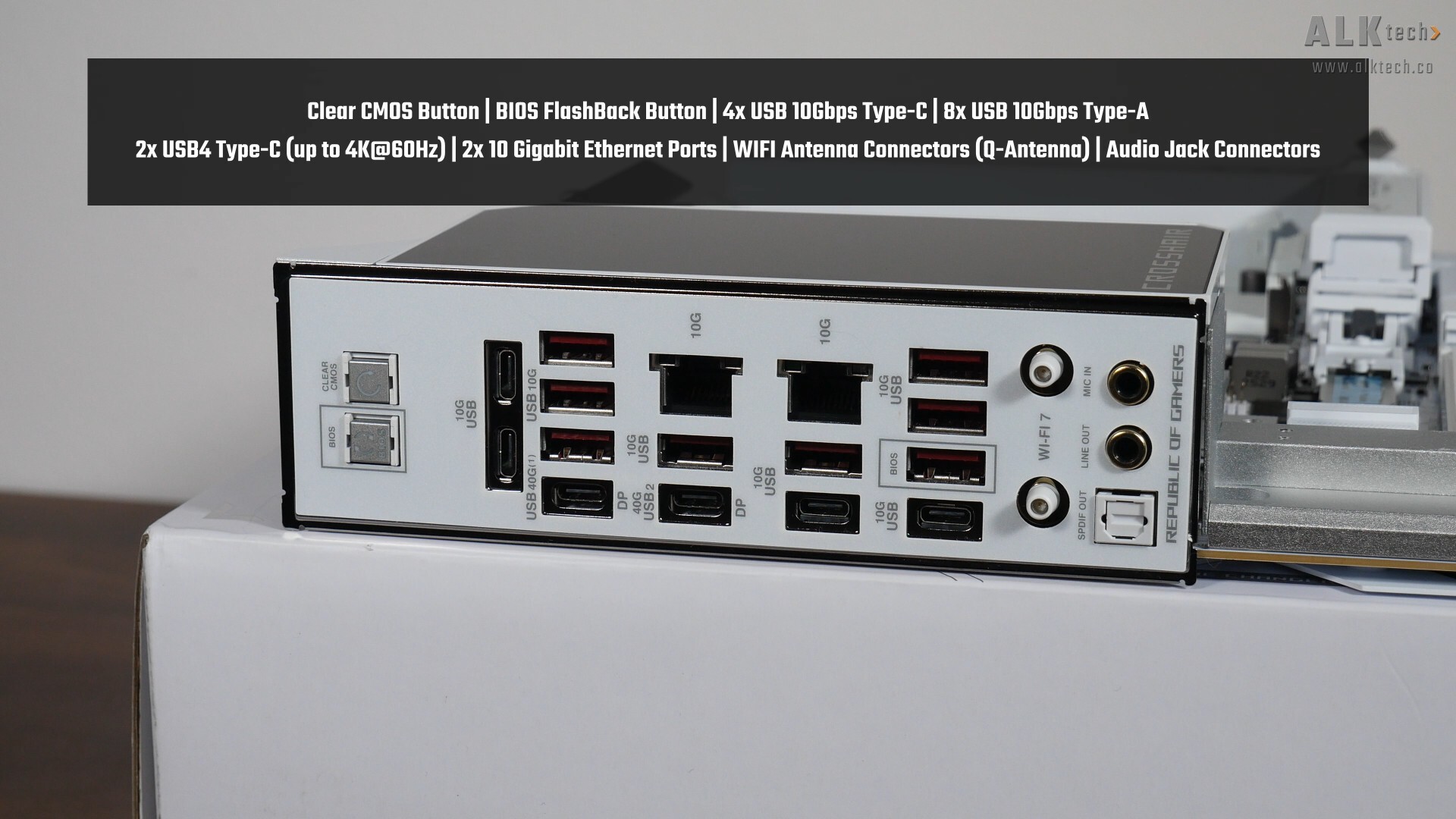
The ROG CROSSHAIR X870E GLACIAL comes with an integrated I/O shield design, where we get the following buttons and ports on the rear I/O:
- Clear CMOS button
- BIOS FlashBack button
- 4x USB 10Gbps Type-C ports
- 8x USB 10Gbps Type-A ports
- 2x USB4 Type-C ports (both ports support display output with a maximum resolution of 4K @ 60Hz)
- 2x 10 Gigabit Ethernet ports
- WIFI antenna connector (Q-Antenna)
- Audio jack connectors
The BIOS FlashBack feature allows end-users to update the motherboard's BIOS without needing to install a processor, RAM and graphics card - this feature's useful to have for sure, seeing as AMD's next-generation "Zen 6" processors are likely to be compatible with this board with just a BIOS update, that is, when "Zen 6" eventually launches.
Conclusion & Pricing
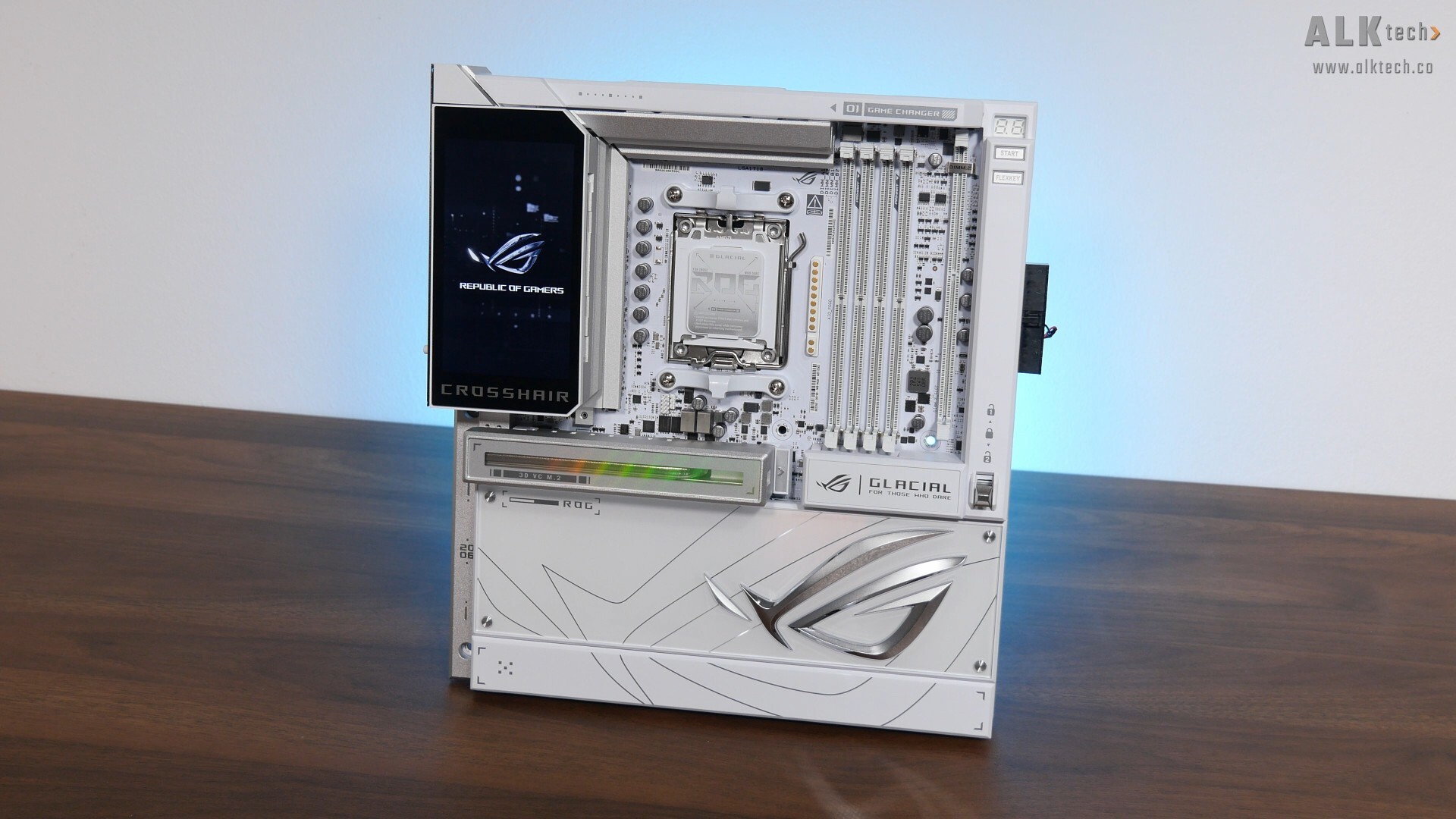
To sum up, the ASUS ROG CROSSHAIR X870E GLACIAL is without a doubt, a flagship AMD AM5 motherboard that has all the bells and whistles that one would expect of such a premium motherboard offering. We get a sleek aesthetic decked out with lots of heatsinks and aesthetic shrouds and even a 5” full-colour LCD display, a premium VRM setup, support for lots of M.2 drives, dual 10 Gigabit Ethernet ports, plenty of USB Type-C and Type-A connectivity options, along with no shortage of quality-of-life features such as PCIe Slot Q-Release Switch, Q-Slide and so on. It also helps that lane sharing is now confined to just the USB4 controller and the second PCIe 5.0 x4 M.2 slot, where end-users get the ability to configure the type of lane-sharing via the BIOS.
Shortcomings to mention? The ROG CROSSHAIR X870E GLACIAL has an eye-watering price of around US$1200, at least from listings that I saw on e-tailer sites such as Newegg. That’s a lot of money, but you do get a lot of board too in that regard, making this a halo product that definitely isn’t going to ship in large volumes.
Get this motherboard from Amazon: https://amzn.to/4kicfFP
ALKtech may earn commissions from qualifying purchases made using affiliate links, at no extra cost to you as a customer. These commissions go a long way in supporting the platform!
The motherboard featured in the video above was a review unit provided on loan from ASUS Singapore.