%20500x1200.png?width=200&height=83&name=ALK%20Tech%20Logo%20(TransparentTextured)%20500x1200.png "ALK Tech Logo (TransparentTextured) 500x1200")
The ASUS ROG NUC (2025)'s successor is the new ROG NUC 16 that's not all that different from its predecessor, with key differences being the use of Intel's new flagship Core Ultra 9 290HX Plus mobile processor and aesthetic tweaks, amongst other things.
Review Video Timestamps
0:00 Introduction
0:29 Packaging & Specifications
1:53 Unboxing & Accessories
3:09 The PEEL
3:26 Aesthetics & Physical Features
5:29 External Connectivity
6:22 Service Access & Internal Walkthrough
9:59 ROG NUC 16 & ROG NUC (2025) Differences
11:03 Test Setup & Benchmarks
12:33 7-Zip Compression & Decompression
12:40 Cinebench 2024
12:49 Cinebench R23
12:57 CrystalDiskMark 9.0.1
13:05 Black Myth Wukong Benchmark Tool (4K, 1440p, DLSS & non-DLSS)
13:36 Cyberpunk 2077 v2.3 In-game Benchmark (4K, 1440P, DLSS & non-DLSS)
14:07 F1 23 In-game Benchmark (4K & 1440p, non-DLSS)
14:23 Shadow of the Tomb Raider Benchmark (4K & 1440p, non-DLSS)
14:36 Thermals, Power & Acoustics
16:410 Conclusion
Introduction
Last year's ASUS ROG NUC (2025) was undoubtedly one of the most powerful (if not THE most powerful) mini gaming PC on the market for its time, where the combination of Intel's then-flagship "Arrow Lake" Core Ultra 9 275HX mobile processor and NVIDIA's GeForce RTX 5080 mobile GPU meant that the ROG NUC (2025) was able to chew through gaming titles and productivity tasks with aplomb. Close to a year has passed since the ROG NUC (2025)'s launch, and today, we've got the new ASUS ROG NUC 16, which is the ROG NUC (2025)'s successor.
Powered by the new flagship "Arrow Lake Refresh" Intel Core Ultra 9 290HX Plus 24-core mobile processor (basically a 275HX with higher clock speeds), the flagship variant of the ROG NUC 16 packs the same RTX 5080 mobile GPU as its predecessor, and a very similar aesthetic to boot - you'd be forgiven for mistaking the ROG NUC 16 for the ROG NUC (2025)!
For this review in particular, we'll be looking at the NUC16JNK model that's equipped with Intel's flagship Core Ultra 9 290HX Plus mobile processor, 32GB of DDR5 6400 CSODIMM memory, NVIDIA's GeForce RTX 5080 Mobile GPU and a 2TB NVMe SSD. Read on to see how ASUS's latest flagship gaming mini PC offering performs in a series of synthetic and gaming benchmark tests!
Summary of Specifications (NUC16JNK)
- Processor: Intel Core Ultra 9 290HX Plus
- Memory: 32GB (16GBx2) Micron DDR5 6400 CSODIMM
- Storage: 2TB SanDisk PC SN5100S NVMe SSD
- GPU: NVIDIA GeForce RTX 5080 Mobile GPU (16GB GDDR7 VRAM)
- Audio: Realtek ALC3342-CG
- Ethernet: Realtek RTL8125D 2.5 Gigabit Ethernet
- Wireless: Intel Killer BE1750x WIFI 7 with Bluetooth 5.4
- Power Supply: Delta ADP-380AB B 380W power adapter
- OS: Microsoft Windows 11 Home
- Official ASUS product page: https://rog.asus.com/desktops/mini-pc/rog-nuc-16/
Packaging & Accessories
.jpg)
.jpg)
.jpg)
Packaging wise, ASUS has gone with the usual black and red ROG colourway for the box, and over on the rear, we get a sticker with a summary on the specifications of the ROG NUC 16 mini PC.
In terms of accessories, ASUS has included the following with the ROG NUC 16:
- Safety information leaflet
- Regulatory information leaflet
- Warranty information leaflet
- Delta ADP-380AB B 380W AC adapter
- Power cord
Aesthetics & Physical Features
.jpg)
Taking a closer look at the ROG NUC 16, it’s constructed entirely of plastic with the dimensions as listed above. Aesthetics wise, it’s available in black and I believe for the first time with a ROG NUC mini PC, a white colourway too.
.jpg)
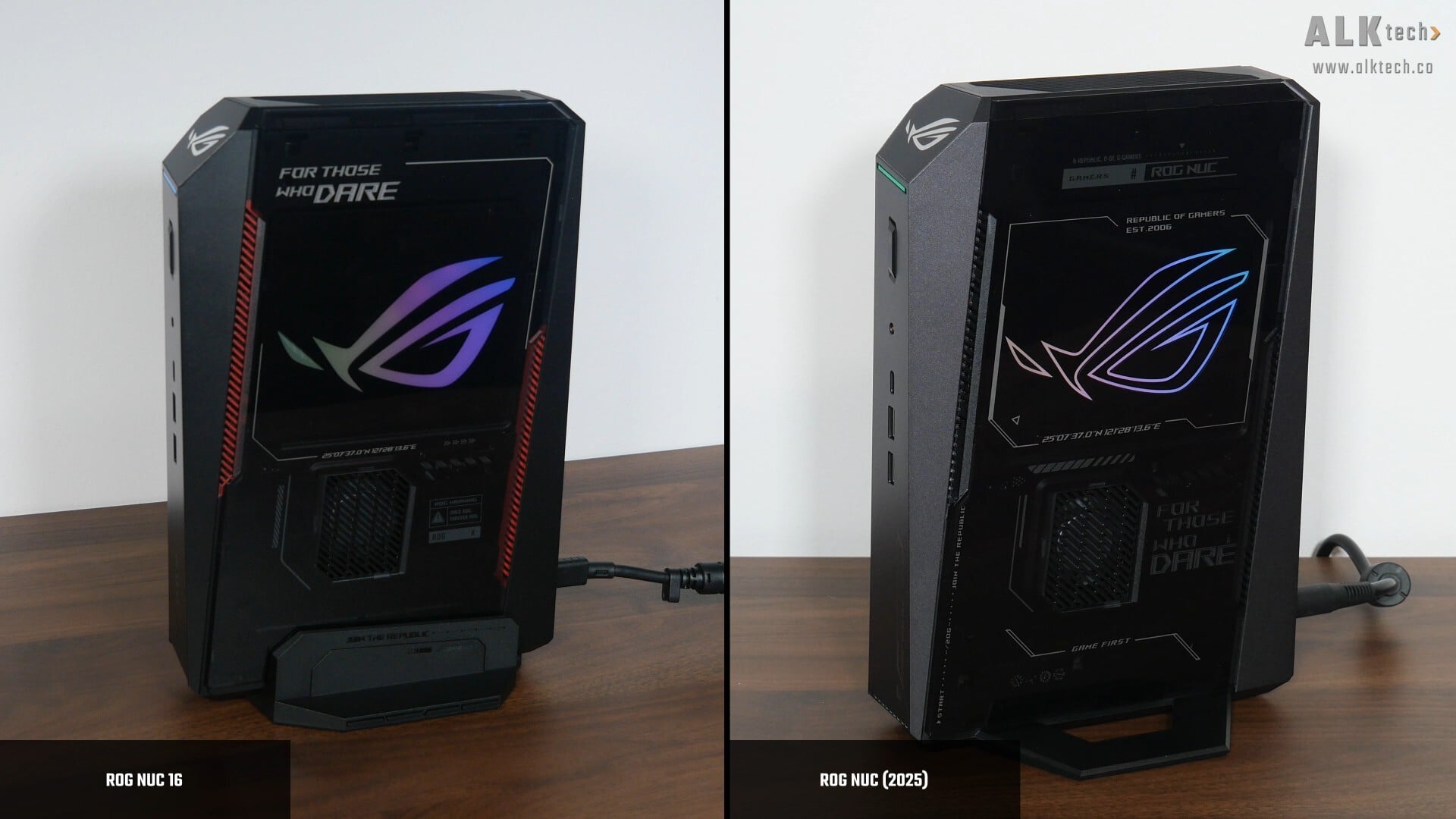
Appearances wise, it’s actually very similar to the ROG NUC (2025). On the front, we’ve got an illuminated RGB LED strip right below a ROG logo, and further down, your usual front panel I/O connectors. On one side of the mini PC, we get a clear plastic panel, where a ROG logo with RGB lighting effects is clearly visible, alongside a single ventilation opening that exposes a blower-style cooling fan. We do also get red-coloured vents for a touch of contrast.
In case you're wondering, the RGB lighting effects of the ROG logo can be configured via the ASUS Armoury Crate app from within Windows.
.jpg)
On the other side of the mini PC, we get ventilation cut-outs in the shape of the ROG wordmark, where two blower-style cooling fans are visible if you look closely enough.
.jpg)
.jpg)
.jpg)
Moving on, we get also ventilation openings on the rear, and on the short edges of the ROG NUC 16.
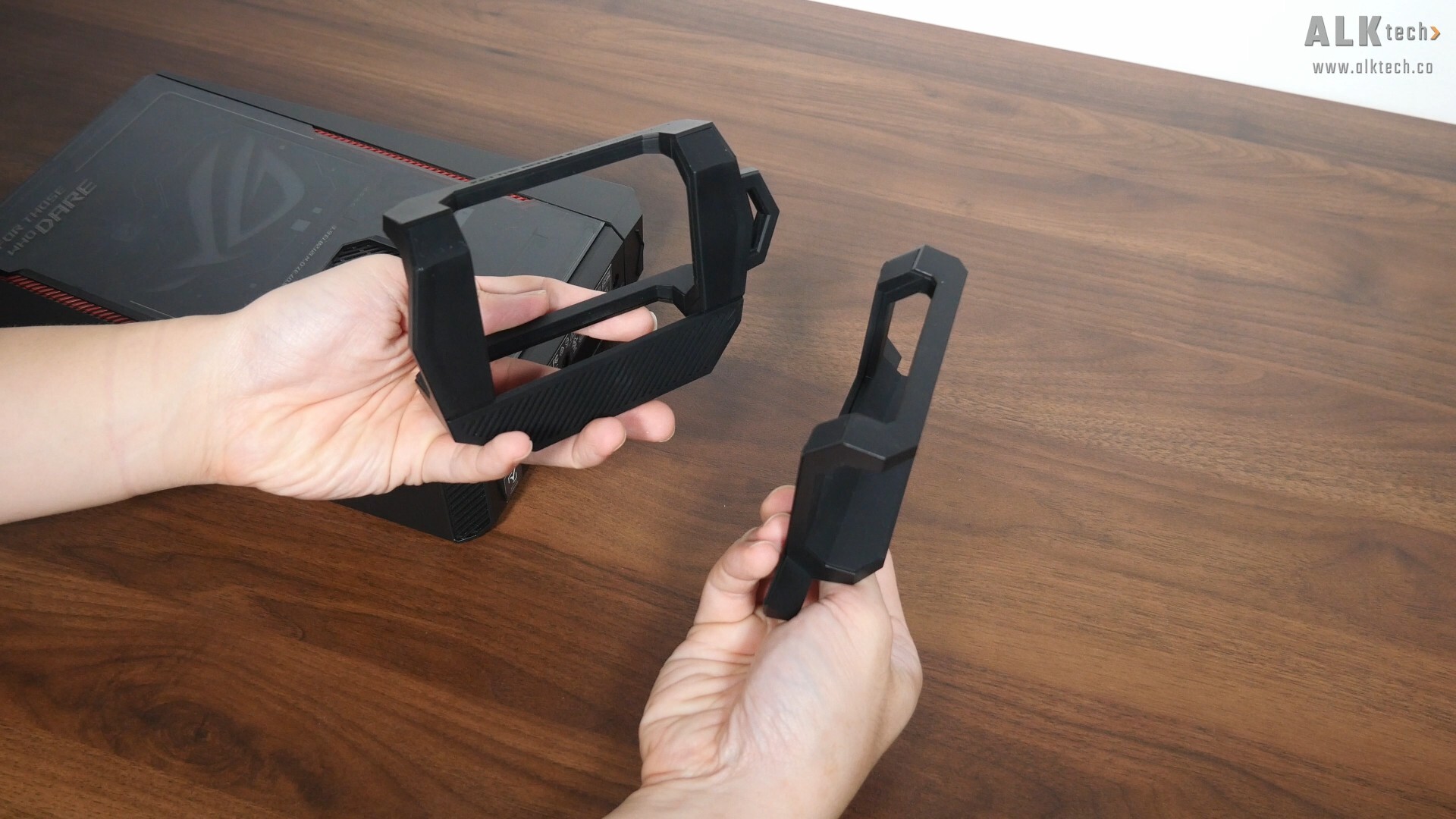
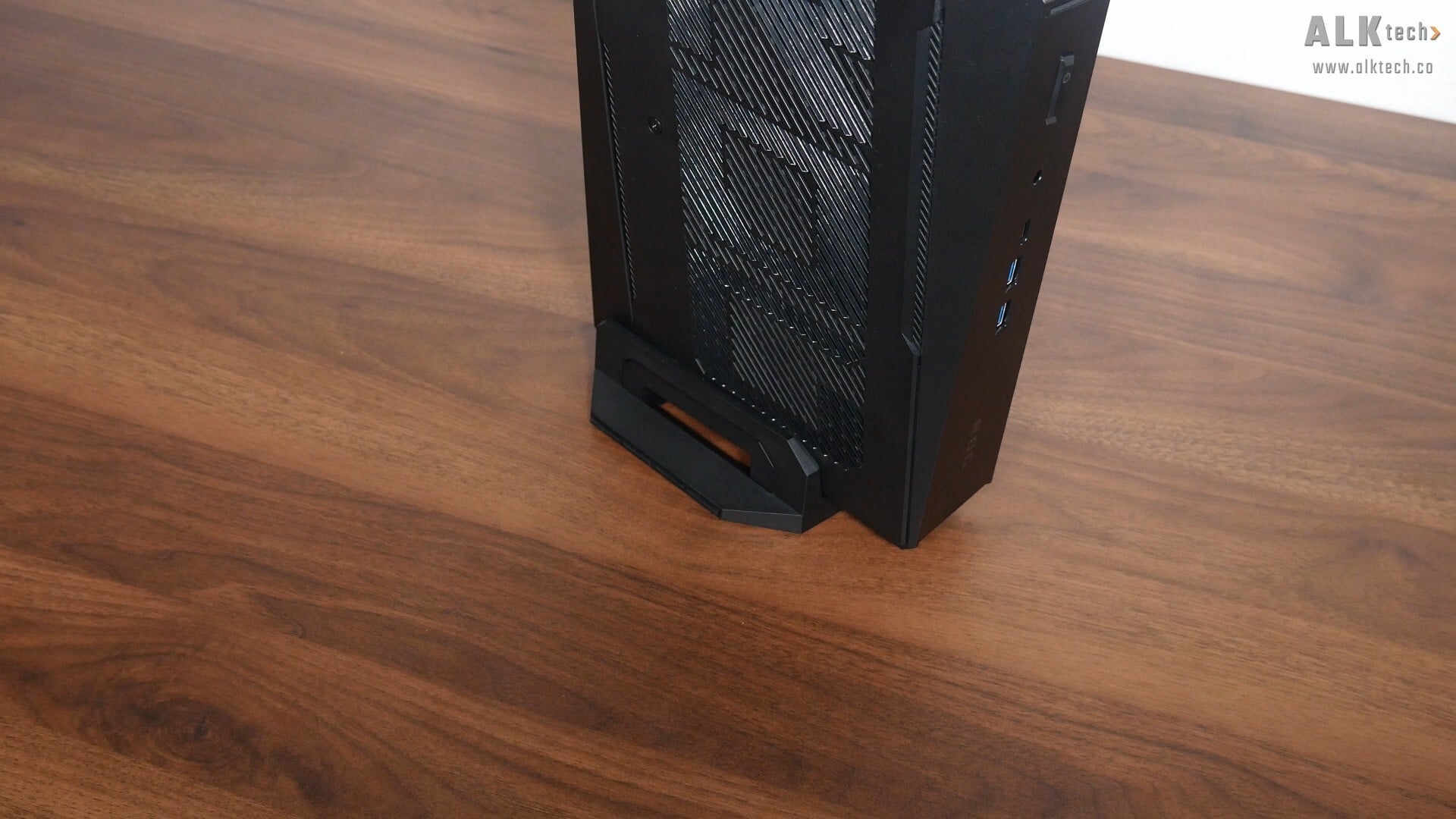
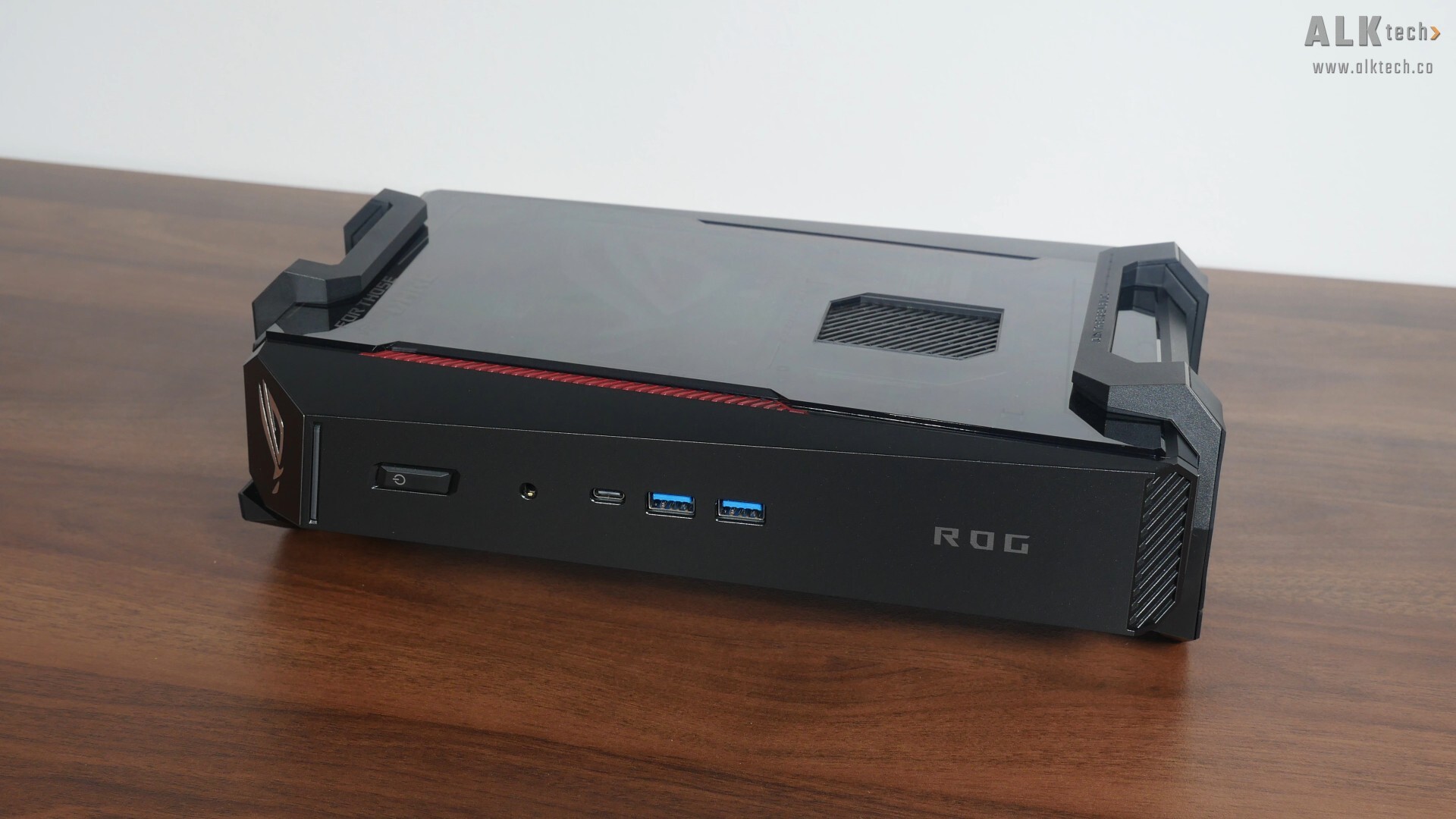
Unlike the previous gen ROG NUC 2025 that was designed to be placed only in the horizontal position, the ROG NUC 16 can be placed in either the horizontal or vertical position, where we get a removable stand that can be used in either the horizontal or vertical positions as pictured above, which is pretty nifty. Also, ASUS has included what it calls a “G-Sensor” that optimises thermal settings based on which orientation that the ROG NUC 16 is placed in.
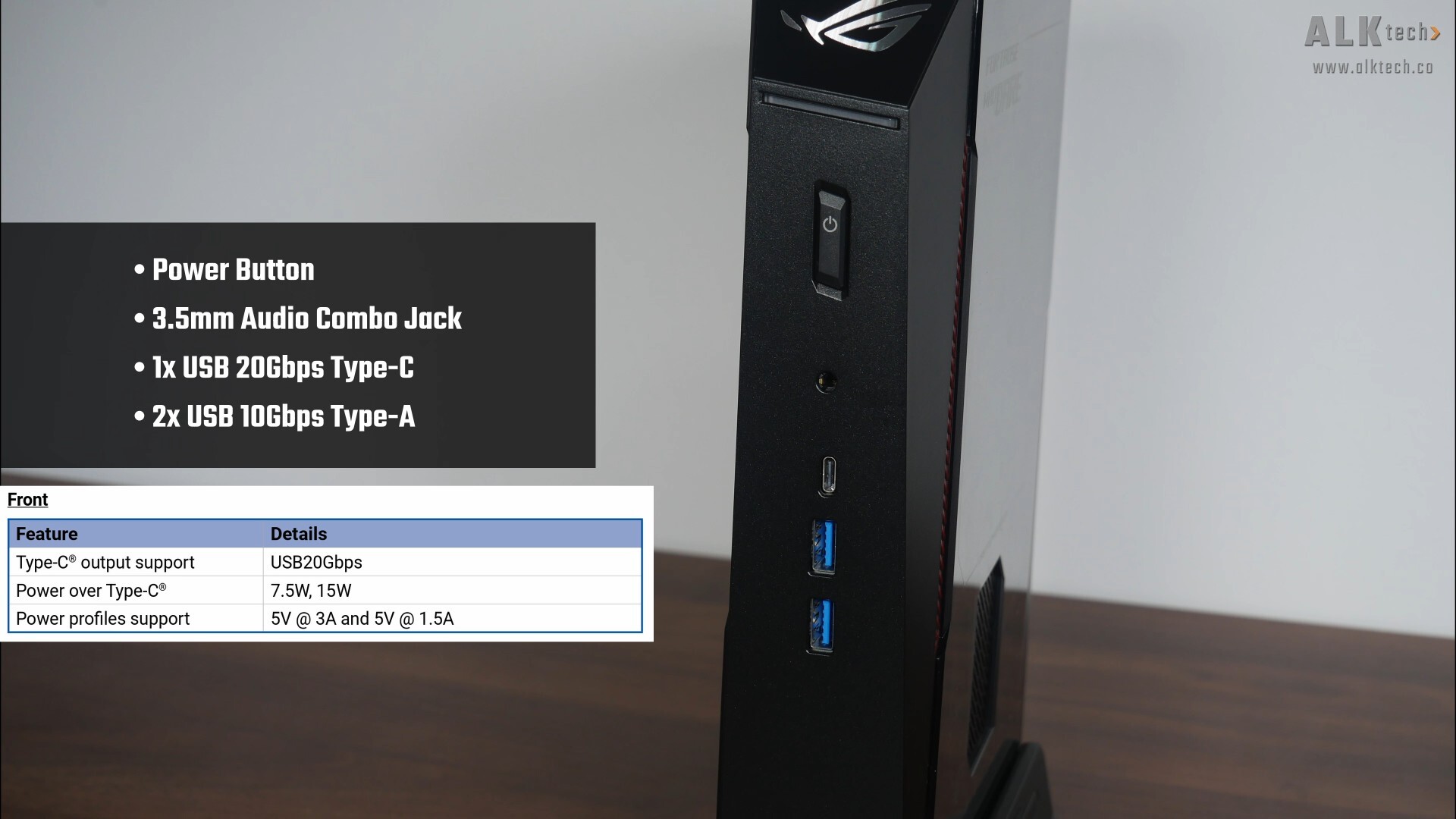
Taking a closer look at the front I/O, we’ve got a power button, a 3.5mm audio combo jack, a USB 20Gbps Type-C port with support for the following Power Delivery profiles, and two USB 10Gbps Type-A ports.
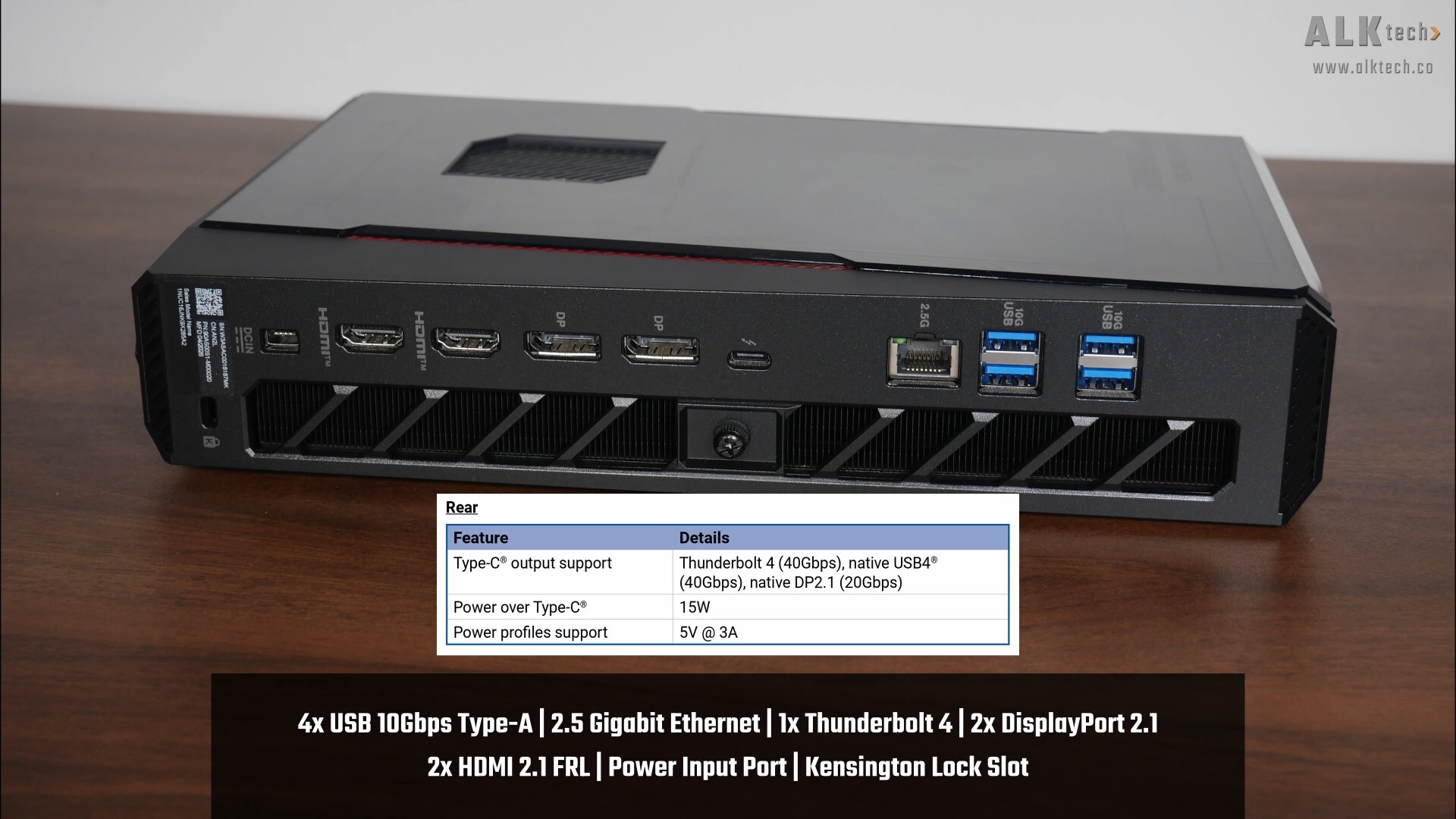
Over on the rear, the ROG NUC 16 comes with four USB 10Gbps Type-A ports, a 2.5 Gigabit Ethernet port, as well as a Thunderbolt 4 port that supports the DisplayPort 2.1 standard with the power delivery profiles that you can see above. Moving on, we get two DisplayPort 2.1 ports as well as two HDMI 2.1 ports – according to ASUS, the ROG NUC 16 supports up to five displays at 4K simultaneously. To round things off, we get a power adapter port, as well as a Kensington lock slot.
Service Access
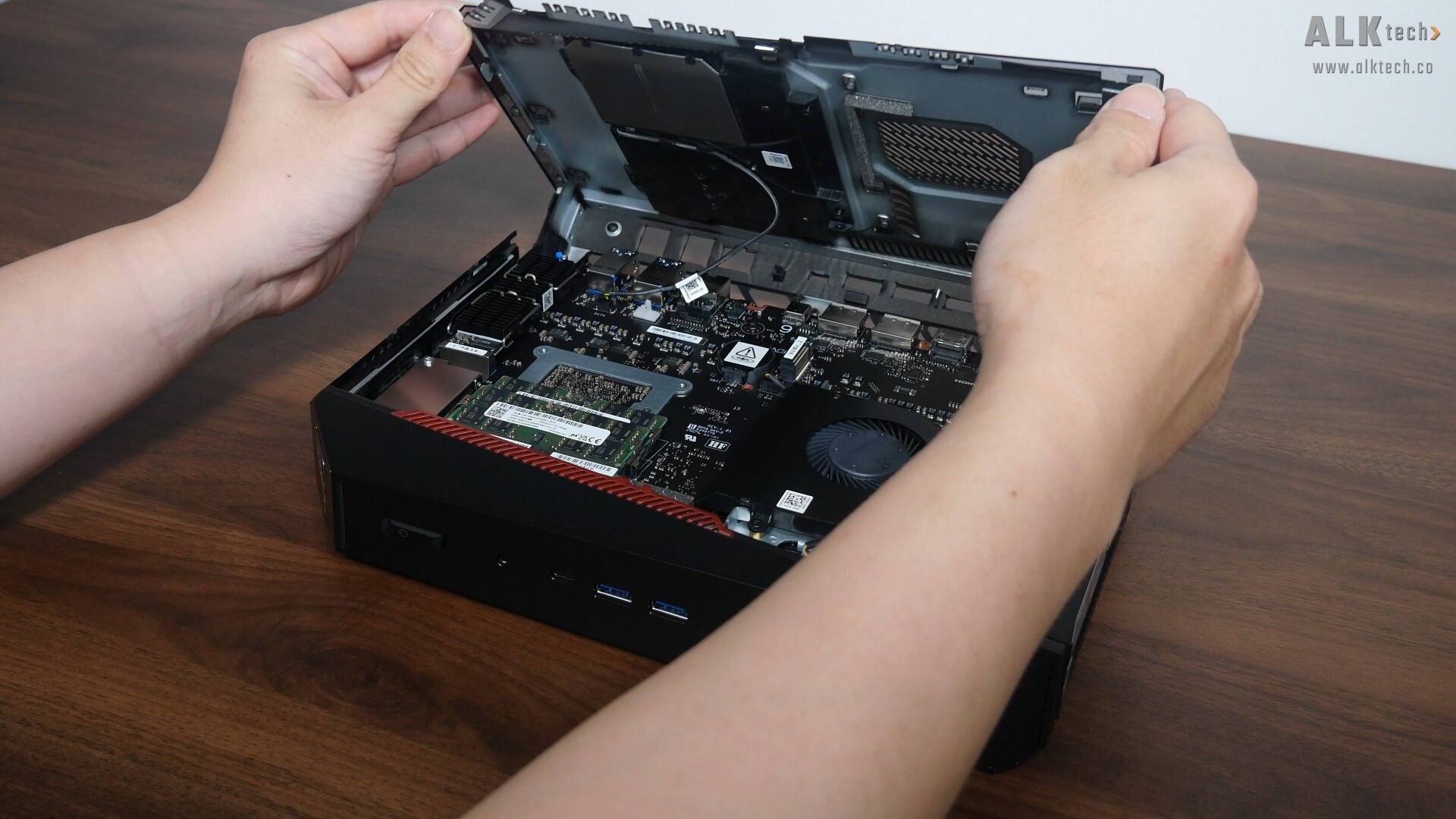
For service access, you’ll have to undo just a single thumbscrew and slide the lid out towards the direction of where the rear I/O ports are situated. After sliding the lid off, you’ll then have to carefully flip the lid in the direction pictured above, reason being that the illuminated ROG logo is connected to motherboard via a single cable (also visible above), and you wouldn’t want to rip the said cable off from the motherboard by accident! With the cable disconnected and the lid out of the way, you'll gain full access to the motherboard.
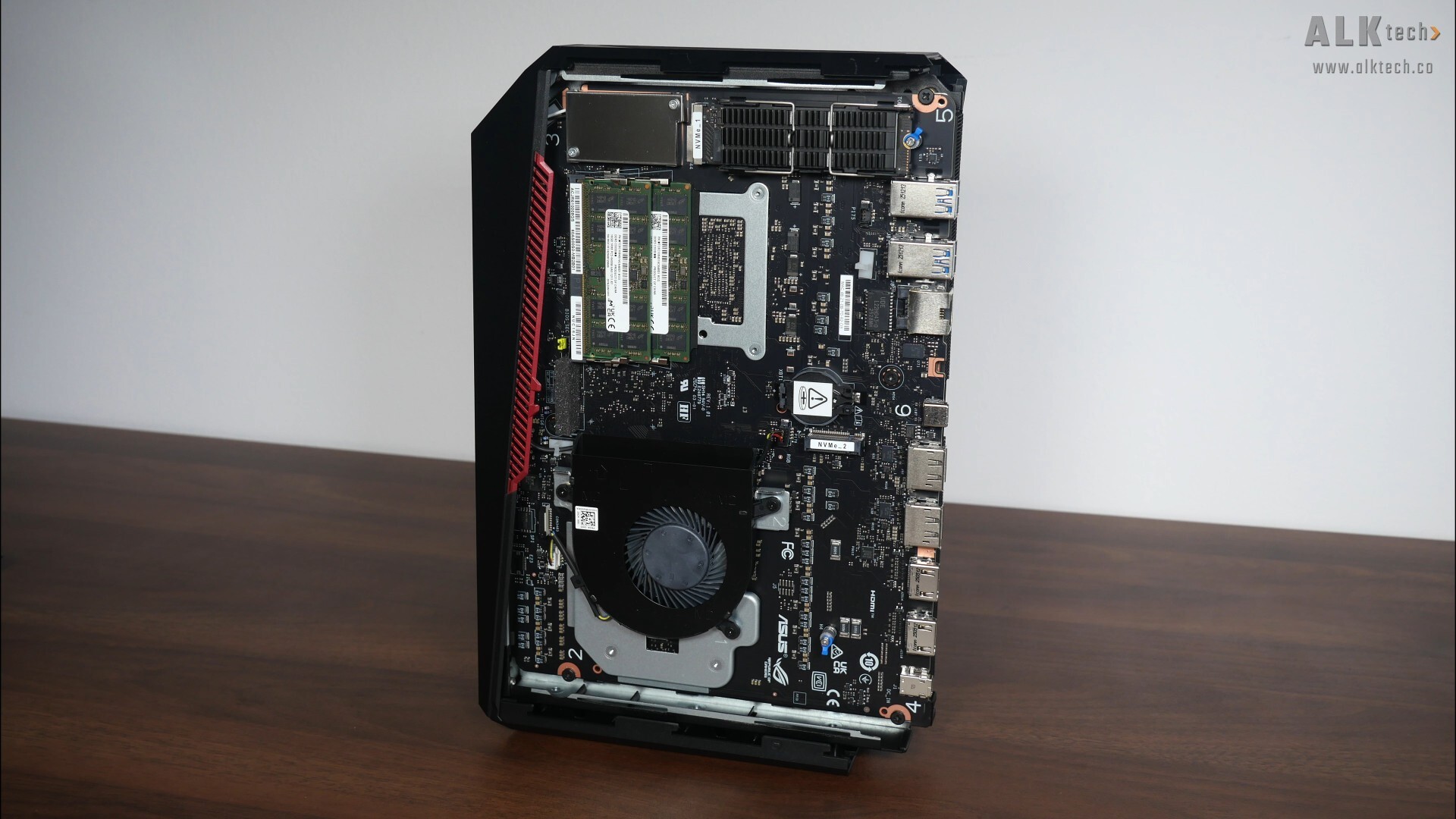
We’ve got the Intel Core Ultra 9 290HX situated beneath a blower-style CPU cooler, and the mini PC comes with two M.2 slots, of which the first slot is populated by the preinstalled SanDisk 2TB NVMe SSD that comes with the ROG NUC 16 as standard.
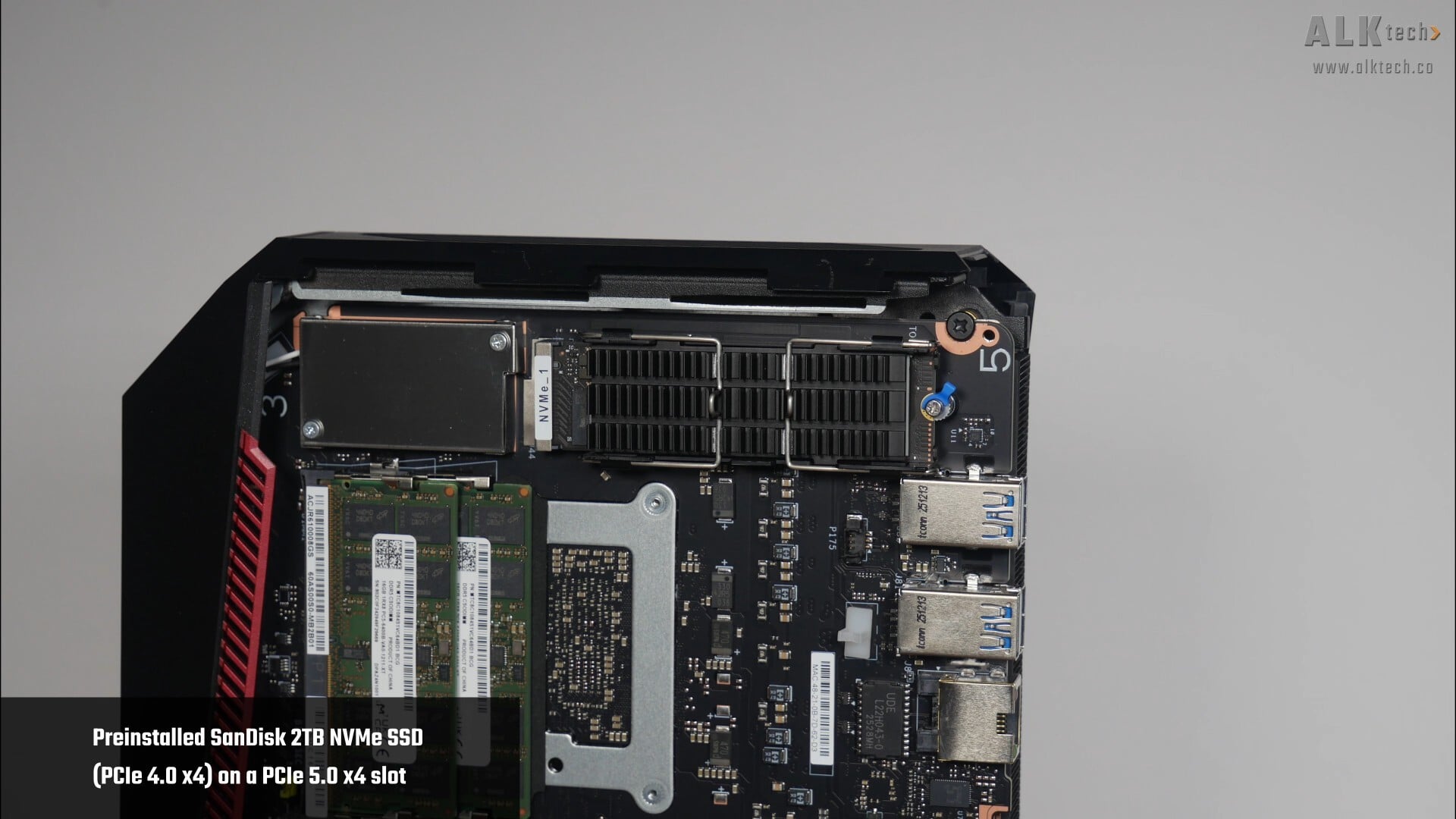
Do note that while the included SanDisk drive is a PCIe 4.0 x4 part, the slot that this drive is installed on is actually a PCIe 5.0 x4 slot, meaning that you can replace it with a Gen 5 drive if you’d like. The other M.2 slot is a PCIe 4.0 x4 slot that can be used for an optional second M.2 NVMe drive.
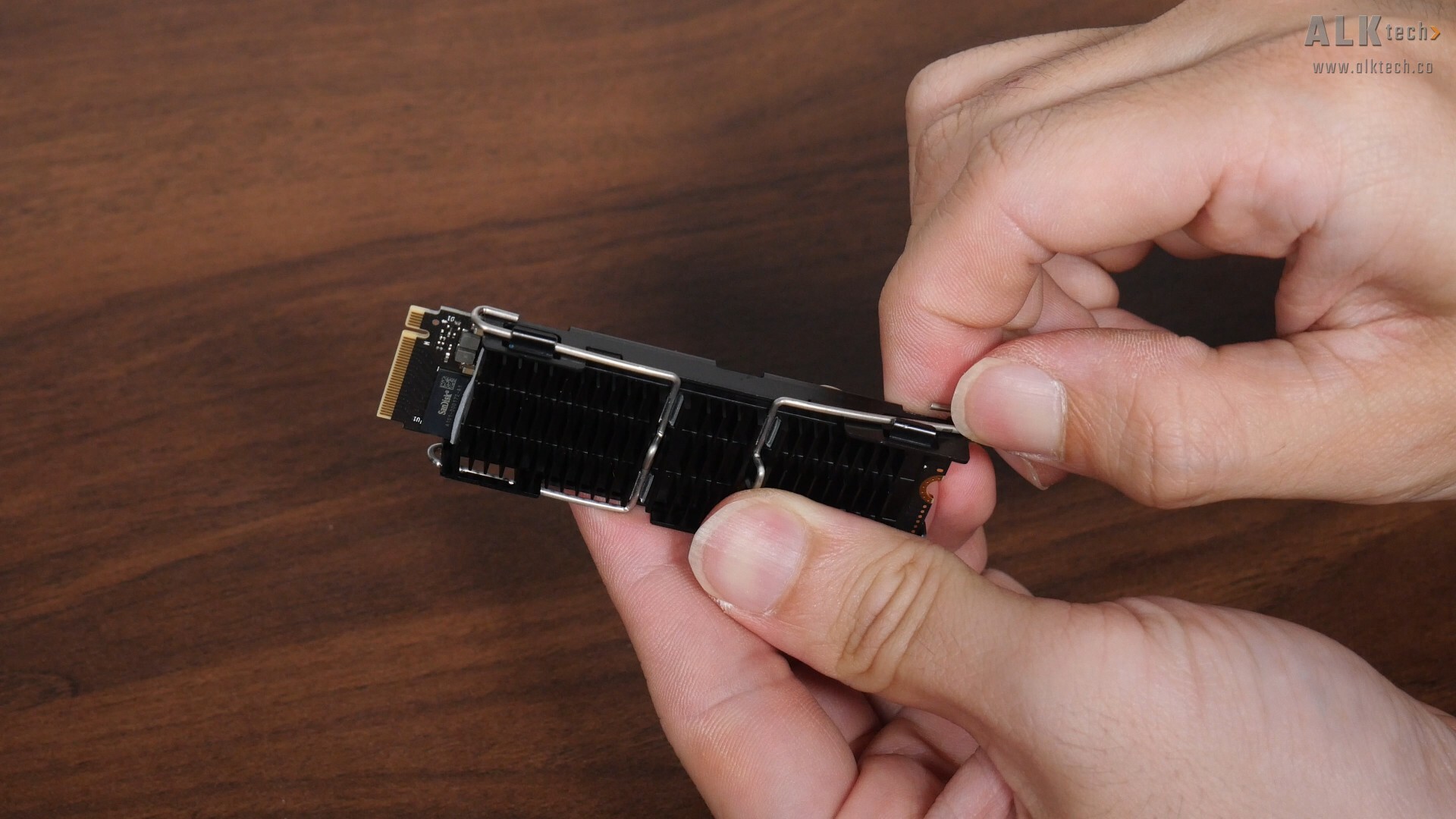
Seeing as PCIe 5.0 drives tend to run pretty hot, it’s great to see that the preinstalled SanDisk SSD comes with a heatsink assembly, despite the said drive not being a Gen 5 drive. The included heatsink assembly’s going to come in useful in keeping SSD temperatures at bay should you choose to upgrade to a PCIe 5.0 M.2 drive in the future. Removing and replacing the preinstalled drive’s pretty straightforward, where it involves undoing the blue-coloured M.2 Q-Latch, and removing the M.2 drive from the slot.
Removing the heatsink assembly’s from the M.2 drive’s quite straightforward too, all you’ve got to do is to undo the heatsink assembly's retention levers from beneath the side hooks of the SSD bracket, and thereafter, lift the heatsink away from the said bracket. With the heatsink out of the way, you can then pry off the preinstalled drive from the SSD bracket.
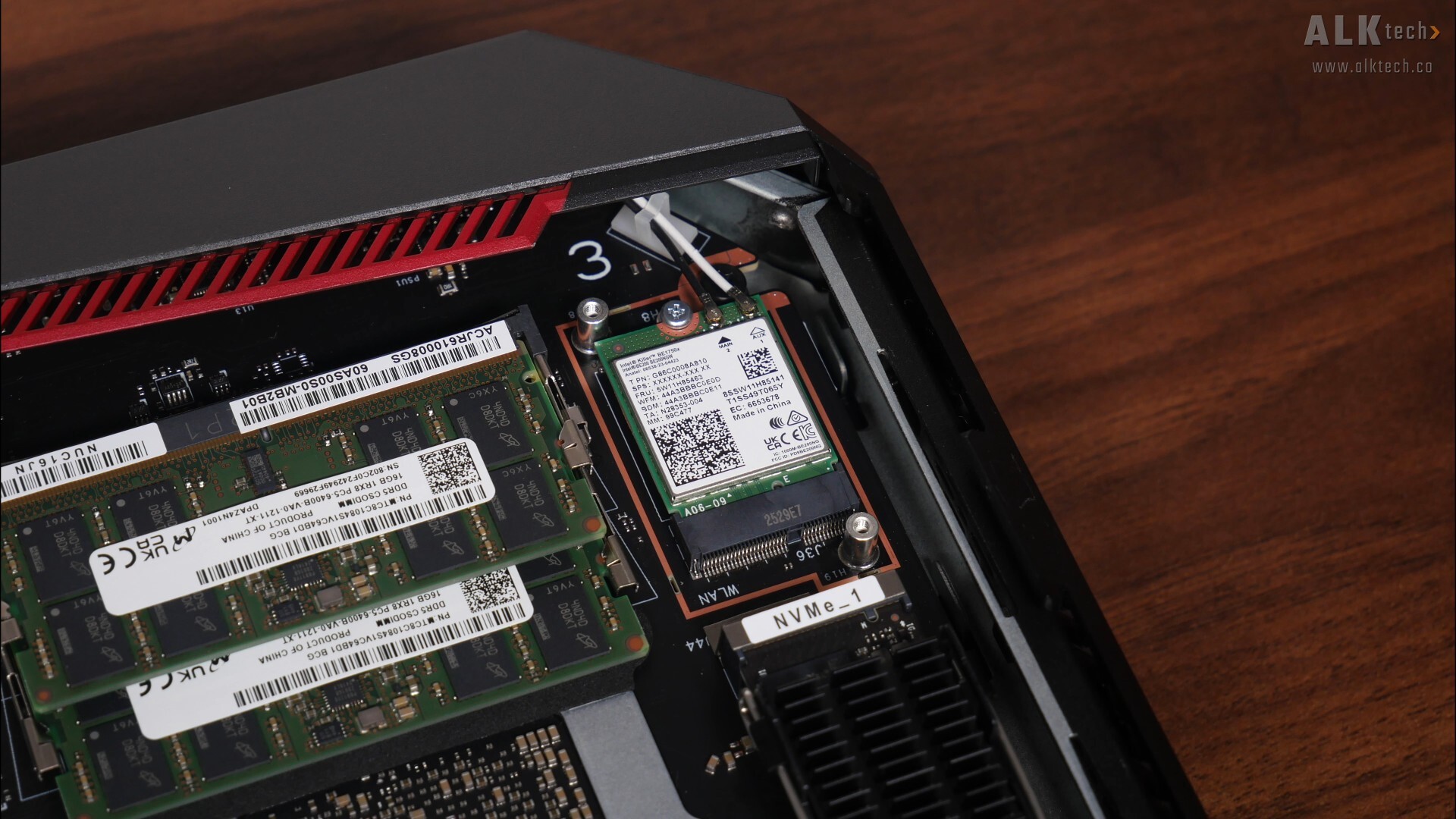
Moving on, in the area shown above is the Intel Killer BE1750X WIFI 7 module, which is located underneath a metal shroud that’s held in place by two screws. As can be seen, the module utilises the M.2 Key E form factor, which means you can upgrade this module to something newer further down the road, say a WIFI 8 module when WIFI 8 becomes commonplace!
Memory support wise, we get two DDR5 SODIMM slots that are pre-populated with two Micron 16GB DDR5 6400 CSODIMM modules for a total of 32GBs of RAM. In case you’re unaware, DDR5 CSODIMMs, unlike standard DDR5 SODIMMS, come with an on-board clock driver to improve signal integrity. As of the time of publishing this review, the ROG NUC 16 supports a maximum of 128GBs of RAM, that is, two 64GB sticks of RAM.
CPU-Z Screenshots
.jpg)
.jpg)
.jpg)
.jpg)
.jpg)
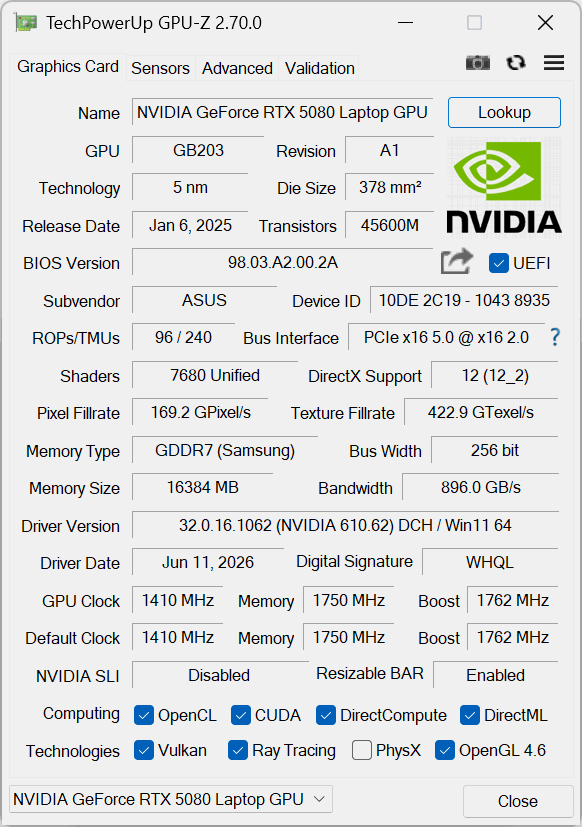
GPU-Z Screenshot
Benchmarks & Test Setup
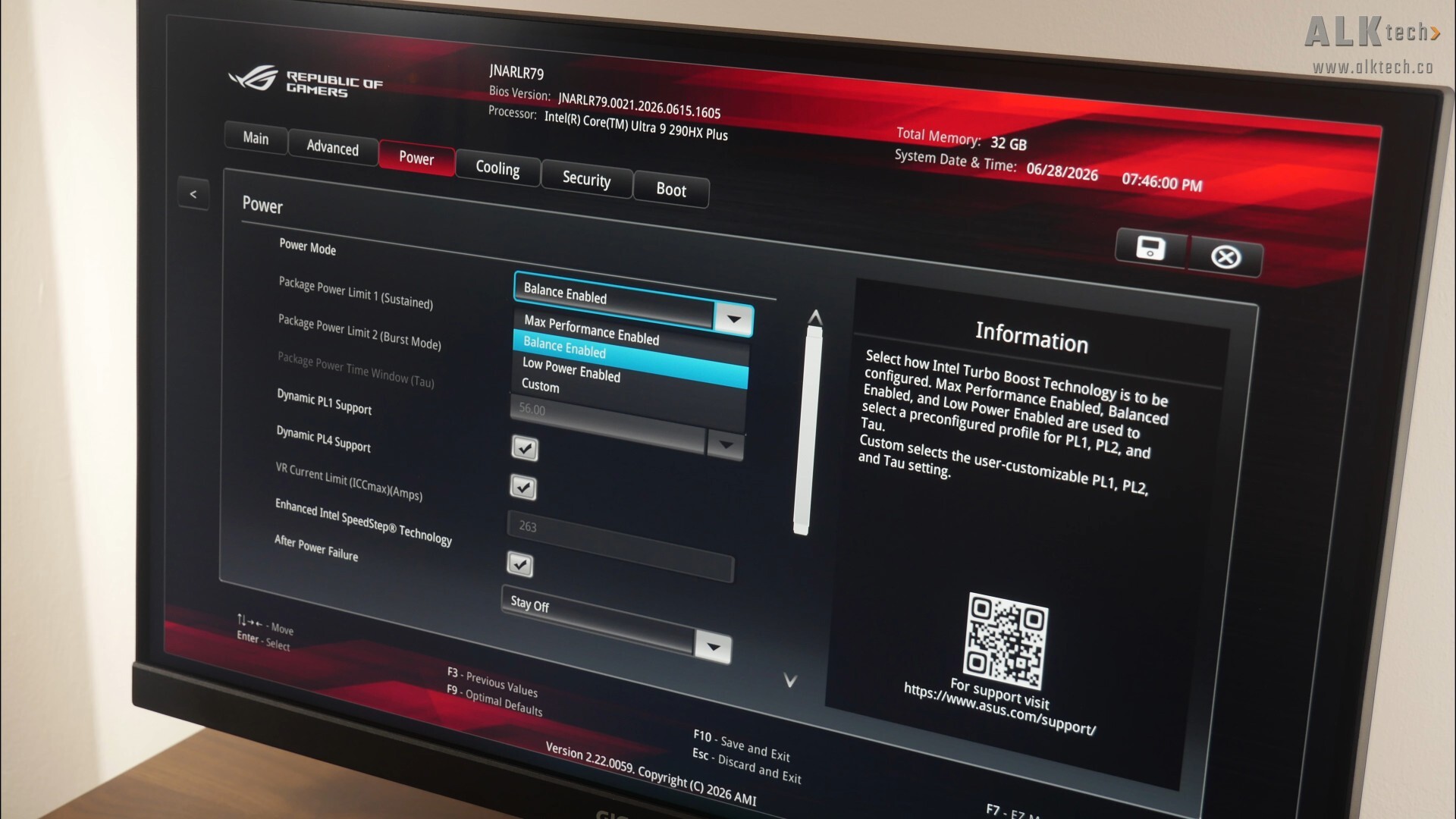
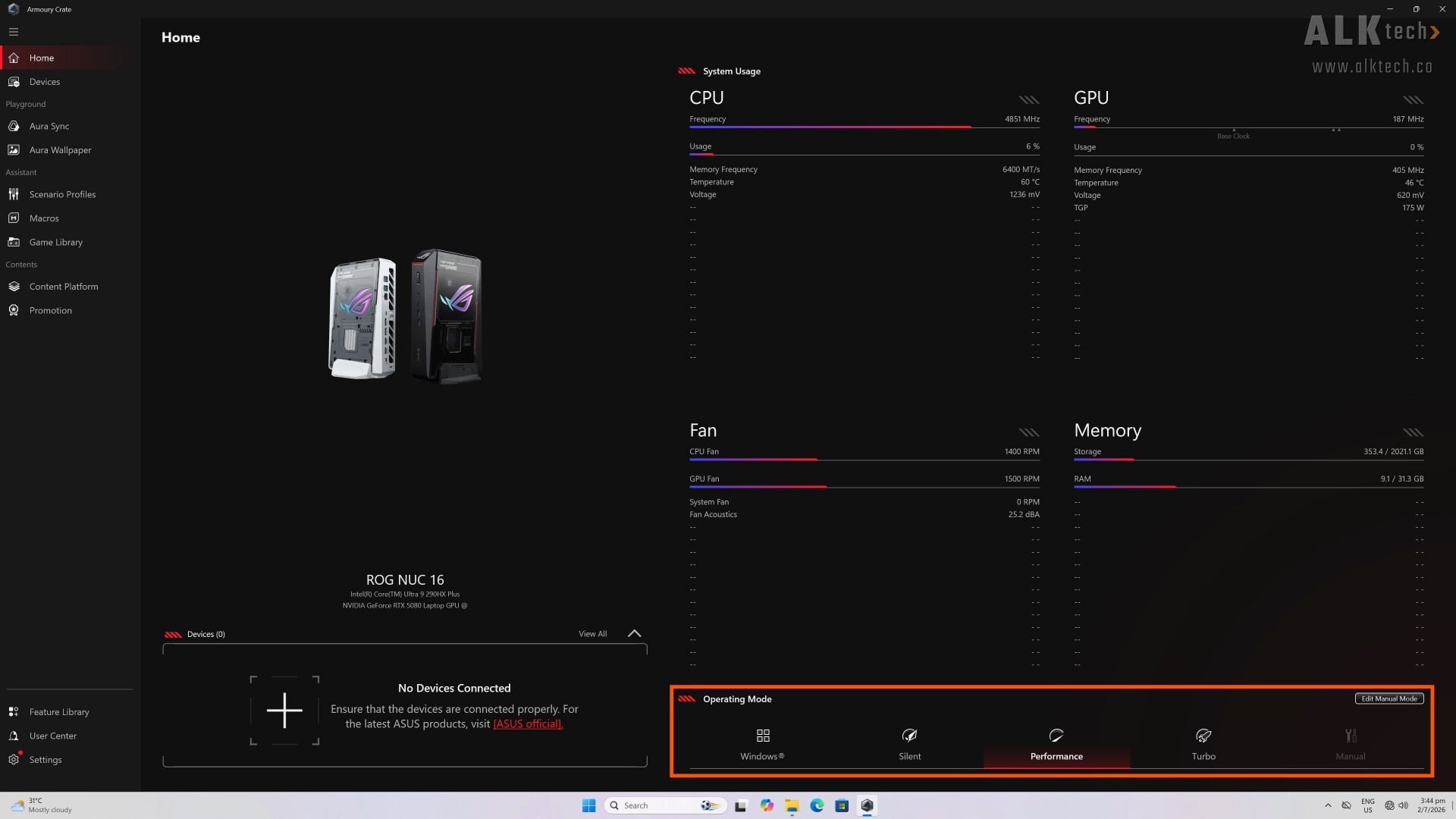
It’s worth noting that ASUS has included several power profiles within the BIOS of the ROG NUC 16 – "Max Performance", "Balance Enabled", which is the default power profile, and "Low Power". Within the ASUS Armoury Crate software within Windows, we also get a section for tweaking Operating Modes, where "Performance" is the default setting. For the purposes of testing the ROG NUC 16, I’ll be running all tests on the default "Performance" mode in Armoury Crate, and in terms of BIOS settings, I’ve left the power mode on the default "Balance Enabled" setting.
Also, I’ll be testing the ROG NUC 16 in the horizontal orientation, which apparently enables better cooling compared to the vertical orientation.
To put the ROG NUC 16 through its paces, the following benchmarks were run:
Synthetic Benchmarks
- 7-Zip Compression & Decompression
- Cinebench 2024
- Cinebench R23
- CrystalDiskMark 9.0.2
Gaming Benchmarks (4k & 1440p)
- Black Myth Wukong Benchmark Tool
- Cyberpunk 2077 v2.31 In-game Benchmark
- F1 23 In-Game Benchmark
- Shadow of the Tomb Raider In-game Benchmark
The PC was tested on the 0021 BIOS release, with no tweaks made to the stock BIOS settings. All the latest Windows updates were installed at the point of testing, and benchmark runs were conducted in a non-airconditioned room with an ambient temperature of 30°C.
7-Zip Compression & Decompression
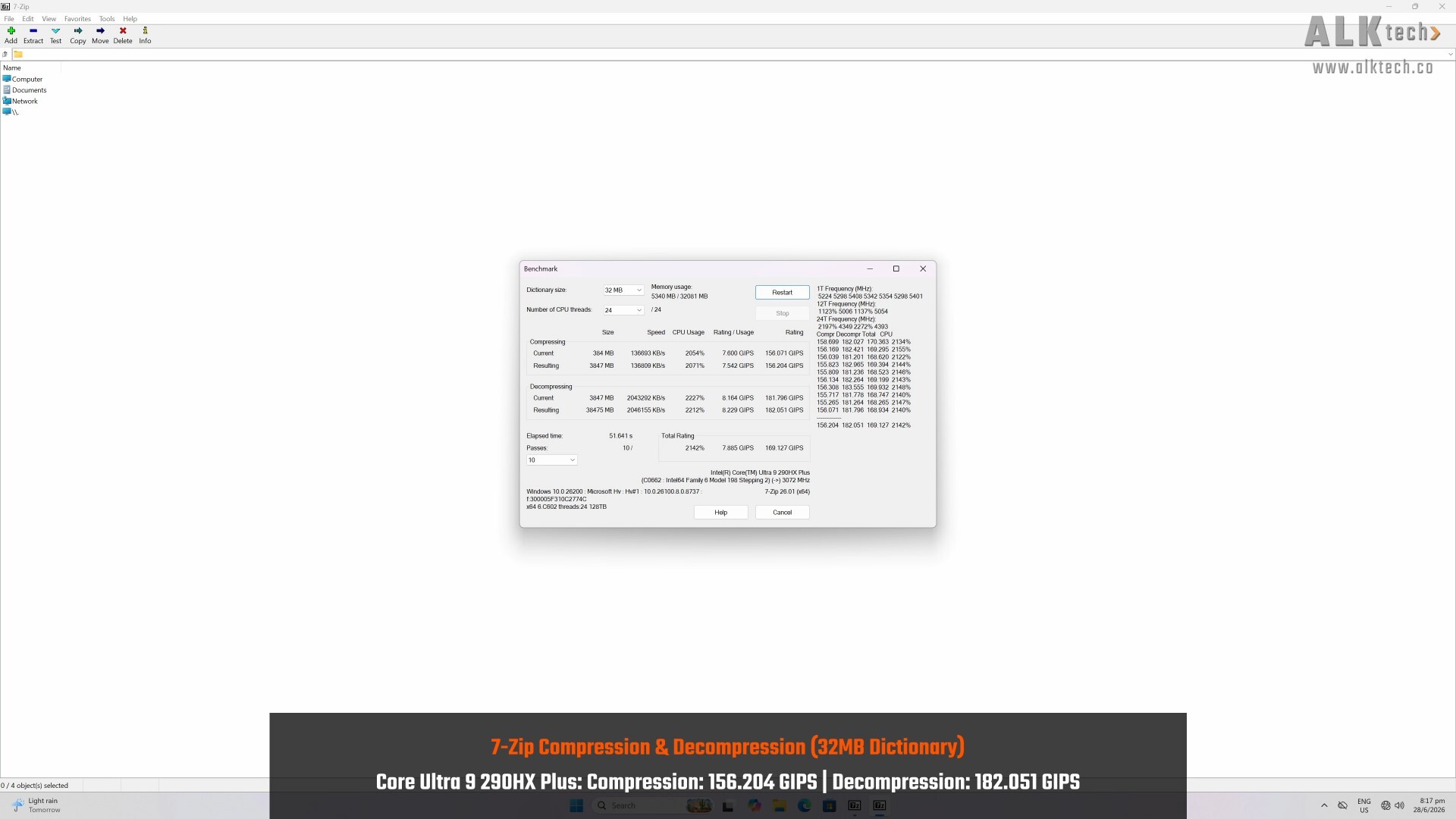
Kicking things off in the benchmarks section is 7-Zip's Compression & Decompression test, where the Core Ultra 9 290HX Plus processor achieves a compression score of 156.204 GIPS and a decompression score of 182.051 GIPS.
Cinebench 2024
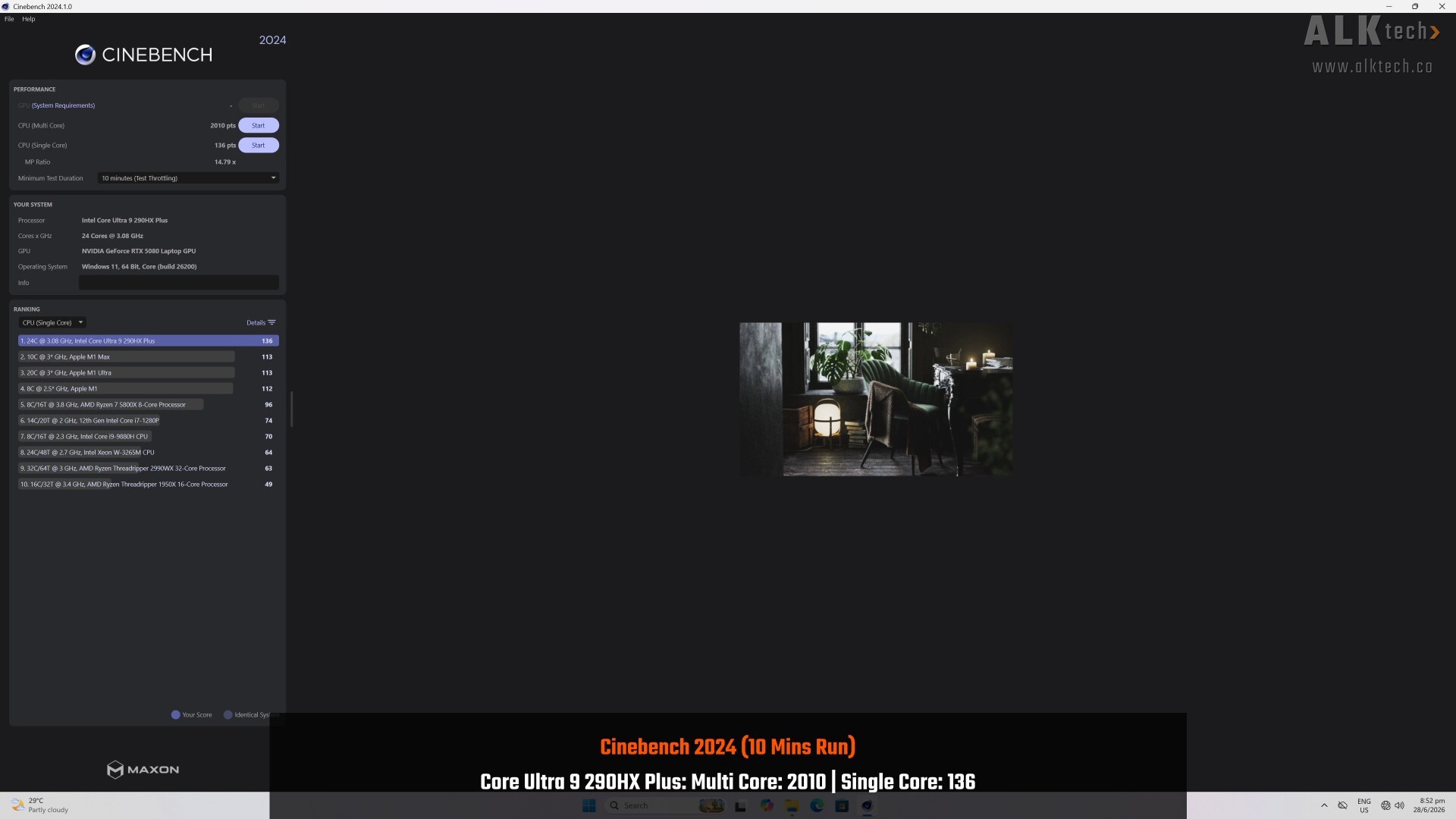
With CInebench 2024, the ROG NUC 16 achieves a multi core score of 2010 and a single core score of 136.
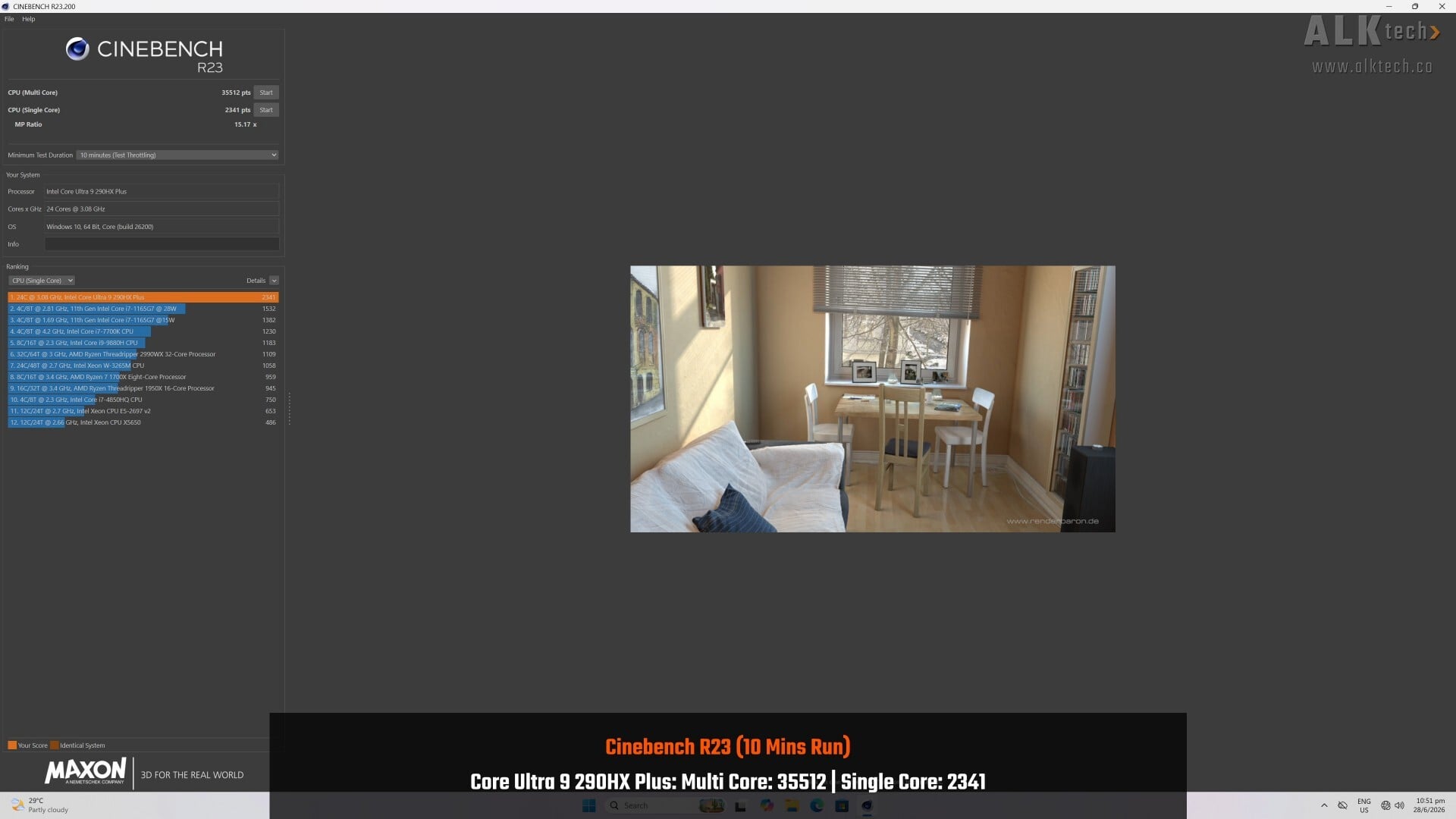
Moving on to CInebench R23, the ROG NUC 16 achieves a multi core score of 35512 and a single core score of 2341.
CrystalDiskMark 9.0.2
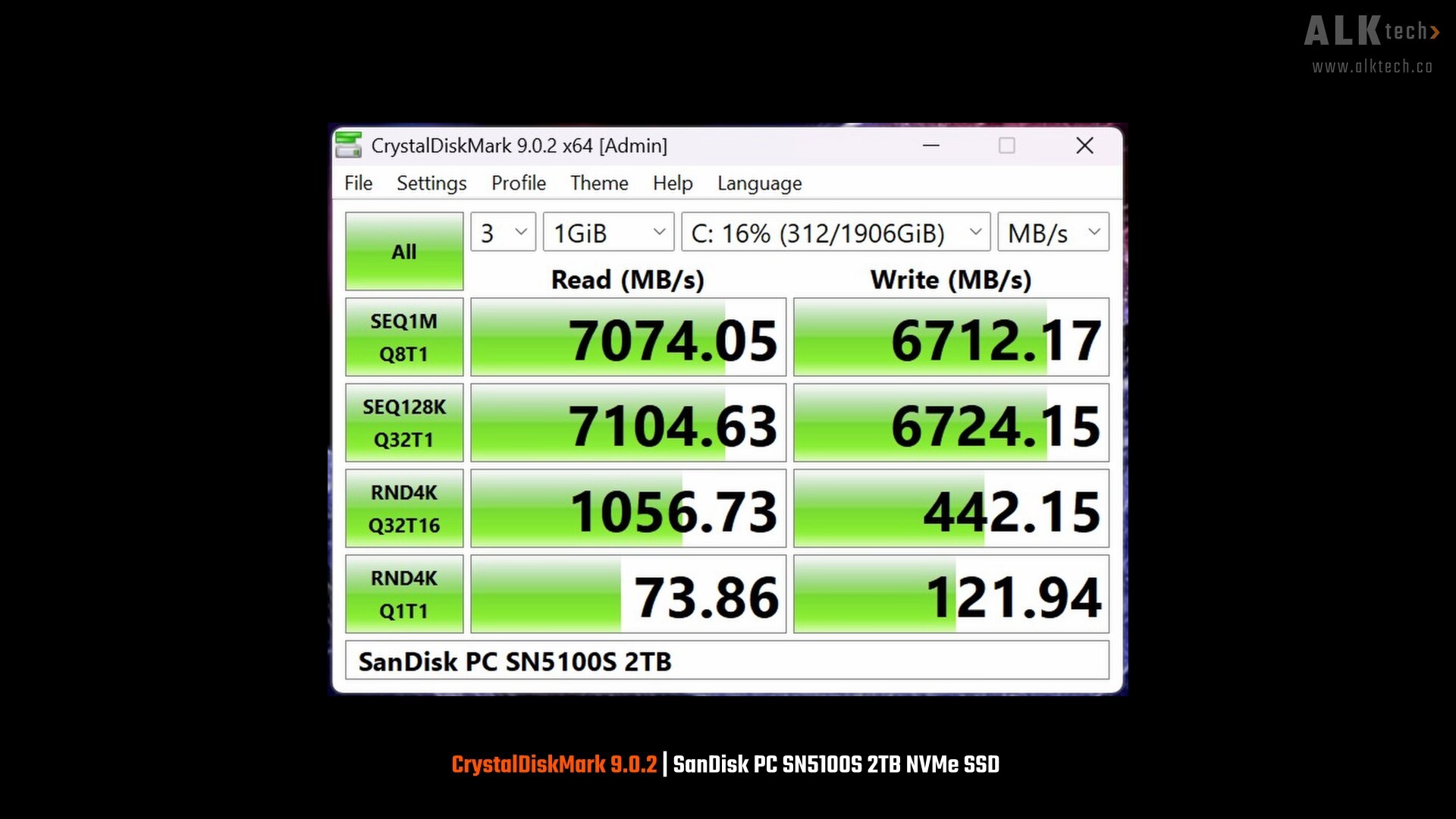
Do note that SanDisk advertises the PC SN5100S SSD to have a sequential read speed of up to 7300MB/s and a sequential write speed of up to 6700MB/s, where the drive's performance is not too far off from the mark based on the results shown above.
Black Myth Wukong Benchmark Tool
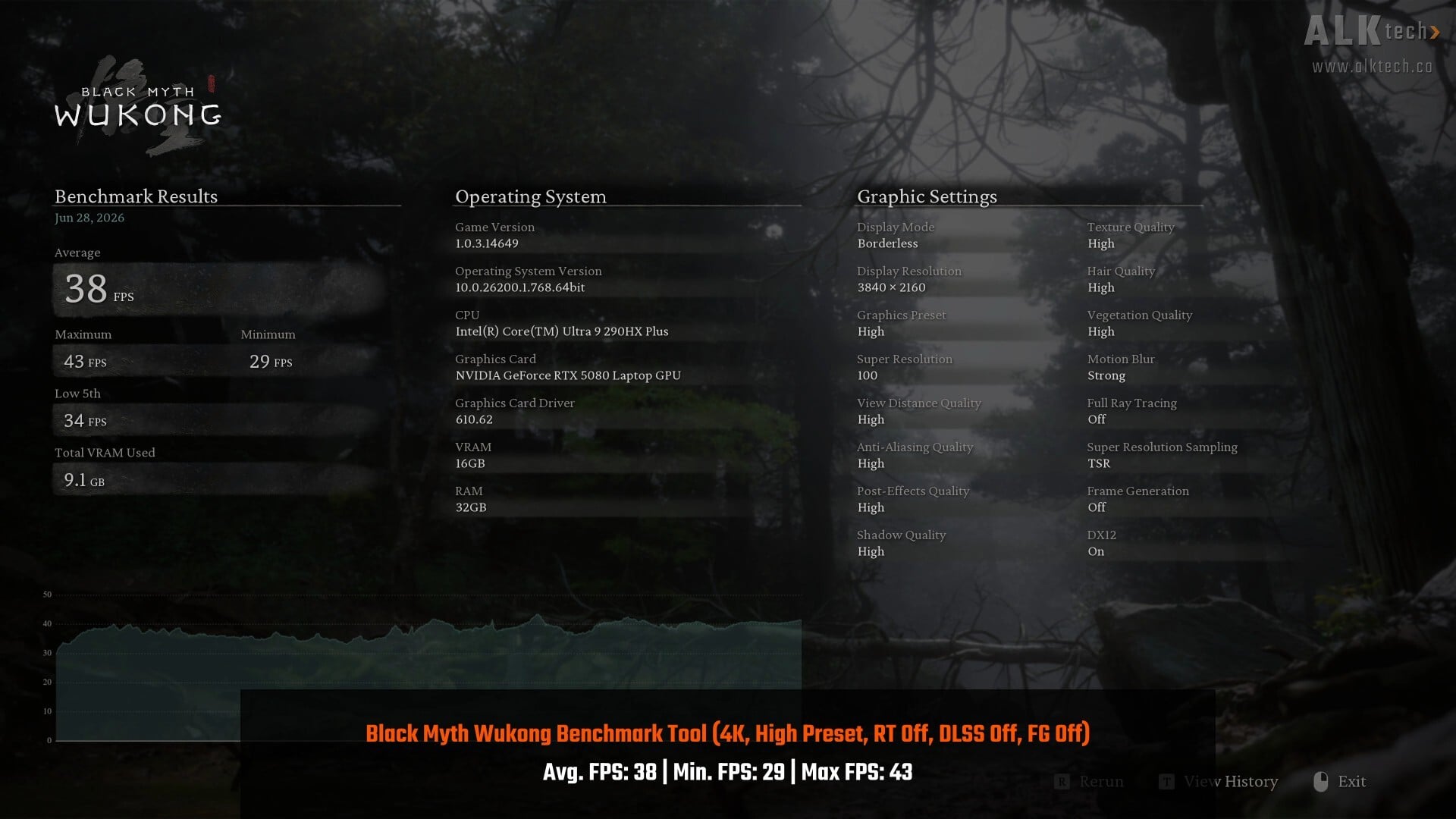
With the Black Myth Wukong Benchmark Tool on the 4K resolution, the ROG NUC 16 achieved an average FPS of 38, a minimum FPS of 29 and a maximum FPS of 43. These results were obtained on the "High" preset with ray tracing switched off, and Super Resolution set to "100" with TSR as the sampling mode (i.e. DLSS was disabled). Frame Generation was also disabled for the duration of the benchmark.
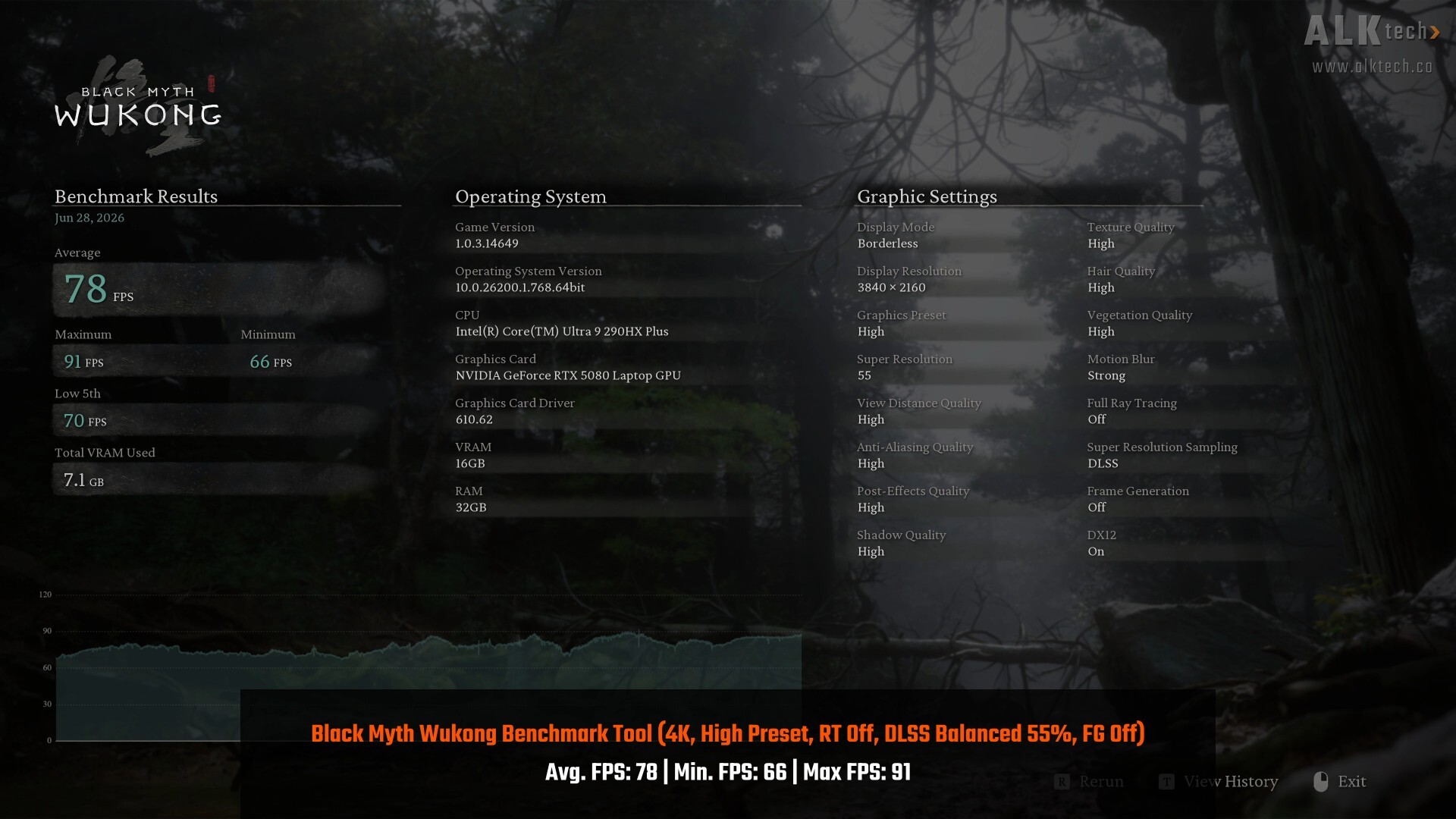
With DLSS enabled and set to 55% however, we see a significant uplift in performance, with an average FPS of 78, a minimum FPS of 66 and a maximum FPS of 91.
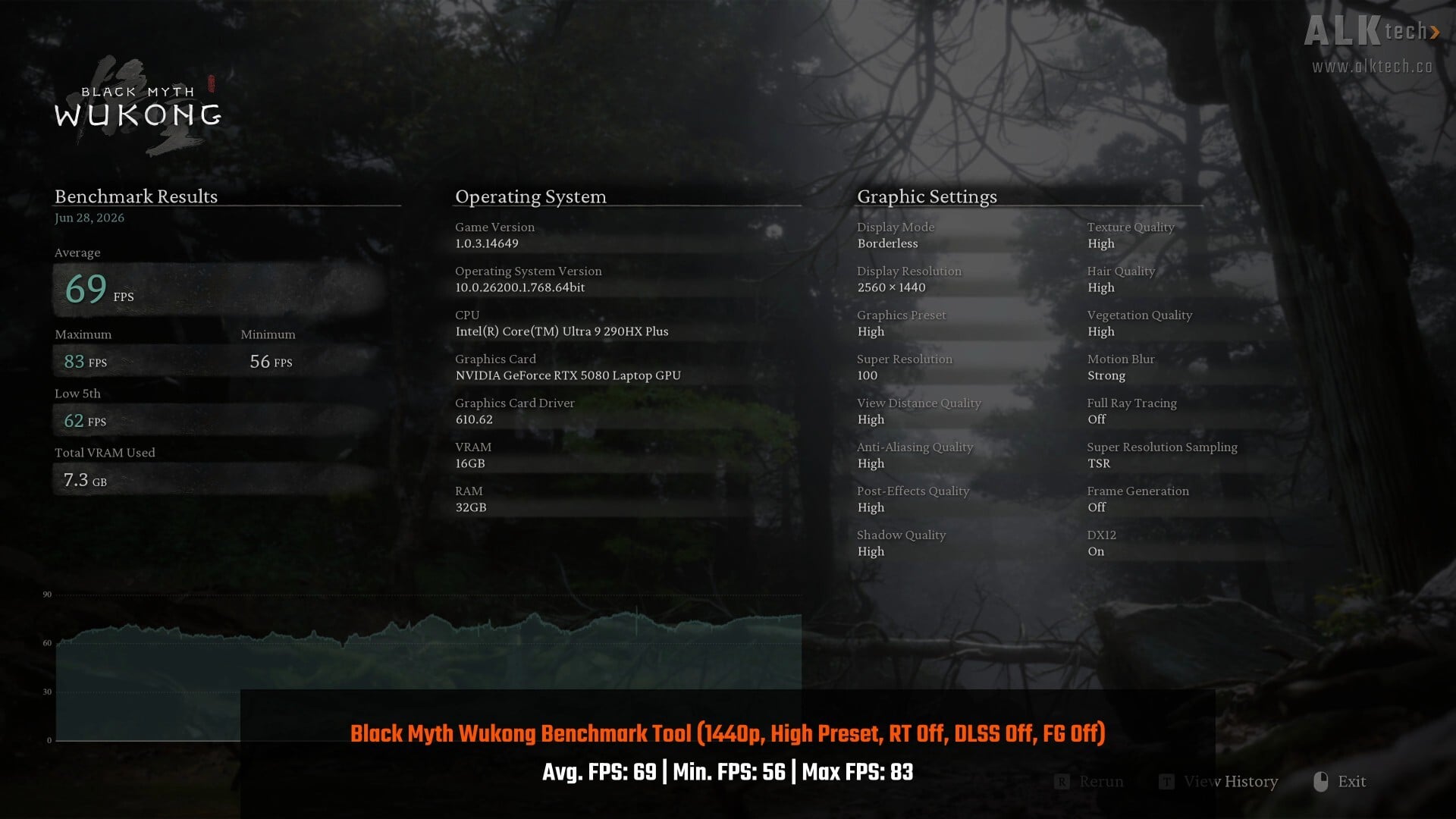
On the 1440p with the same graphics quality settings as the 4K run, and DLSS disabled, the ROG NUC 16 achieves an average FPS of 69, a minimum FPS of 56 and a maximum FPS of 83. With DLSS enabled at 55% on the same High preset, we once again get a healthy FPS uplift, with an average FPS of 114, a minimum FPS of 86 and a maximum FPS of 139.
Cyberpunk 2077 v2.31 In-game Benchmark
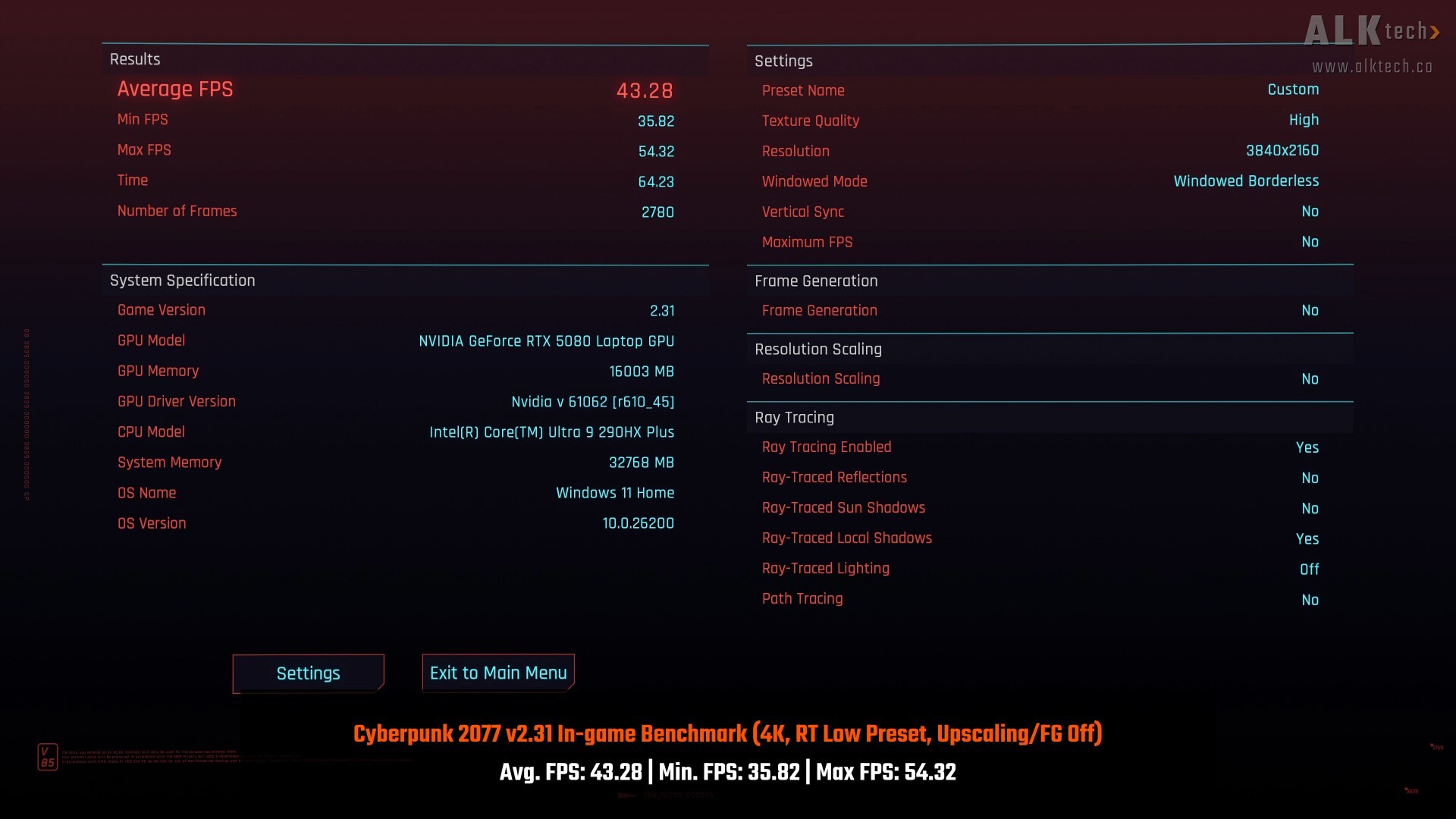
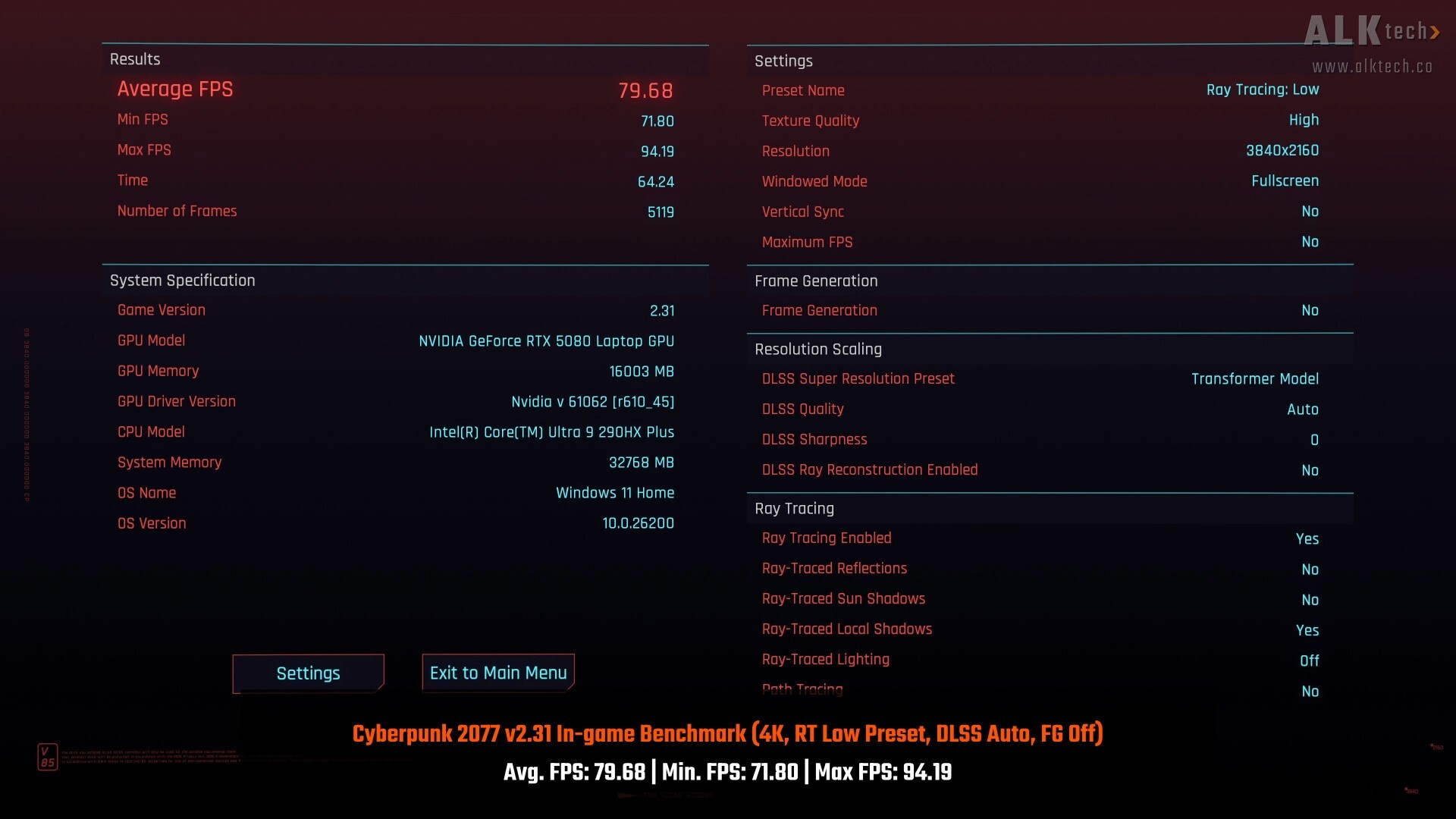
Next up is Cyberpunk 2077 v2.31's in-game benchmark test, where the ROG NUC 16 achieves an average FPS of 43.28, a minimum FPS of 35.82 and a maximum FPS of 54.32 on the 4K resolution with the Ray Tracing Low preset and DLSS and Frame Generation disabled. With DLSS set to "Auto" while keeping Frame Generation disabled, the average FPS figure went up to 79.68, with a minimum FPS of 71.80 and a maximum FPS of 94.19.
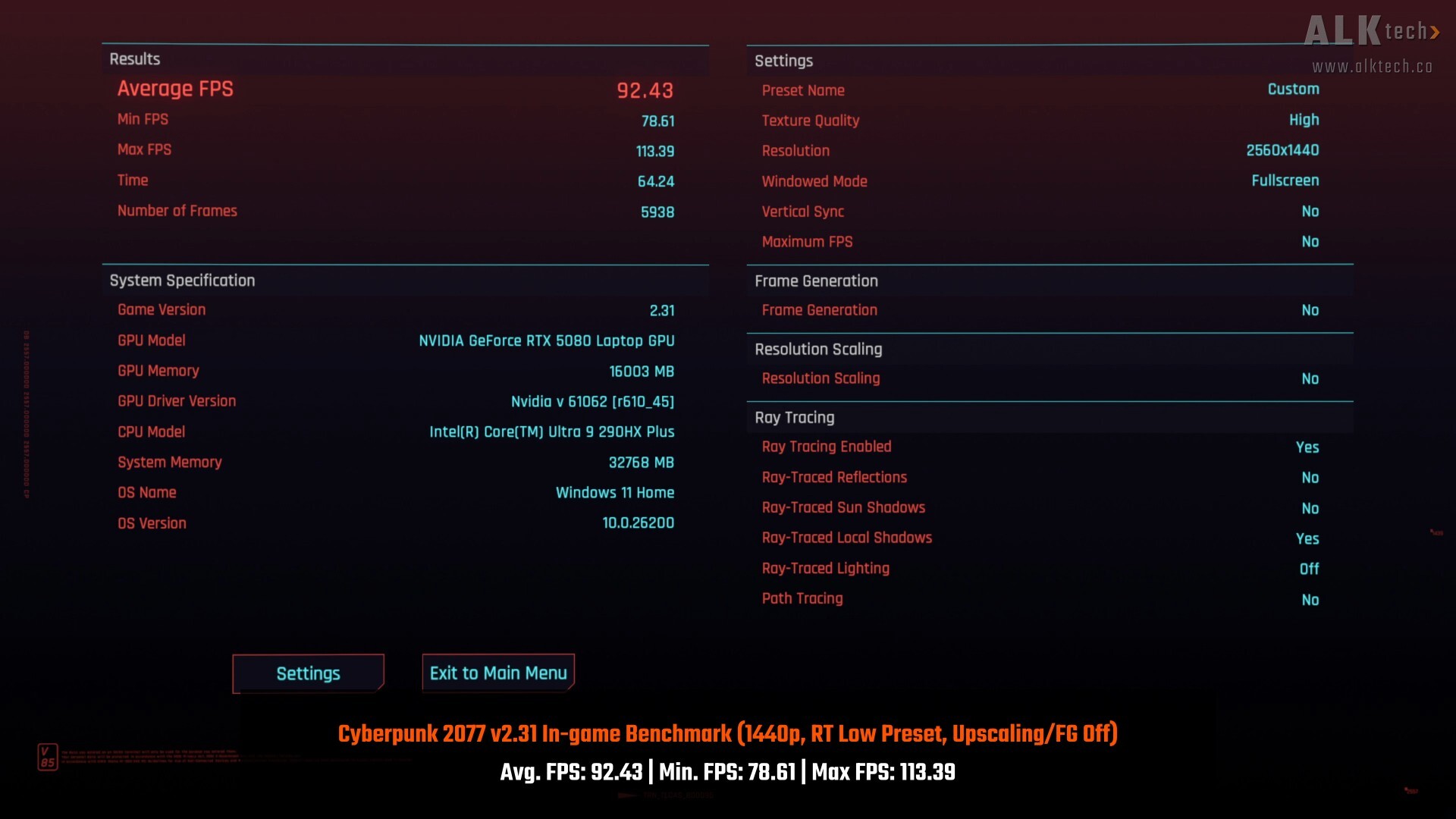
Notching the resolution down to 1440p while retaining the same graphics quality settings and keeping DLSS/frame generation disabled, the ROG NUC 16 achieves an average FPS of 92.43, a minimum FPS of 78.61 and a maximum FPS of 113.39. With DLSS set to "Auto", the average FPS figure increases to 131.60, with a minimum FPS of 114.60 and a maximum FPS of 156.74.
F1 23 In-game Benchmark
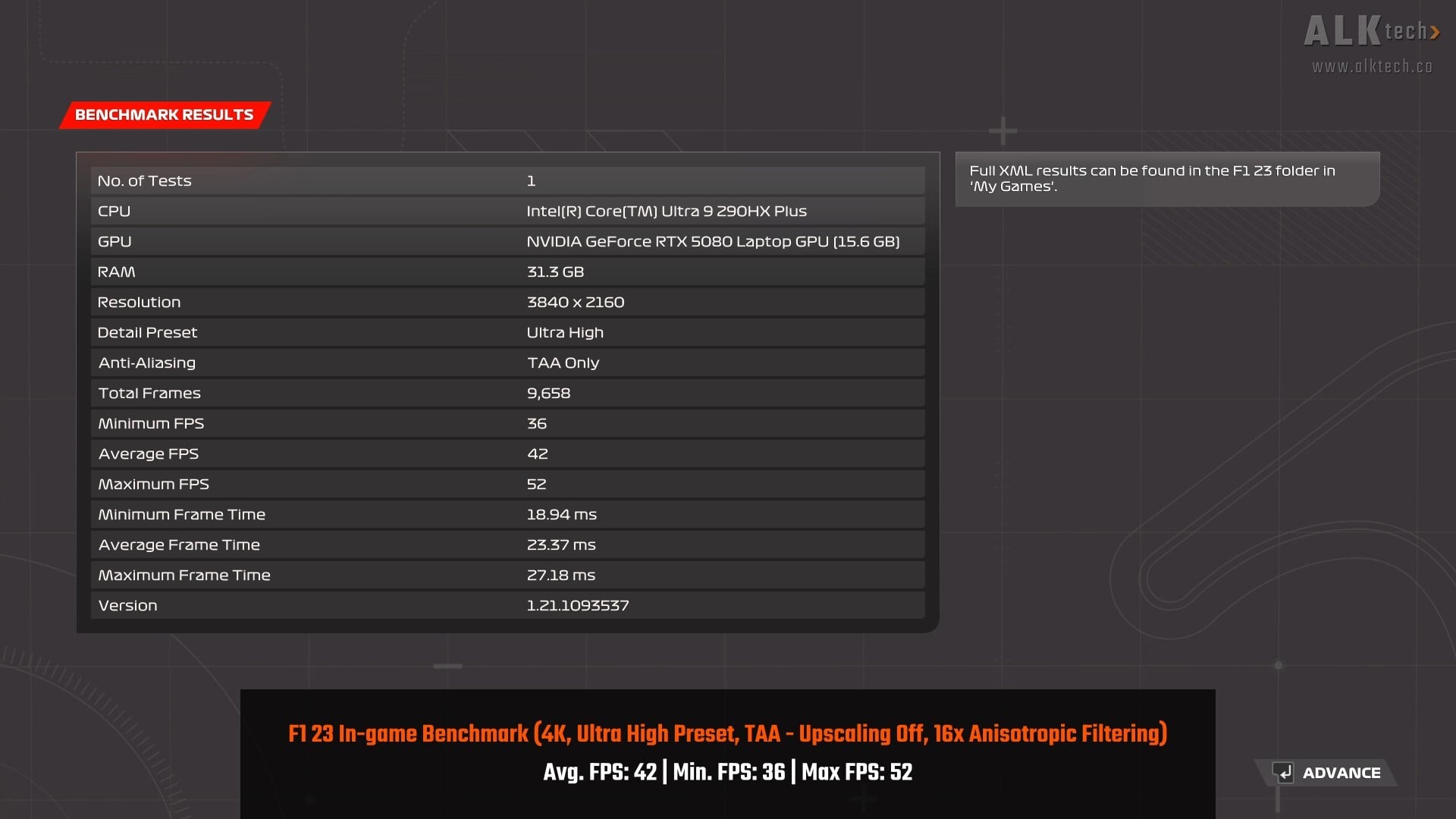
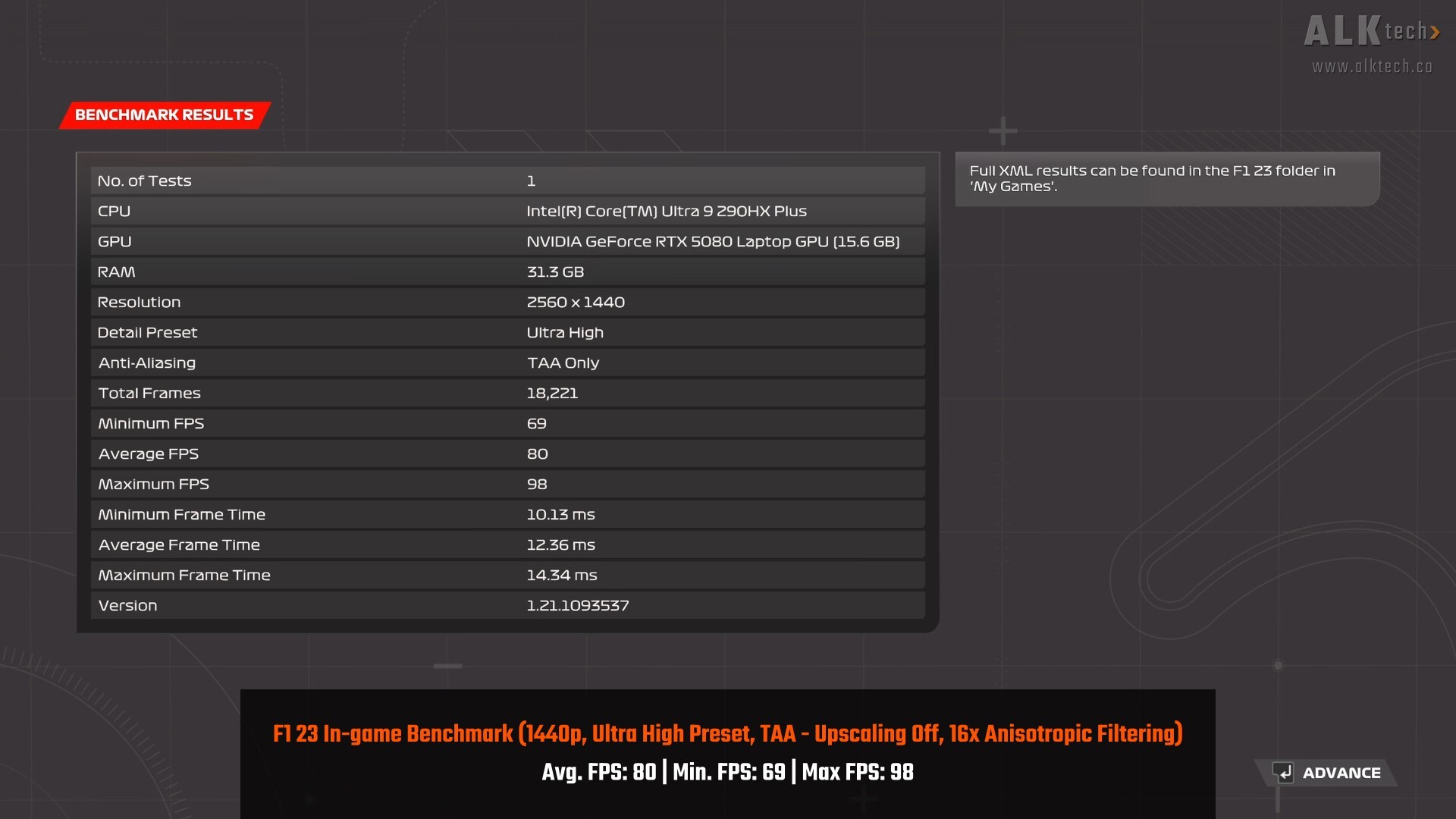
With F1 23's in-game benchmark, the ROG NUC 16 puts out an average FPS of 42, a minimum FPS of 36 and a maximum FPS of 52 on the 4K resolution, as well as an average FPS of 80, a minimum FPS of 69 and a maximum FPS of 98 when on the 1440p resolution. These results were obtained on the "Ultra High" detail preset with all forms of upscaling technologies (e.g. DLSS) disabled. Anisotropic Filtering was set to the "16x" setting.
Shadow of the Tomb Raider In-game Benchmark
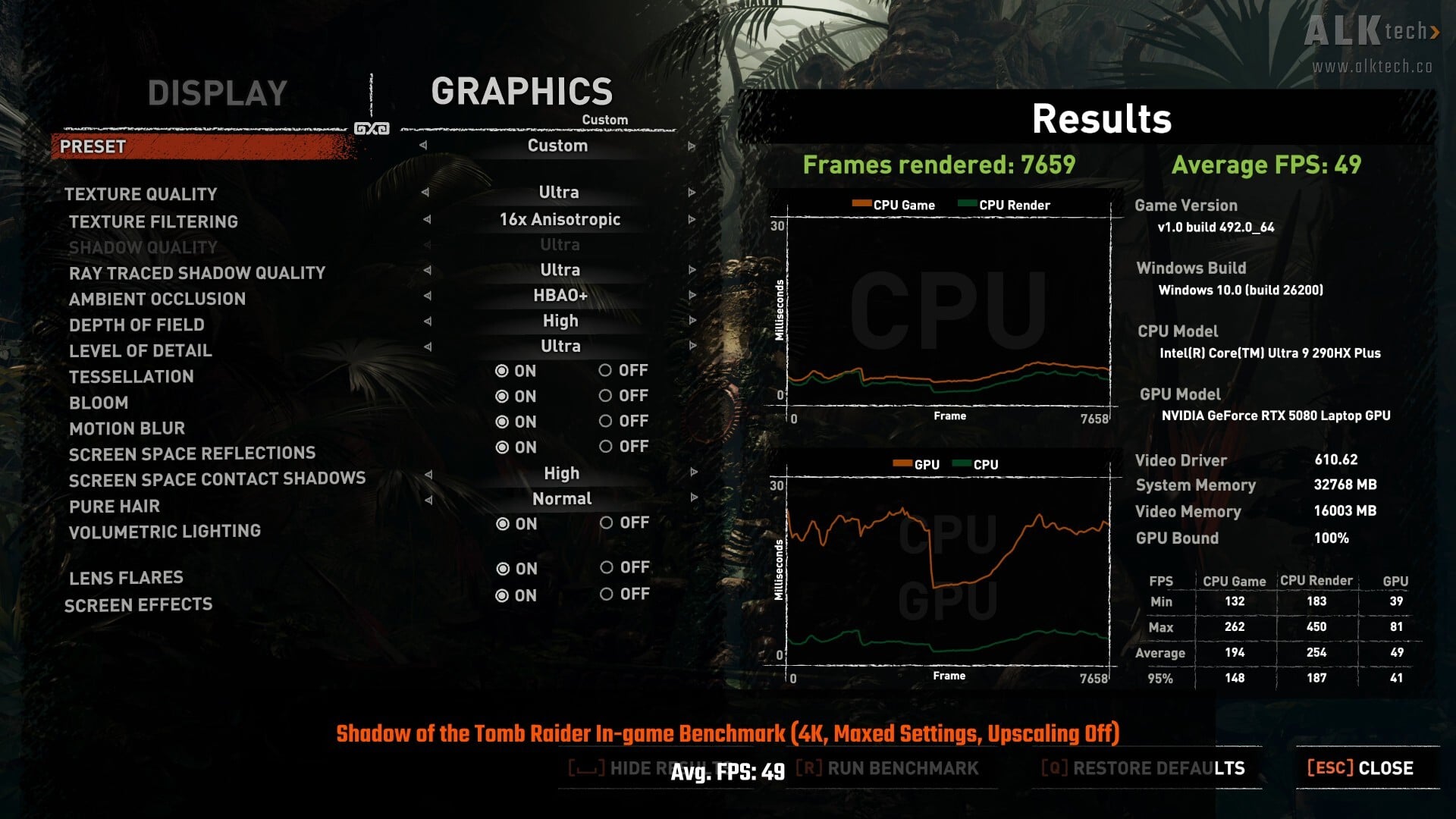
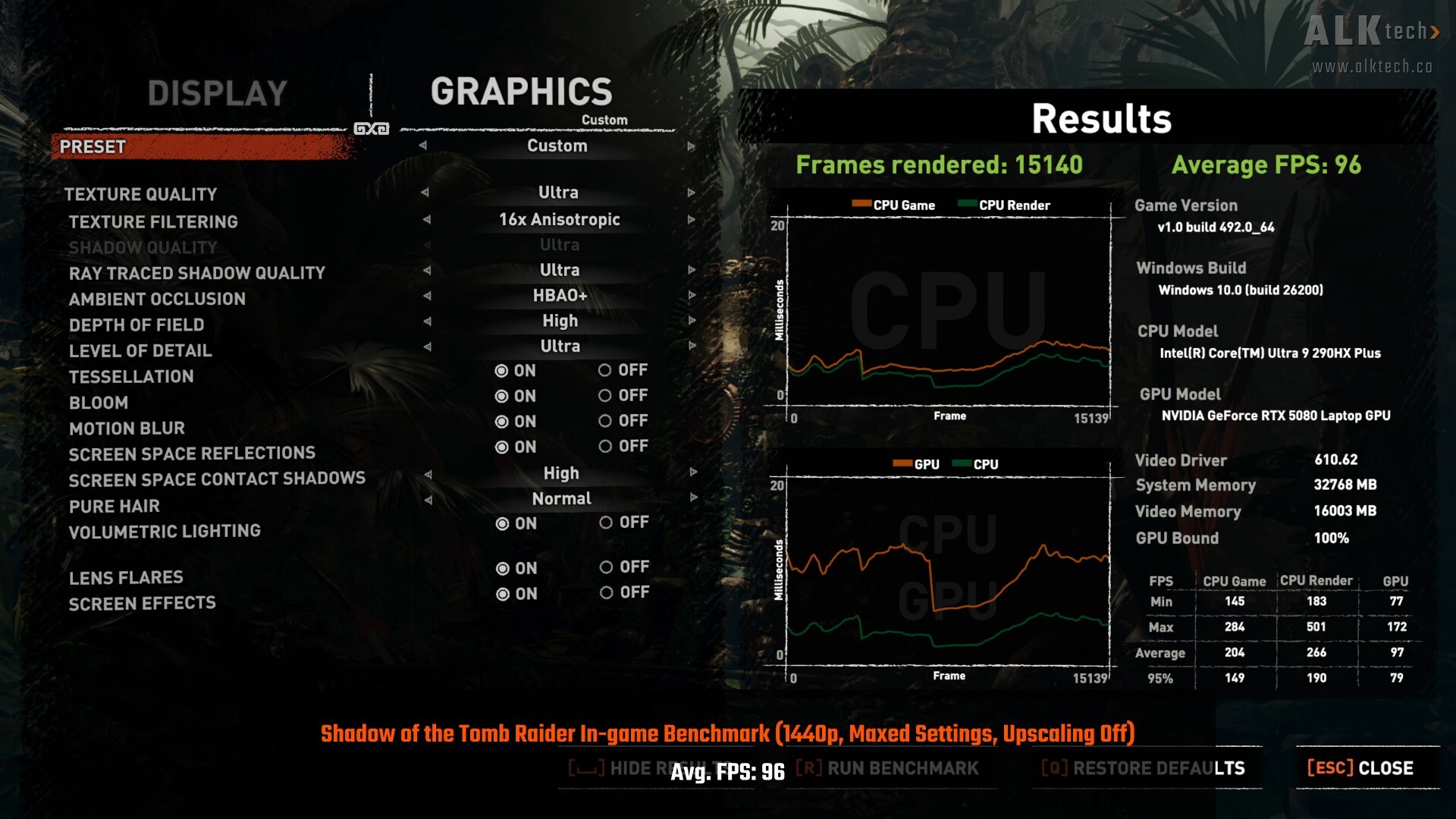
Rounding things off in the benchmarks section is Shadow of the Tomb Raider's in-game benchmark tool, where the ROG NUC 16 achieves an average FPS of 49 on the 4K resolution and an average FPS of 96 on the 1440p resolution. These results were achieved on maxed-out graphics settings with "Ultra" ray tracing and all forms of upscaling disabled.
Power Consumption, Thermals & Acoustics
Under Load [F1 23 In-game Benchmark, 4K, Ultra High Detail Preset, TAA, 16x AF, DLSS Off, Singapore Circuit, Five Laps (~9 minutes)]
• Avg. CPU Package Temperature: 82.5°C
• Max. CPU Package Temperature: 104.0°C
• Avg. CPU Package Power: 46.9W
• Max. CPU Package Power: 72.0W
• Avg. GPU Temperature: 76.3°C
• Max. GPU Temperature: 79.3°C
• Avg. GPU Memory Junction Temperature: 79.5°C
• Max. GPU Memory Junction Temperature: 82.0°C
• Avg. GPU Power: 173.0W
• Max. GPU Power: 173.7W
Idle
• Avg. CPU Package Temperature: 62.3°C
• Avg. CPU Package Power: 18.1W
• Avg. GPU Temperature: 46.1°C
• Avg. GPU Memory Junction Temperature: 54.0°C
• Avg. GPU Power: 10.2W
The temperature and power figures above were obtained from HWiNFO64 sensor readouts in a non-airconditioned room with an ambient temperature of around 30°C.
A brief note on acoustics, the ROG NUC 16 was audible under gaming/productivity workloads, but not to the point that I'd consider it noisy. In a room with around 48.7db of ambient noise levels, my decibel meter recorded 49.6db of noise when the ROG NUC 16 was idle, and 51.9db of noise when under a typical gaming workload.
The results above were obtained on the "Balance Enabled" BIOS power mode and "Performance" Armoury Crate operating mode.
Conclusion& Pricing
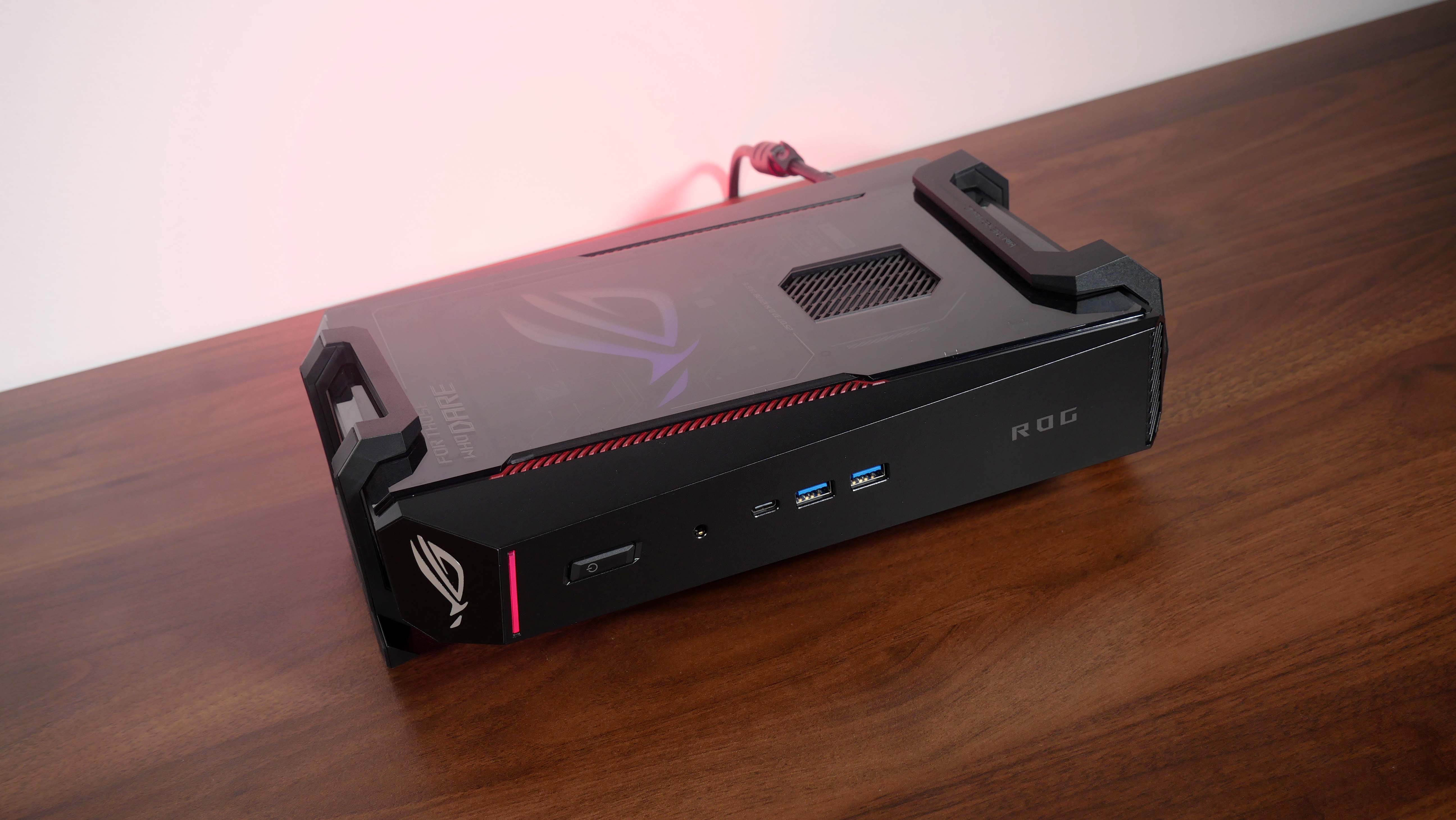
To sum up, the ASUS ROG NUC 16 represents a minor step-up in performance over the ROG NUC (2025) that’s powered by the Core Ultra 9 275HX, which is unsurprising really, given that the Core Ultra 9 290HX in the ROG NUC 16 is basically a Core Ultra 9 275HX with higher clock speeds. Taken in a vacuum, the ROG NUC 16 is a premium mini PC offering that is well-suited for gaming at decent framerates at the 1080p and 1440p resolution – given its performance, 4K gaming is definitely possible, but be prepared to turn down the graphics settings a bit, or enable DLSS or Frame Generation so as to get a FPS uplift.
Seeing as the ROG NUC 16 has a near-identical chassis design as the ROG NUC (2025), once again, it’s relatively well-built and comes with a good assortment of I/O options. Unfortunately, thermal performance is not the best though, where CPU temperatures were relatively high when under gaming and productivity workloads.
As of the time of publishing this review, retail availability for the ROG NUC 16 is expected to be sometime in the third quarter of 2026, and while I don’t have any price information on hand yet, I’m expecting the ROG NUC 16 to cost a pretty penny, seeing as 1) this is a ROG product after all and 2) RAM and SSD prices are still at all-time highs thanks to the AI datacenter boom. The most obvious alternative here could be to build your own gaming PC in the ITX form factor, and in all likelihood, you’d be able to build something with much better specs for the same price.
However, if budget is of no concern to you, you’re a fan of the ROG brand and you appreciate the convenience of a powerful mini gaming PC that’s ready-to-go out of the box, then I suppose the ROG NUC 16 would be worthy of your consideration.
Get this mini PC from Amazon: https://amzn.to/4p2wIRv
ALKtech may earn commissions from qualifying purchases made using affiliate links, at no extra cost to you as a customer. These commissions go a long way in supporting the platform!
The mini PC featured in this article was a review unit provided on loan from ASUS Singapore.,